
Opening Task Manager on a Windows 11 PC and seeing the CPU working hard — even when nothing appears to be running — can be unsettling. Fans spin up, percentages jump, and it feels like the system is doing something it shouldn’t.
High CPU usage at idle often looks like a problem. In many cases, though, it’s simply Windows taking advantage of a quiet moment to do background work. Understanding what “idle” really means — and where the line sits between normal behaviour and a genuine issue — makes it much easier to know whether you need to take action.
What “Idle” Actually Means in Windows
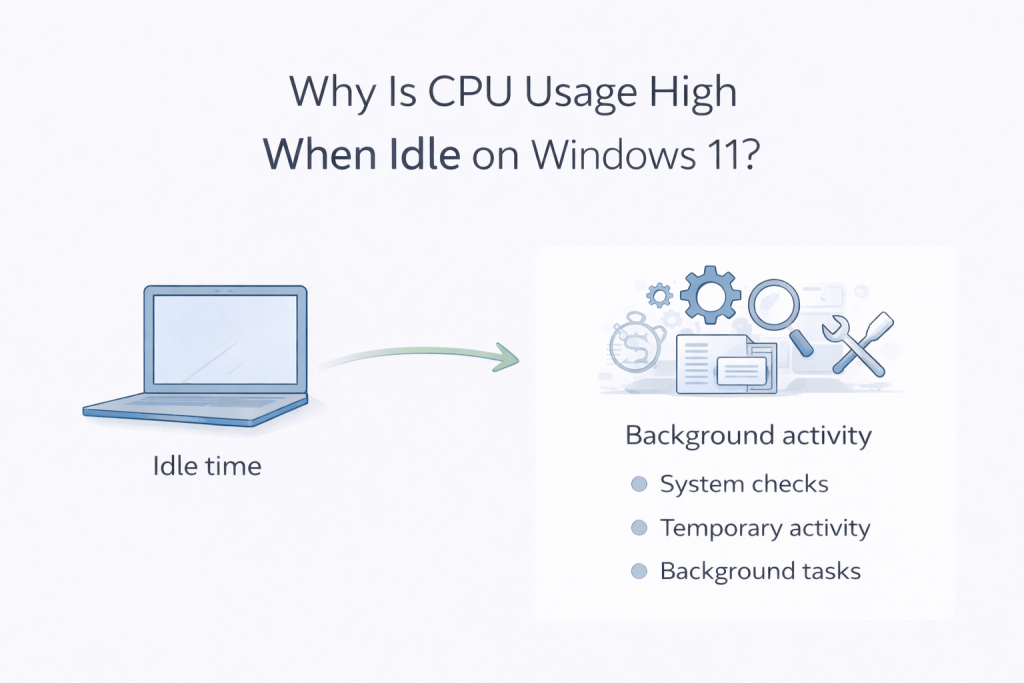
When Windows says your system is idle, it doesn’t mean the computer is doing nothing. It means you’re not actively using it.
Modern versions of Windows are designed to postpone certain tasks until you stop interacting with the system. Once you step away, Windows often uses that time to catch up on background work that would otherwise slow things down while you’re working.
This background activity can include:
- System and security maintenance
- Windows updates finishing setup tasks
- File indexing and search updates
- General system optimisation and housekeeping
Because these tasks run quietly, they’re easy to miss — until you open Task Manager and notice the CPU usage.
Why CPU Usage Often Rises When the PC Is Idle
Most cases of high CPU usage at idle follow the same pattern: Windows waits, then works.
Here are some of the most common reasons this happens.
Windows Update and Maintenance Tasks
After updates, Windows often completes additional background setup and cleanup. CPU usage may rise for a short period and then drop once those tasks finish.
Antimalware Service Executable
This is part of Windows Defender. Security scans are often scheduled during idle time so they don’t interrupt normal use.
Windows Search and Indexing
When new files are added or existing ones change, Windows may update its search index. This is especially common on newer systems or after major updates.
Background Apps and Services
Some applications continue running even when you’re not actively using them. If one misbehaves or gets stuck, it can keep the CPU busier than expected.
Individually, none of these are unusual. Problems usually arise when a task doesn’t finish, keeps restarting, or runs constantly instead of temporarily.
When High CPU Usage at Idle Is Normal
High CPU usage at idle is usually nothing to worry about if:
- Usage spikes briefly and then falls
- Fans calm down after a few minutes
- The PC feels responsive during normal use
In these cases, Windows is simply completing background work and will settle down on its own.
When It’s Worth Looking Closer
Idle CPU usage deserves attention if:
- CPU usage stays high for long periods
- Fans run constantly even when the PC is untouched
- Basic tasks feel slow or sluggish
This can indicate a stuck background process, a problematic app, or something repeatedly failing and retrying.
What Task Manager Can Tell You
Task Manager is most useful when you watch behaviour over time, not just a single moment.
If CPU usage gradually drops on its own, that’s usually a good sign. If the same process stays near the top for an extended period, it’s worth investigating further.
The duration of high usage matters more than the spike itself.
What Usually Helps (and What Often Doesn’t)
In most cases, simple actions resolve idle CPU issues:
- Restarting the PC
- Allowing background tasks time to finish
- Keeping Windows up to date
- Checking that startup apps are kept to a minimum
It’s tempting to disable built-in services or install third-party “optimisation” tools, but these often cause more problems than they solve and can reduce system stability or security.
Final Thoughts
High CPU usage at idle on Windows 11 often looks alarming, but it’s usually a sign that the system is doing exactly what it’s designed to do — handling maintenance during quiet moments.
If usage drops on its own and performance feels normal, the best action is often no action at all. When it doesn’t settle, a closer look at which process is staying active can quickly point you in the right direction.