Category: Windows Issues

  • Why PCs Take Longer to Start or Restart

    Why PCs Take Longer to Start or Restart

    A slow boot, a slow restart, and a slow shutdown after updates can all feel like the same annoyance. They are not usually the same thing.

    Sleek home office setup with multiple monitors, keyboard, smartphone, and stylish decor.
    Photo by Jakub Zerdzicki on Pexels.

    If a PC is slow every morning, the usual causes are fairly mundane: a hard drive, too many startup apps, older hardware, or Windows dragging half your software collection in with it. If restarting takes longer than turning the PC on, that is often normal. And if shutdown or restart suddenly gets slower after Windows updates, Windows is often finishing work before it lets you back in.

    The useful part is spotting when the delay happens. That narrows the cause down quite a lot.

    Booting from off can be faster than restarting

    Many Windows PCs start faster from a shut down state than they do from a restart. Odd, but common.

    A big reason is Fast Startup. With that enabled, Windows does not always do a completely fresh boot after a normal shutdown. It saves part of the system state to disk, then reloads it next time. Less work, shorter wait.

    A restart usually does the full job instead. Windows closes apps, stops services, unloads drivers, and starts cleanly. That takes longer, but it is also why restart is the better test when a PC is behaving strangely. It clears more of the leftovers out.

    So if your PC restarts more slowly than it starts from “off,” that does not tell you much by itself. It may just be doing more work.

    What tends to slow boot time down

    If startup is slow every time, the pattern matters more than one exact number on a stopwatch.

    The biggest divider is still storage. A PC running Windows on an SSD will usually feel much quicker at boot than one still relying on an old hard drive. The processor and RAM still matter, but slow storage affects the whole experience: loading Windows, signing in, opening startup apps, and reaching a desktop that is actually usable rather than technically present.

    Startup apps are the next obvious culprit. Windows may load, but then you wait while game launchers, chat apps, sync tools, hardware utilities, printer software, and assorted background helpers all wake up and demand breakfast. That is why a system can seem to boot quickly and still feel sluggish for another minute.

    You can check this in Task Manager > Startup apps. If a long list of software is set to launch at sign-in, trimming it often helps more than people expect.

    Older or lower-spec hardware adds to the delay. Limited RAM, an aging CPU, and years of installed software do not have to cause a dramatic failure to make a PC feel slow. They just stack up. A machine with 4GB or 8GB of memory and several background tools running at once can spend a while getting itself together.

    Sometimes the holdup starts before Windows even reaches the login screen. In that case, drivers, storage devices, USB hardware, or firmware checks may be part of it. If the delay mostly happens after login, startup apps and Windows services are more likely.

    Why restart can drag on

    Restarting is not just “shutdown, then power on again.”

    Before the system comes back up, Windows has to close running applications, stop background services, end user sessions, and prepare for a clean boot. If one program refuses to close properly, or a service takes its time, restart sits there and waits. Sometimes Windows tells you which app is causing it. Sometimes it just stares back with spinning dots and no useful personality.

    This is also why a PC can feel quick from a normal shutdown but slow on restart, especially if Fast Startup is enabled. The two paths are not doing the same amount of work.

    Updates make shutdown and restart slower for a reason

    A sudden slow shutdown or restart after updates is usually not a sign of failing hardware. It is more often Windows finishing the update in stages.

    Some parts of an update can be installed while you are using the PC. Other parts are saved for shutdown or restart, where Windows can replace system files, apply security changes, configure drivers, and clean up older components without everything being live at once.

    If you see messages like Working on updates, Don’t turn off your computer, or Getting Windows ready, the delay is usually expected.

    What matters is whether it only happens around updates. If shutdown or restart is slow once in a while right after patching, that points to Windows maintenance. If every shutdown is slow, including on days with no update activity, look elsewhere.

    Slow shutdown without updates usually means something is hanging

    When there is no update in progress and shutdown still takes ages, Windows is often waiting for software or a driver to stop properly.

    Common causes include:

    • an app that will not close cleanly
    • a background service taking too long to stop
    • security software still doing work
    • sync software finishing file activity
    • a driver issue
    • an external device holding things up

    This kind of delay is often inconsistent. One shutdown is normal, the next is oddly slow. That usually points to something hanging rather than Windows deliberately doing scheduled maintenance.

    If Windows wants to restart for updates and you do not

    You can usually postpone an update restart, at least within reason.

    In Settings > Windows Update, Windows may let you:

    • pause updates for a limited time
    • set Active hours so automatic restarts avoid the times you normally use the PC
    • Schedule the restart for later if an update is already waiting

    If Windows is showing a prompt with Restart now and a scheduling option, use the scheduling option if the timing is bad. Clicking through prompts at speed is how people end up watching an update screen instead of finishing what they were doing.

    Once Windows has already started applying updates during shutdown or restart, stopping it is a bad idea unless the system is clearly frozen for an unusually long time. Interrupting updates can leave the machine in a worse state than the original inconvenience.

    What to check first

    If you are trying to improve startup or restart times, a few checks do most of the useful work.

    Start with startup apps. Too many of them is one of the most common reasons a PC feels slow after login.

    Then look at the system drive. If Windows is installed on a hard drive rather than an SSD, that alone can explain a lot of poor startup behavior.

    After that, pay attention to the pattern:

    • Slow every boot usually points to storage, startup load, or general system age
    • Slow mostly on restart is often normal, especially with Fast Startup enabled
    • Slow after updates is usually Windows finishing update work
    • Slow on shutdown with no updates involved leans more toward software, drivers, or connected devices

    That simple pattern check is more useful than it sounds. It tells you whether you are looking at normal behavior, accumulated clutter, or an actual problem worth chasing.

    Final thought

    A PC that restarts slowly is not necessarily unhealthy. A PC that takes its time after updates is often doing exactly what it says it is doing. The more suspicious case is a machine that is slow all the time, or only shuts down properly when it feels like it.

    Modern PCs are not always quick, but they are usually consistent. When the delay follows a pattern, the cause often does too.


  • Why Windows Is Busy Even When Your PC Is Idle

    Why Windows Is Busy Even When Your PC Is Idle

    Why Windows Is Busy Even When Your PC Is Idle

    An “idle” Windows PC is rarely doing absolutely nothing. If you stop using it and then open Task Manager, you may see some CPU activity, several gigabytes of RAM in use, disk reads and writes, or network traffic.

    Usually, that is normal.

    Windows uses quiet periods for jobs it would rather not run while you are actively using the machine: updates, indexing, security checks, cache management, sync activity, and general maintenance. The real question is not whether anything is happening. It is whether the activity settles down on its own, or keeps grinding away for far too long.

    Idle does not mean empty

    Windows treats idle time as a work window. If the system notices you are not typing, clicking, gaming, or compiling something expensive, it may use the gap for background tasks.

    Some of that work comes from Windows itself. Some comes from whatever else is installed: cloud sync apps, antivirus, launchers, motherboard utilities, printer software that should have retired years ago, and various other little residents of the system tray.

    On a reasonably modern PC with an SSD and enough RAM, much of this passes unnoticed. On an older machine, especially one still running a hard drive, idle activity can feel a lot less invisible.

    System Idle Process is not your problem

    One line in Task Manager causes a lot of unnecessary suspicion: System Idle Process.

    If it shows a high CPU percentage, that usually means your CPU is mostly free. It is not a task chewing through processor time. It is Windows counting unused CPU time and presenting it as a process.

    So if System Idle Process is at 92%, that generally means about 92% of the CPU is not doing anything useful or harmful. It is just available.

    RAM is a different story. High memory use while the PC seems idle is not caused by System Idle Process. If memory is occupied, it will be tied up by actual services, apps, drivers, caches, and background tools.

    Task Manager has many ways to be confusing. This is one of the classics.

    Why RAM fills up even when you are not doing much

    Windows does not try to keep RAM empty for appearances. Spare memory is often used for cache and standby data so programs and files can load faster later.

    That means “high RAM use at idle” is not automatically bad. It depends on what happens next.

    Common reasons memory stays in use include:

    • Windows caching recently used data
    • antivirus and security services staying loaded
    • cloud sync clients running in the background
    • browser processes that remain active after you close the main window
    • chat apps, launchers, RGB software, audio control panels, and vendor utilities
    • update services and preload components from other software

    This matters more on lower-memory systems. If a PC has 16GB or 32GB of RAM, a few gigabytes used in the background often changes nothing. On an 8GB machine, especially one with integrated graphics sharing system memory, idle usage can leave much less headroom.

    Then Windows starts paging more often, which means moving data between RAM and storage. On an SSD, that is still not ideal. On a hard drive, it is where “slightly busy” turns into “why is this taking ages.”

    Why Windows Update suddenly gets active when you walk away

    Windows Update tends to use idle time for the messier parts of its work. Downloading is only part of it. Updates also need to be unpacked, checked, staged, installed, and cleaned up afterward.

    That can mean bursts of:

    • CPU use
    • disk activity
    • network traffic
    • background servicing processes

    If the PC gets busy shortly after you stop using it, Windows Update is often part of the reason.

    This is more obvious on slower systems. A newer desktop may deal with update servicing quietly enough that you barely notice. An older laptop with a modest CPU and a hard drive can make the same process look far more dramatic.

    A short run of update activity is normal. Repeated heavy usage with no clear progress is less normal. If the same update keeps failing, or servicing activity seems to restart over and over for days, that points to a problem worth checking rather than ordinary housekeeping.

    A lot of “Windows activity” is not Windows

    Windows gets blamed for almost everything that happens in the background, sometimes deservedly, sometimes not.

    Many idle resource spikes come from third-party software sitting around waiting for an excuse to be important. Common offenders include:

    • cloud backup and sync apps
    • full antivirus suites
    • motherboard and laptop control software
    • RGB and peripheral utilities
    • game launchers
    • browser background tasks
    • backup software
    • printer tools

    Prebuilt PCs are especially prone to this. You buy one computer and receive a small committee of helper apps.

    If your system seems busier than it should be at idle, look at which processes are actually active. The answer is often less “Windows is doing something mysterious” and more “three utilities are checking for updates, syncing settings, and monitoring hardware for no useful reason.”

    Windows 11 and Automatic Maintenance

    Windows 11 groups various background tasks under Automatic Maintenance. That can include updates, security scans, diagnostics, and some optimization work.

    The basic design makes sense: do the boring jobs while the PC is not being used, pause if the user comes back, and try again later if needed.

    Whether it feels smooth depends a lot on the machine.

    Desktops that stay powered on for long stretches often finish this work quietly. Laptops are less predictable. They sleep, wake, switch power modes, and spend a lot of time closed before maintenance has finished whatever it started.

    You are more likely to notice maintenance activity if the PC has:

    • a low-power mobile CPU
    • limited RAM
    • a mechanical hard drive
    • aggressive battery-saving settings
    • lots of extra software running in the background

    So yes, a Windows 11 PC may look oddly busy after being left plugged in and untouched for a while. Often that is just maintenance finally getting a clear run at its to-do list.

    Why hardware changes the whole experience

    The same background tasks can feel trivial on one PC and deeply irritating on another.

    An SSD hides a lot of routine Windows behavior. More RAM hides even more. A decent modern CPU gets through maintenance and update work quickly enough that the system returns to idle before you have time to be annoyed by it.

    Older hardware is less forgiving.

    A hard drive makes every background task more visible because random disk access is slow. Limited RAM makes paging more likely. Low-power laptop processors can take long enough to finish basic servicing that normal background work starts to look suspicious.

    This is why two people can describe the same Windows behavior very differently. On one machine, idle activity means a few blips in Task Manager. On another, it means the disk sits at 100% and opening the Start menu feels ambitious.

    When to ignore it and when to investigate

    Brief bursts of background activity are ordinary. So is moderate RAM use at idle. Windows is not a museum exhibit. It is always doing some amount of maintenance and management.

    It is worth digging deeper if you see any of these patterns:

    • CPU usage stays elevated for a long time with no clear process doing useful work
    • disk usage remains high and the PC feels sluggish
    • memory use is so high at idle that opening everyday apps causes obvious slowdowns
    • the same update or servicing process repeats over and over
    • fans ramp up every idle period on a machine that did not used to behave that way
    • resource use drops only after closing or disabling third-party utilities

    If you are checking Task Manager, focus on the active processes using CPU, memory, disk, or network. Do not treat System Idle Process as a culprit. It is mostly a sign that the processor is waiting around.

    A PC that is briefly busy while idle is normal. A PC that never seems to finish being busy is where suspicion becomes reasonable.

  • Why Windows Uses CPU In The Background

    Why Windows Uses CPU In The Background

    Why Windows Does Odd Things

    Open Task Manager at the wrong moment and Windows can look faintly absurd. Runtime Broker is using CPU. WMI Provider Host is awake. Windows Modules Installer Worker is busy again. Desktop Window Manager is on the GPU, despite the fact you are mostly looking at a wallpaper and a browser.

    Most of the time, nothing is wrong. Windows uses quiet moments to catch up on maintenance, scanning, indexing, update work, hardware checks, and desktop rendering. Task Manager shows those jobs as separate processes, which makes one routine burst of background activity look like a small committee meeting.

    The useful question is not “why does this process exist?” It’s “what is Windows doing right now, and does it stop?”

    Windows is often busy precisely because you are not

    A PC can look idle and still be doing plenty behind the scenes. Windows tends to delay lower-priority work until you stop actively using the machine.

    That background work often includes:

    • update installation and cleanup
    • malware scans
    • search indexing
    • hardware and software status checks
    • app permission handling
    • diagnostic or compatibility data collection
    • drawing and compositing the desktop through the GPU

    This is why CPU or disk usage often rises a few minutes after startup, after an update, after plugging in a device, or after copying a pile of files. Windows sees spare time and fills it.

    On a newer desktop with an SSD and a decent CPU, you may barely notice. On an older laptop with a hard drive and two struggling cores, the same job can feel far more dramatic.

    Task Manager makes one job look like five

    Part of the confusion is how Windows splits work across components.

    You may see:

    • Service Host running one or more system services
    • Windows Modules Installer Worker handling update servicing
    • Windows Defender scanning changed files
    • Windows Search Indexer updating the search database
    • WMI Provider Host answering system queries
    • Compatibility Telemetry collecting update and reliability data
    • Runtime Broker dealing with app permissions or background app activity
    • Desktop Window Manager using the GPU to draw the desktop

    Those are not always separate problems. Often they are parts of the same chain of events.

    Install updates, for example, and Windows may service components, scan the changed files, update its search index, check compatibility status, and redraw bits of the interface along the way. Task Manager then presents the lot as if each process woke up independently and chose chaos.

    Updates are behind a lot of this

    If several odd-looking processes are active at once, updates are one of the first explanations to consider.

    Windows Modules Installer Worker is the obvious one. It handles Windows component servicing: installing, modifying, and cleaning up system files. It often stays active after an update appears to be finished because Windows is still validating files, rebuilding caches, or removing old update data.

    That can mean noticeable CPU and disk use after:

    • monthly Windows updates
    • feature updates
    • enabling or disabling optional Windows features
    • the first reboot after patching

    A short spell of heavy activity here is normal. A machine that keeps doing it for hours across multiple restarts may have an update problem rather than routine cleanup.

    Service Host often appears at the same time, though it tells you less by itself. It is a wrapper for Windows services, not a single service with one clear job. If Service Host is using CPU, the important part is which service inside it is active. During update work, that may be tied to Windows Update, cryptographic services, installer services, or something adjacent.

    This is one reason Task Manager can be misleading. “Service Host is busy” is a bit like saying “a van is parked outside.” True, but not specific enough to settle anything.

    A quiet desktop is when Defender likes to work

    A very common sight is Windows Defender using CPU while the PC appears to be doing nothing.

    That is usually deliberate. Defender prefers to scan when the machine is idle or less busy. You stop working, Windows takes the opportunity to inspect recent downloads, changed files, removable drives, or whatever else has piled up.

    You are more likely to notice this after:

    • startup
    • downloading or extracting a lot of files
    • connecting USB storage
    • security definition updates
    • long gaps since the last scan

    How annoying this feels depends heavily on the hardware. On a modern CPU with fast storage, Defender may just flicker in Task Manager and move on. On an older PC, especially one still running a hard drive, the same scan can drag the whole system down and announce itself with fan noise.

    If Defender is constantly heavy, not just occasionally active, look at the workload around it. Large archives, developer folders full of small files, virtual machine images, and a second antivirus product can all make scanning more expensive than it needs to be.

    Search indexing can look suspicious, but it usually has a reason

    Windows Search Indexer exists so Start menu and File Explorer searches return results quickly instead of rummaging through the drive every time.

    To do that, Windows builds and updates a search index in the background. That activity tends to spike after large file changes, initial setup, email sync, or any event that gives the indexer fresh material to chew through.

    Common triggers include:

    • setting up a new PC
    • moving or copying lots of files
    • rebuilding the search index
    • syncing Outlook or another indexed app
    • adding indexed folders from another drive

    The pattern matters here. A temporary burst after a lot of file activity is ordinary. An indexer that keeps returning to the same high CPU or disk use may be dealing with a corrupted index, a troublesome folder, or too many locations being indexed for little benefit.

    This is another place where storage speed changes the story. On SSDs, indexing is usually tolerable. On old hard drives, it can feel like the PC has decided to think very hard about documents you forgot existed.

    WMI, telemetry, and the business of Windows checking itself

    Some Windows processes are not doing visible work for you at all. They are gathering information about the system, hardware, drivers, software state, and update readiness.

    That is where WMI Provider Host and Compatibility Telemetry usually enter the picture.

    WMI Provider Host

    WMI Provider Host is part of Windows Management Instrumentation, which is an unnecessarily long name for a fairly simple idea: it lets Windows and other software ask questions about the system.

    Screenshot 2026 05 12 103703

    Those questions might be about:

    • installed hardware
    • drivers
    • services
    • sensors
    • event data
    • device status

    Short WMI spikes are common after startup, hardware changes, driver installs, and software installs. Monitoring tools, motherboard utilities, RGB software, enterprise management tools, and some security products all like to query WMI. Some of them like it a bit too much.

    If WMI Provider Host keeps using CPU, the host process is often just the messenger. Another program may be polling it repeatedly, failing a query, or triggering the same error loop over and over.

    Compatibility Telemetry

    Compatibility Telemetry is tied more closely to diagnostics, update readiness, and reliability data. It tends to appear around updates, software changes, or maintenance cycles, and it may use CPU, disk, and some network activity while it gathers and processes that information.

    This often overlaps with update servicing. Windows is not doing random busywork here; it is checking what is installed and whether the system is likely to behave after the next round of changes. On slower PCs, especially older systems with hard drives, it can be much more noticeable than Windows probably intended.

    Runtime Broker is often just the middleman

    Runtime Broker gets blamed partly because the name sounds vague enough to be suspicious. In practice, it usually handles app permissions and background behavior for certain Windows apps and components.

    You may see it wake up when:

    • opening built-in apps
    • receiving notifications
    • changing app permissions
    • using Microsoft Store apps
    • background app tasks briefly resume

    Small bursts are normal. A Runtime Broker process that sits there using high CPU for a long stretch usually points to an app or app feature behaving badly rather than the broker itself. Notifications, broken Store apps, or permission-related loops are common suspects.

    This is a recurring Windows theme: the process you can see is not always the one that started the mess.

    Why the desktop uses the GPU when “nothing” is happening

    Desktop Window Manager using GPU resources tends to worry people because the desktop does not look demanding. It is just windows, menus, transparency, scaling, previews, animations, and whatever else Windows insists on drawing.

    That work still has to be composited, and the GPU is the right place for it.

    So some GPU use from Desktop Window Manager is normal during:

    • moving or resizing windows
    • using multiple monitors
    • running high refresh rate displays
    • watching video in a window
    • using browsers or apps with hardware acceleration
    • overlays, widgets, screen recording, or wallpaper tools

    The amount can rise with higher resolutions, HDR, multiple displays, and older or flaky graphics drivers. A few percent of GPU usage is not a fault. Unusually high usage while the system is doing very little can point to a driver issue, an overlay, a browser tab gone odd, or another app constantly forcing redraws.

    Why these processes often show up together

    Most of the names people notice are tied to a small set of background jobs:

    • servicing Windows
    • checking system state
    • scanning changed files
    • indexing content
    • handling app behavior
    • drawing the interface

    Those jobs overlap.

    A Windows update may trigger Windows Modules Installer Worker and a few services under Service Host. Changed files then attract Windows Defender. New or modified files catch the eye of Windows Search Indexer. Diagnostic or readiness checks may involve Compatibility Telemetry and WMI Provider Host. If windows, notifications, or display elements are changing, Desktop Window Manager is there too.

    That is why several of these processes can appear within the same hour and still be part of one fairly ordinary maintenance cycle.

    When to ignore it, and when to dig deeper

    Most of this becomes easier to judge if you stop staring at the process name and look at the pattern instead.

    Usually normal:

    • CPU or GPU usage rises for a few minutes after boot
    • activity appears after updates, installs, or large file changes
    • Defender scans while the PC is idle
    • Search Indexer gets busy after lots of new files
    • Desktop Window Manager shows light GPU activity during normal desktop use
    • WMI Provider Host or Runtime Broker spikes briefly and then settles

    More suspicious:

    • the same process runs hot for hours
    • the machine stays busy across several reboots
    • fans, stutter, or disk thrashing continue long after updates should be finished
    • WMI Provider Host or Runtime Broker never really calms down
    • Service Host keeps using CPU and the underlying service points back to one failing component
    • Desktop Window Manager is using far more GPU than the desktop activity seems to justify
    • the problem started right after one app, driver, utility, or peripheral was added

    Hardware matters here more than people sometimes expect. Windows background maintenance has a way of feeling harmless on a recent SSD-based system and much less harmless on an old machine with limited RAM and a mechanical drive.

    Older PCs do not see stranger behavior, just slower behavior

    A lot of “Windows is doing odd things” reports come from machines that are simply bad at hiding normal maintenance.

    The tasks are often the same. The difference is that older hardware has less headroom.

    You notice more:

    • fan noise
    • slow app launches
    • pauses while typing or switching windows
    • hard drive chatter
    • general reluctance

    On those systems, even routine background jobs stack up visibly. Defender scans, indexing, update cleanup, and telemetry all compete harder with whatever you are trying to do in the foreground. Windows is still following the same script. The cast is just older and more tired.

    What this usually means

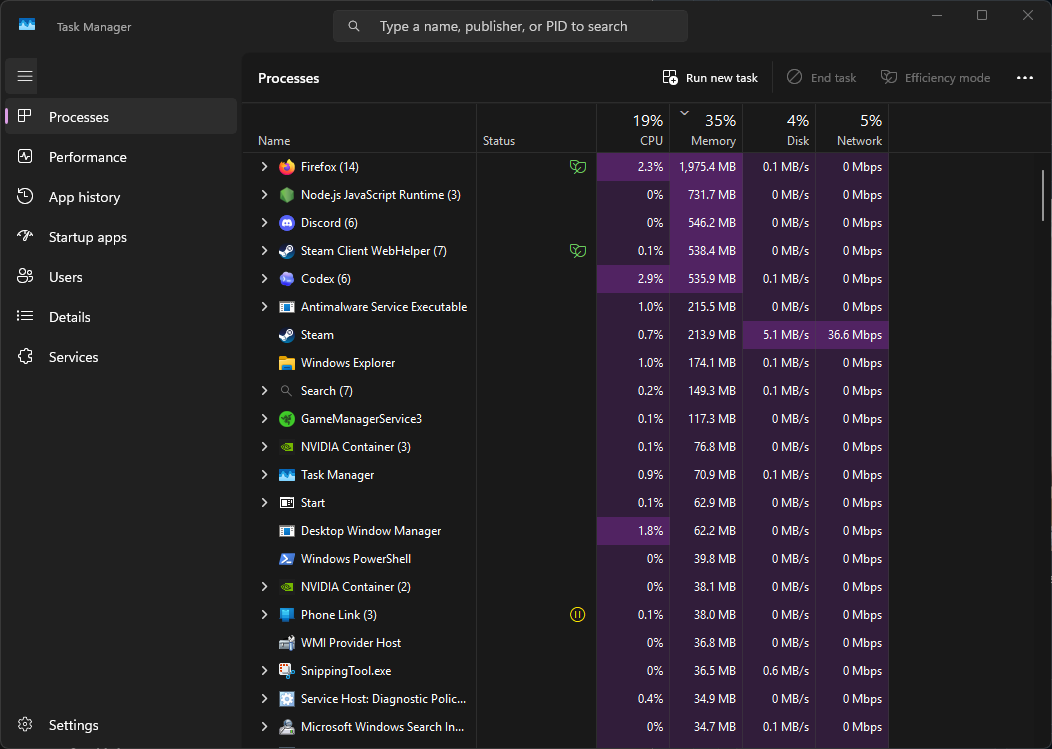
    When Runtime Broker, Windows Defender, Windows Modules Installer Worker, WMI Provider Host, Service Host, Windows Search Indexer, Compatibility Telemetry, or Desktop Window Manager appear in Task Manager, the name alone does not tell you much.

    Timing does.

    If the activity shows up after startup, updates, installs, file changes, or long idle periods, Windows is usually catching up on work it postponed. If it clears after a while, that is ordinary system maintenance. If it keeps returning, runs for hours, or started after one specific piece of software or hardware was added, that is the point to investigate.

    Windows does a lot in the background. Task Manager just has a talent for making it look stranger than it is.

  • Windows Update Using CPU While Idle

    Seeing CPU usage when the computer appears to be doing nothing can make people uneasy. You open Task Manager expecting everything to be quiet, yet something related to Windows Update is using processor time. It can look like the system is busy even though no programs are open.

    In most cases, this is normal Windows behaviour. Updates are one of the main ways Windows keeps itself secure and stable, and a surprising amount of work happens quietly in the background. When the computer becomes idle, Windows often takes the opportunity to catch up on maintenance tasks that it avoids doing while you are actively using the system.

    The result is that CPU usage appears precisely when the computer seems least busy.


    What Is Normal

    It is normal for Windows Update to use some CPU while the computer is idle.

    Windows handles updates in several stages. Downloading updates is only one part of the process. The system also needs to:

    • Check for new updates
    • Verify downloaded files
    • Prepare update components
    • Install background components
    • Clean up older update files

    Much of this work is done through background services rather than a single obvious program. You may see names such as Windows Modules Installer Worker, Service Host, or other Windows processes in Task Manager.

    CPU usage during these periods may range from barely noticeable to moderately high for a short time. On many systems it might sit somewhere between 5% and 30% while work is being done. Occasionally it can spike higher for brief periods.

    The key point is that Windows intentionally schedules this type of background activity when the system is idle. The operating system assumes this is the least disruptive time to run maintenance tasks.


    What Is Not Normal

    While some CPU usage from Windows Update is expected, a few patterns are less typical.

    For example:

    • CPU usage remaining very high for many hours without stopping
    • The same update process appearing to run continuously for days
    • The system becoming extremely slow whenever the update service runs

    These situations do happen occasionally, but they are not the normal behaviour of a healthy update cycle. Usually when Windows Update uses CPU during idle periods, the activity settles down once the task is finished.

    Most update work completes quietly in the background and disappears without the user noticing.


    Why It Looks Worse Than It Actually Is

    Many people only check Task Manager when something seems unusual. You notice the computer feels slightly warm, the fan spins up, or the CPU graph is not flat. Naturally the assumption is that something must be wrong.

    In reality, you have simply caught Windows doing routine work.

    Modern operating systems are designed to make use of idle time. When nothing else is happening, the system takes advantage of that spare processing power. Instead of leaving the CPU completely unused, Windows uses it for maintenance tasks like updates, indexing, background scanning, and system optimisation.

    From the outside, this can look like unexplained activity. But from Windows’ point of view, the computer is simply being productive while it has the chance.

    Once you start actively using the machine again, most of these tasks slow down or pause automatically.


    Why Task Manager Can Be Misleading

    Task Manager is useful, but it can also give a slightly distorted view of what the system is doing.

    One reason is that it shows instant snapshots of CPU usage. If you happen to open it during the busiest moment of a background task, it can look dramatic even if the activity only lasts a few minutes.

    Another issue is how Windows groups services. Many background components run under something called Service Host processes. Inside that container may be several different services working together, including parts of Windows Update.

    This makes it difficult to see exactly what stage the update process is in. You might see CPU usage from a service host and assume it is stuck or malfunctioning when it is actually performing verification or cleanup tasks.

    Windows also prioritises foreground programs over background services. So even if the update process appears active in Task Manager, it is typically running at a lower priority than the applications you are using.

    This is why background activity rarely slows the computer as much as the CPU percentage might suggest.


    What Windows Update Is Actually Doing

    When Windows Update uses CPU while the system is idle, it is usually performing one of several routine jobs.

    Checking for Updates

    Windows regularly checks Microsoft’s update servers to see if anything new is available. This involves scanning the system, comparing installed components with update catalogues, and determining what is needed.

    The scanning process uses some CPU because Windows needs to inspect installed packages and system files.

    Preparing Updates

    Once updates are downloaded, they are not always installed immediately. Windows may prepare components in advance so the installation process later is faster and more reliable.

    This preparation work can involve unpacking files, verifying digital signatures, and staging update components.

    Installing Background Components

    Some updates install silently in the background without requiring a restart. Security definitions, servicing stack updates, and certain system components may be applied while the system is running.

    These installations often cause temporary CPU activity.

    Cleaning Up Old Update Files

    After updates are installed, Windows performs cleanup operations. Temporary installation files, outdated system packages, and replaced components may be removed.

    This process reduces disk usage but requires some processing time.


    Why Idle Time Is When It Happens

    Windows is designed to avoid interfering with what the user is doing. Heavy tasks like update preparation are usually postponed until the system becomes idle.

    From Windows’ perspective, idle simply means that the user is not actively interacting with the computer.

    This is why you may notice CPU usage increase shortly after stepping away from the keyboard. Windows detects that nothing important is happening and begins background maintenance.

    If you return and start using the computer again, the system may reduce or pause the activity.


    How Long It Usually Lasts

    In most cases, Windows Update CPU usage during idle periods does not last very long.

    Typical patterns include:

    • Short bursts lasting a few minutes
    • Occasional spikes during update checks
    • Longer activity during major update preparation

    After a larger update download, the preparation phase may run for 10 to 30 minutes depending on the system speed and the size of the update.

    Older computers with slower storage may take longer, especially if several updates are being processed at once.

    Eventually the background work completes and CPU usage returns to normal idle levels.


    When It Is Worth Investigating

    Occasional CPU usage from Windows Update is expected. However, it may be worth taking a closer look if the behaviour is unusually persistent.

    Situations that sometimes justify investigation include:

    • CPU usage staying high for several hours every day
    • The update service appearing active even after multiple restarts
    • Updates repeatedly failing to install

    Sometimes a stalled update, corrupted update cache, or network issue can cause Windows Update to retry the same operation repeatedly.

    In these cases the system may keep attempting update checks or preparation steps without completing successfully.

    Even then, the problem is usually limited to the update system itself rather than indicating a serious fault with the computer.


    Common Mistakes People Make

    When people see unexpected CPU usage, the instinct is often to stop the process immediately. This is understandable, but it can create more problems than it solves.

    A few common reactions tend to make things worse.

    Ending Update Processes

    Force-closing Windows Update services in Task Manager can interrupt installations or leave components partially configured.

    This can lead to failed updates or repeated attempts to reinstall the same update.

    Disabling Windows Update Completely

    Some users disable updates entirely to stop the background activity. This often leads to larger update problems later, particularly when the system eventually attempts to install months of missed updates at once.

    Restarting the Computer Repeatedly

    Restarting during active update preparation can reset the process before it finishes. The system then starts the work again the next time it becomes idle.

    This can make it appear as though the update system is stuck in a loop.

    Running Random “Cleanup” Tools

    Various utilities claim to fix Windows Update issues automatically. Some of these tools simply clear update files without understanding what stage the system is in, which can actually delay updates further.

    Most of the time the best approach is simply to allow Windows to finish what it started.


    A Quiet Part of Windows Doing Its Job

    Windows Update using CPU while the computer is idle is usually just background maintenance taking advantage of free system resources.

    It tends to appear suddenly because the work happens when nothing else is going on. The CPU graphs in Task Manager can make it look dramatic, but most of the activity is temporary and low priority.

    Once the update tasks are complete, the system settles back into its normal idle behaviour.

    Unless the activity continues for unusually long periods or updates repeatedly fail, this is simply part of how Windows keeps itself secure and up to date.

  • What Is Runtime Broker and Why Does It Use CPU?

    You open Task Manager because something feels slow, and near the top of the list is a process called Runtime Broker. It’s using CPU. Maybe not a lot, maybe more than you’d expect. The name isn’t helpful, and it doesn’t sound like something you installed.

    That’s usually the point where people assume malware.

    In most cases, it isn’t. Runtime Broker is a normal part of Windows. It has a specific job, and when it’s using processor time, there’s usually a clear reason.


    What Runtime Broker actually is

    Runtime Broker is a small Windows process that manages permissions for certain apps.

    Specifically, it works with modern Windows apps — the kind you download from the Microsoft Store, or built-in apps like Photos, Mail, Settings, and Weather. These apps run in a restricted environment for security reasons. They’re not allowed to freely access everything on your system.

    Runtime Broker acts as a middle layer. It checks:

    • Is this app allowed to use the camera?
    • Is it allowed to access the microphone?
    • Can it read certain files?

    It doesn’t do the work itself. It supervises it.

    Most of the time, Runtime Broker sits idle and uses almost no resources.


    What’s normal and what isn’t

    Normal behaviour:

    • Runtime Broker appears briefly in Task Manager.
    • It uses a small amount of CPU for a short time.
    • CPU usage drops back down quickly.
    • It uses very little memory.

    Not normal:

    A brief spike in CPU usage when opening Settings or a Store app is expected. Constant high usage while the system is idle is not typical.

    The difference is duration. Short activity is fine. Sustained load isn’t.


    Why it often looks worse than it is

    Task Manager shows processes in real time. If you open it during a moment when Runtime Broker is active, it can look suspicious.

    But remember what it’s doing: checking permissions and managing communication between apps and Windows. That involves short bursts of processor work.

    Modern CPUs also boost aggressively for brief tasks. So a simple permission check might briefly show 20–30% CPU usage before dropping back down.

    If you only glance at the number without watching it settle, it can feel alarming.

    Most of the time, if you leave Task Manager open for a minute, you’ll see it calm down.


    Why Task Manager can be misleading

    There are two common misunderstandings here.

    First, seeing CPU usage does not automatically mean something is wrong. The processor is designed to be used. Short bursts are normal background activity.

    Second, Runtime Broker may appear multiple times. Windows sometimes runs more than one instance if several apps need supervision.

    You might also notice that Runtime Broker shows activity even when you think nothing is open. That’s because some apps run quietly in the background. Live tiles, notifications, and sync services can trigger it.

    If you’re checking overall CPU usage on the Performance tab, it’s important to watch the graph over time. A spike that falls quickly is routine. A flat, high line that doesn’t move is different.


    Common reasons Runtime Broker uses CPU

    There’s usually a simple cause.

    1. A Store app is running or updating

    Apps like Photos, Mail, or Weather may refresh in the background. Runtime Broker checks their permissions as they run.

    If you recently opened a built-in app, that’s the likely trigger.

    2. Background app permissions

    Some apps are allowed to run in the background. They may:

    • Check for updates
    • Sync data
    • Refresh notifications

    Runtime Broker gets involved when those apps access system features.

    3. Live tiles and widgets

    On some versions of Windows, live tiles or widgets refresh content periodically. That activity can wake Runtime Broker.

    4. A misbehaving app

    Occasionally, an app doesn’t handle its permissions cleanly. It may repeatedly request access or fail to release resources properly.

    In that case, Runtime Broker looks busy, but it’s responding to the app — not acting on its own.

    5. After waking from sleep

    If you notice Runtime Broker using CPU after waking your PC from sleep, it may simply be handling background activity as apps reconnect and resume.

    That brief surge is usually temporary.


    When it resolves on its own

    In the majority of cases, Runtime Broker activity lasts seconds or a few minutes.

    You might notice:

    • A spike after logging in
    • A spike after opening Settings
    • A spike when a notification appears

    Then it drops back down.

    If you leave the system alone while it’s idle, CPU usage should return to low levels. Runtime Broker should fall near 0%.

    If that’s what you see, nothing needs fixing.


    When it’s worth investigating

    You should look deeper if:

    • Runtime Broker constantly uses high CPU for long periods.
    • CPU usage remains high even when no apps are open.
    • The system feels persistently slow.
    • The behaviour repeats every time you start Windows.

    At that point, it’s not Runtime Broker itself that’s the root problem. It’s usually an app triggering it.

    Open Task Manager and look at what else is running. If you close a particular app and CPU usage drops, you’ve found the cause.

    You can also check which apps are allowed to run in the background under Windows Settings. Disabling unnecessary background apps often reduces repeated background activity.


    What not to do

    There are a few common mistakes that create more problems than they solve.

    Don’t delete or disable Runtime Broker

    It’s a core Windows component. Ending the process temporarily is fine — Windows will restart it if needed. But trying to remove it or block it entirely can break app permissions.

    Don’t assume it’s malware

    Runtime Broker is legitimate. Its file location should be:

    C:\Windows\System32\RuntimeBroker.exe

    If it’s located elsewhere, that’s different. But in most cases, it’s genuine.

    Installing antivirus software purely because you saw Runtime Broker using CPU is unnecessary unless you have other signs of infection.

    Don’t install “optimizer” tools

    Utilities that promise to “fix high CPU usage” often add their own background services. That can increase background activity rather than reduce it.

    If the issue is a specific app, removing or updating that app is far more effective.


    A practical way to assess the situation

    If you see Runtime Broker using CPU:

    1. Sort Task Manager by CPU usage.
    2. Watch it for a few minutes.
    3. See whether it drops on its own.
    4. Close recently opened Store apps and observe any change.

    If CPU usage settles, leave it alone.

    If it doesn’t, check which app might be triggering it. Often it’s something simple like a mail app syncing or a widget refreshing repeatedly.

    The important thing is not to react to a snapshot. Watch the pattern.


    The grounded reality

    Runtime Broker exists to enforce app permissions and maintain security boundaries. It is supposed to run. It is supposed to use small amounts of processor time occasionally.

    High CPU usage for a few seconds is normal. Persistent high CPU usage for hours is not.

    In most cases, what looks suspicious is just routine background activity. Once the app finishes what it’s doing, the system returns to normal.

    If it settles, there’s nothing wrong. If it doesn’t, the cause is almost always a specific app — not Windows itself failing.

    Understanding that difference keeps you from chasing a problem that doesn’t actually exist.

  • CPU Usage High After Waking From Sleep

    You close the lid, come back later, open it up — and suddenly the fan spins up like you’ve launched a video render. Task Manager shows high CPU usage even though you haven’t opened anything heavy.

    That’s a common moment of concern. It feels like something is wrong because the machine was doing nothing a minute ago. In most cases, nothing is broken. The system is simply catching up.

    The key is understanding what normally happens when a PC wakes from sleep, and what doesn’t.


    What’s normal after waking from sleep

    Sleep mode doesn’t shut Windows down. It pauses it. Your open programs remain in memory. The processor powers down to save energy. Network connections may drop and reconnect.

    When you wake the system, Windows has to:

    • Re-establish network connections
    • Check for updates
    • Resume paused tasks
    • Sync cloud files
    • Restart certain services
    • Handle anything that was scheduled while the machine was asleep

    A brief spike in CPU usage during that period is normal. You might see 40%, 60%, even higher for a short time.

    What isn’t normal is sustained high CPU usage for an hour with no clear reason.

    Short burst? Expected.
    Constant load long after wake? Worth checking.


    Why it looks worse than it is

    Sleep creates a backlog.

    While the computer is asleep, time still moves forward. Updates are released. Emails arrive. Cloud files change. Scheduled maintenance windows pass.

    When the system wakes up, it processes those missed tasks. From your perspective, nothing is open. From Windows’ perspective, there’s background activity waiting.

    It’s a bit like opening your office in the morning and finding emails queued overnight. The work isn’t new — it was just delayed.

    The fan noise and visible CPU usage make it feel dramatic, but most of the time it’s just routine housekeeping compressed into a short window.


    Why Task Manager can be misleading after wake

    Task Manager shows what is happening right now. It doesn’t show why it started.

    After waking from sleep, you might see:

    If you open Task Manager during that initial surge, it can look alarming. But the important question isn’t “Is the CPU high?” It’s “Does it settle?”

    The Performance tab shows a graph over time. If usage spikes and gradually drops, the system is behaving normally. If it remains flat and high long after wake, something else is happening.

    Another detail people miss: the processor may ramp up to maximum speed briefly to complete tasks quickly. That’s by design. Modern CPUs boost aggressively for short bursts, which can exaggerate the impression of strain.

    High CPU usage for a few minutes after waking does not mean the processor is being damaged.


    Common causes of high CPU usage after sleep

    Most cases fall into predictable categories.

    1. Windows Update resuming work

    If an update downloaded while you were away, the system may unpack and prepare it when you wake the machine. That can use noticeable processor time.

    It often settles within 10–30 minutes.

    2. Windows Defender running a quick scan

    Security software may perform scans when the system becomes active again. If the PC was idle or asleep overnight, it may trigger a scan once you return.

    Again, temporary.

    3. Network reconnection and syncing

    Cloud storage services — OneDrive, Google Drive, Dropbox — check for changes once the internet reconnects. Email clients sync. Browsers refresh background tabs.

    This is normal background activity.

    4. Search indexing

    If files changed before sleep, Windows may update its search index after wake. That can briefly increase CPU usage.

    5. A browser restoring suspended tabs

    Some browsers suspend tabs during sleep to save memory. When you wake the PC, those tabs reload. If several media-heavy pages resume at once, CPU usage rises quickly.

    6. A driver behaving badly

    This is less common, but sometimes a device driver doesn’t resume cleanly. That can cause persistent CPU usage.

    Usually you’ll notice this because the behaviour repeats every time the PC wakes.


    When it usually resolves on its own

    For most users, the pattern is:

    1. Wake PC
    2. CPU usage spikes
    3. Fan ramps up
    4. After 5–20 minutes, everything quiets down

    That’s normal.

    If you wake the PC and immediately start working, you may overlap with those background tasks, making the system feel sluggish. If you give it a few minutes, it often settles.

    On older systems with slower drives, this settling period can be longer — especially after major Windows updates.

    If the CPU usage drops back to low levels once the system is idle again, nothing is wrong.


    When it’s worth investigating

    You should look more closely if:

    • CPU usage stays above 70–80% for extended periods
    • The same process consistently dominates after every wake
    • The system becomes unstable or freezes
    • The issue started after installing new software or drivers

    If it happens once, it’s likely routine. If it happens every time, there’s a pattern.

    In that case, check which process is at the top in Task Manager. If it’s a third-party program, try updating it. If it’s a driver-related process, check for hardware driver updates.

    If it’s always Windows Update or Defender, let it finish at least once without interrupting it. Sometimes repeated waking and sleeping prevents it from completing properly.


    What not to do

    This is where frustration makes things worse.

    Don’t force shutdown repeatedly

    If you shut the PC down mid-update or mid-scan every time you see high CPU usage, the tasks never finish. That can create a loop where the system keeps trying again after every wake.

    Let it complete once.

    Don’t disable core services

    Turning off Windows Update or Defender because they used CPU after wake is rarely a good idea. Those services exist for a reason.

    High CPU usage during maintenance is not a fault.

    Don’t install “optimizer” tools

    Third-party utilities promising to “fix high CPU after sleep” often add their own background services. That usually increases load rather than reducing it.

    If the system was stable before, adding more software isn’t the solution.

    Don’t assume hardware failure

    Sleep-related CPU spikes are almost always software-driven. A failing processor does not selectively misbehave only after sleep.

    Hardware problems show up under sustained load, not just during background activity after waking.


    A practical way to judge the situation

    When you wake your PC and notice high CPU usage:

    1. Open Task Manager.
    2. Sort by CPU usage.
    3. Identify the top process.
    4. Wait 10–15 minutes without interrupting it.
    5. Check again.

    If usage drops back to low levels while the system is idle, you’re fine.

    If it does not drop and the same process remains active every time, then you have something specific to investigate.

    Most of the time, the system simply needed a moment to resume work.


    The grounded reality

    Sleep mode isn’t a freeze-frame. It’s a pause. When you resume, Windows clears whatever built up while it was paused.

    That short burst of CPU usage is often just the system doing its job — updates, syncing, indexing, scanning. It looks dramatic because it happens all at once.

    If it settles, leave it alone. If it repeats consistently and never calms down, look at the specific process involved.

    High CPU usage after waking from sleep is common. Persistent high CPU usage long after waking is not. Knowing the difference keeps you from fixing a problem that doesn’t exist.

  • How to Check Which Program Is Using Your CPU

    If your PC suddenly sounds like it’s about to take off, or everything feels sluggish for no obvious reason, it’s natural to wonder what’s eating the processor. Most of the time, there is a reason. It’s rarely mysterious, and it’s rarely permanent.

    Checking which program is using your CPU isn’t complicated. Interpreting what you see is the part that causes confusion.

    Let’s go through it properly.


    What’s normal, and what isn’t

    Modern versions of Windows are designed to use available resources. If something needs the processor, it gets it. If nothing needs it, the system sits mostly idle.

    It is normal to see:

    • Brief spikes in CPU usage when opening programs
    • Higher usage during updates
    • Activity when the PC is sitting idle but connected to the internet
    • Short bursts of background activity after startup

    It is not normal to see:

    • CPU usage pinned near 100% for long periods with no obvious reason
    • The system constantly slow even when nothing demanding is open
    • Fans running loudly for hours

    Short spikes are fine. Constant saturation is not.


    Why it often looks worse than it is

    People usually open Task Manager during a moment of stress — when the system is already slow. What they see is a number in bold, often higher than expected. That number feels alarming.

    What’s easy to miss is context.

    If your CPU jumps to 70% for ten seconds while Windows completes background activity, that’s normal behaviour. If it stays at 70% for an hour while you’re doing nothing, that’s different.

    The processor is built to be used. High CPU usage by itself is not damage. It’s only a problem if it doesn’t settle.


    How to check which program is using your CPU

    Press Ctrl + Shift + Esc. That opens Task Manager directly.

    If you see a simplified view, click More details.

    Now look at the Processes tab.

    There’s a column labelled CPU. Click the word “CPU” at the top of the column. This sorts programs from highest usage to lowest.

    The program at the top is using the most processor time at that moment.

    That’s the basic answer.

    But there are a few things to understand before jumping to conclusions.


    Why Task Manager can mislead you

    Task Manager shows a snapshot of what’s happening right now. It does not show:

    • What was happening five minutes ago
    • What will happen next
    • Whether a task is temporary

    It also shows grouped services. For example, you might see:

    Those are not random names. They are Windows components performing background work.

    If you sort by CPU usage and see something unfamiliar at the top, that doesn’t automatically mean it’s harmful. It may simply be a built-in process doing maintenance.

    Another thing that causes confusion is percentage scaling. A program using 25% CPU on a four-core system might only be using one core fully. That’s not the same as the whole processor being overwhelmed.


    Looking a little deeper (without overcomplicating it)

    If the top entry is unclear, right-click it and choose Search online. That usually clarifies what it is.

    You can also switch to the Details tab. This shows the exact executable name — the actual file running. It’s more technical, but sometimes clearer.

    If you want to see longer-term behaviour, click the Performance tab and select CPU. The graph shows overall usage over time. If it spikes and falls, that’s healthy. If it’s flat and high, that’s worth investigating.


    Common causes of high CPU usage

    In most cases, the culprit is predictable.

    Windows Update

    Updates often run quietly in the background. They can temporarily increase CPU usage while downloading, unpacking, or preparing files.

    This often happens while the PC is idle or shortly after startup.

    Windows Defender

    Security scans use processor time. If Defender is scanning, you’ll see activity. It usually settles once the scan completes.

    Search Indexing

    If you’ve installed new programs or added many files, Windows may reindex content. That can cause noticeable background activity.

    A web browser

    Modern browsers can use significant CPU if:

    • Many tabs are open
    • Video is playing
    • A page is poorly optimised

    It’s common for a browser to appear at the top of the list.

    Third-party software

    Occasionally, an application misbehaves and fails to release CPU resources properly. This is less common but does happen.

    Usually, closing and reopening the program resolves it.


    When it resolves on its own

    In many cases, high CPU usage is temporary.

    Typical timeframes:

    • Windows Update: 5–30 minutes
    • Defender scan: depends on disk size, often under 30 minutes
    • Indexing: can take longer after major updates, but gradually reduces
    • Startup background tasks: usually settle within 10–15 minutes

    If you leave the PC alone and CPU usage falls back down, the system was just catching up.

    That’s normal maintenance behaviour.


    When it’s worth investigating further

    You should look closer if:

    • CPU usage remains high for hours
    • The same program constantly returns to the top
    • The system feels permanently slower
    • You see unknown software using significant resources

    In that case, the goal isn’t to panic. It’s to identify whether:

    • A specific application needs updating
    • A driver is misbehaving
    • A scheduled task is repeatedly failing

    Persistent issues are usually software conflicts or update problems — not hardware failure.


    What not to do

    This is where people often make things worse.

    Don’t immediately end random processes

    If you start ending system processes at random, Windows may restart them. Or worse, you may interrupt something important.

    Ending a web browser is fine. Ending core Windows services without understanding them isn’t.

    Don’t install “PC cleaner” tools

    Many third-party optimisation tools promise to reduce CPU usage. Most add their own background services and create more load.

    If you can’t identify the program in Task Manager yourself, adding more software isn’t the solution.

    Don’t assume high CPU means hardware damage

    Processors are designed to operate at full load. They throttle themselves if necessary. High usage alone does not harm them.

    The concern is sustained, unexplained behaviour — not brief peaks.


    A simple way to think about it

    Your CPU is a shared workspace. Programs take turns using it. Sometimes one program needs more time. That doesn’t mean it’s broken.

    When you check Task Manager:

    1. Sort by CPU
    2. Identify the top process
    3. Ask: is this something I recognise?
    4. Wait a few minutes and see if it drops

    Often, that’s all that’s needed.


    The grounded reality

    If your PC feels slow and you see high CPU usage, you’re not wrong to check. That’s sensible.

    Most of the time, what you’ll find is routine background activity — updates, scans, indexing, or a busy browser tab. Once those tasks complete, the system returns to normal.

    If something truly unusual is happening, it will be persistent and obvious. Short spikes are part of how modern Windows systems manage resources.

    Checking which program is using your CPU is straightforward. Interpreting it calmly is what makes the difference.

    If the usage settles, leave it alone. If it doesn’t, investigate methodically. There’s almost always a practical explanation.

  • Why Windows Keeps Booting Into Safe Mode

    When Windows keeps starting in Safe Mode without being asked, it feels like the system has decided to ignore you. The interface is stripped down, performance is odd, and restarting doesn’t help.

    Usually, Windows is doing exactly what it was told — even if you don’t remember giving the instruction.


    What’s normal, and what isn’t

    It’s normal for Windows to boot into Safe Mode:

    • after repair attempts
    • during troubleshooting
    • when explicitly configured to do so

    It’s not normal for Safe Mode to persist indefinitely with no explanation.


    Why it feels more serious than it is

    Safe Mode disables drivers, limits background activity, and removes most visual features. That makes the system feel broken even when it isn’t.

    Safe Mode isn’t a failure state. It’s a restricted one.


    Why Windows doesn’t explain itself clearly

    Windows doesn’t display a message explaining why Safe Mode is still active. It just boots that way.

    This is similar to how idle CPU usage can look suspicious without context. You see behaviour, not intent.


    Common reasons Safe Mode keeps returning

    The most common reason is simple: Safe Mode was enabled and never turned off.

    Other causes include:

    Windows keeps choosing Safe Mode because it believes it’s still the safest option.


    When it usually stops

    If Safe Mode was triggered by a temporary issue, it often clears once:

    • Windows starts successfully a few times
    • background checks complete
    • startup stabilises

    Normal boot usually returns quietly.


    When it’s worth investigating

    You should dig deeper if:

    • Safe Mode appears every boot
    • normal startup never works
    • the system feels stuck in recovery behaviour

    That points to a persistent trigger.


    What not to do

    Avoid:

    • forcing repeated restarts
    • reinstalling Windows immediately
    • assuming Safe Mode means failure

    Those reactions usually add complexity rather than removing it.


    Closing thought

    Safe Mode isn’t Windows being stubborn. It’s Windows being cautious. Once the system believes normal startup is safe again, it usually returns there without ceremony.


  • How to Find Your BitLocker Recovery Key (and What It Means If It Doesn’t Work)

    When Windows asks for a BitLocker recovery key, it doesn’t explain much. It simply stops and waits. That lack of context is what causes most of the panic.

    In most cases, the key already exists and hasn’t gone anywhere. The real issue is knowing where it was stored and recognising it when you see it.


    What the recovery key actually is

    The BitLocker recovery key is a fixed 48-digit number created when encryption was enabled. It doesn’t change unless BitLocker is turned off and re-enabled.

    Windows isn’t generating a new key. It’s asking for the one that already belongs to that drive.


    Where the key is usually stored

    Microsoft account

    If you signed into Windows with a Microsoft account, the recovery key is often stored there automatically.

    On another device, go to:

    account.microsoft.com/devices/recoverykey

    Sign in with the same account used on the PC.

    You may see several keys. That’s normal. Each encrypted drive gets its own entry.

    This is where most people find it.


    Work or school systems

    If the device was issued or managed by an organisation, the key is usually stored by them. Even if the PC looks personal, this still applies.

    In that case, only IT support can retrieve it.


    Saved copies

    Some users saved the key during setup:

    • to a USB drive
    • to cloud storage
    • as a printed page

    It’s worth checking carefully. People often forget they did this.


    Entering the key correctly

    The recovery screen is strict.

    • Numbers only
    • Dashes are added automatically
    • One wrong digit means rejection

    Typing errors are far more common than genuinely invalid keys.


    If the key doesn’t work

    A rejected key doesn’t automatically mean it’s wrong.

    Common reasons include:

    • using a key for a different drive
    • using an old key after BitLocker was re-enabled
    • simple entry mistakes

    Double-check before assuming anything worse.


    When the key truly can’t be found

    This is the hard boundary.

    If the recovery key was never saved and you can’t access the account it was tied to, the data cannot be recovered. That’s not a Windows limitation — it’s the point of full-disk encryption.

    It’s less common than people fear, but it does happen.


    What not to do

    Don’t:

    • reset the system before checking properly
    • trust “BitLocker bypass” tools
    • reinstall Windows in frustration

    Those actions don’t recover encrypted data.


    Closing thought

    A BitLocker recovery prompt feels final, but most of the time it isn’t. If the key exists, using it correctly resolves the issue. If it doesn’t, encryption is doing exactly what it was designed to do.

  • Why Windows Can Get Stuck in a BitLocker Safe Mode Loop

    Bitlocker loop

    If your PC suddenly keeps booting into Safe Mode, or repeatedly asks for a BitLocker recovery key, it’s understandable to feel worried. It can look like Windows is broken, locked, or stuck in some kind of loop you didn’t cause. Many people fear they’ve lost access to their files or that something serious has gone wrong.

    In most cases, though, this situation is Windows reacting to a change, not failing outright. BitLocker and Safe Mode are both designed to protect your system, and sometimes they interact in ways that feel far more dramatic than they actually are.


    What’s Normal — and What Isn’t

    It’s normal for Windows to ask for a BitLocker recovery key after certain changes. These include system updates, firmware changes, or booting in a way Windows considers unusual. From Windows’ point of view, it’s simply checking that the person starting the PC is authorised.

    It’s also normal for Safe Mode to limit what Windows can load. Safe Mode strips things back to the basics so problems can be isolated. That restricted environment is exactly why BitLocker sometimes reacts.

    What’s not normal is being permanently locked out with no recovery options, or Windows repeatedly rebooting without explanation. Those cases are much rarer than they feel at first, and they’re usually caused by something specific rather than random failure.


    Why This Looks Worse Than It Is

    BitLocker problems tend to happen at the worst possible moment — during startup. When something goes wrong at boot, you don’t get the comfort of a familiar desktop or clear error messages. Instead, you’re faced with a stark screen asking for a long recovery key.

    That lack of context makes the situation feel far more serious. In reality, Windows is often just being cautious. It has noticed that the system isn’t starting in its usual way and is pausing until it’s confident everything is safe.

    Safe Mode adds to that feeling. Because it looks different and behaves differently, it’s easy to assume the system is damaged, even when it isn’t.


    Why System Screens and Messages Can Be Misleading

    Windows doesn’t explain why BitLocker is triggered in plain language. It simply asks for a recovery key. There’s no message saying “this happened because of an update” or “this is temporary”.

    This is similar to how tools like Task Manager can make background activity or CPU usage look alarming during idle time. You see the symptom, but not the reason behind it.

    BitLocker screens are the same. They show the security check, not the chain of events that led to it.


    Common Underlying Causes (In Plain English)

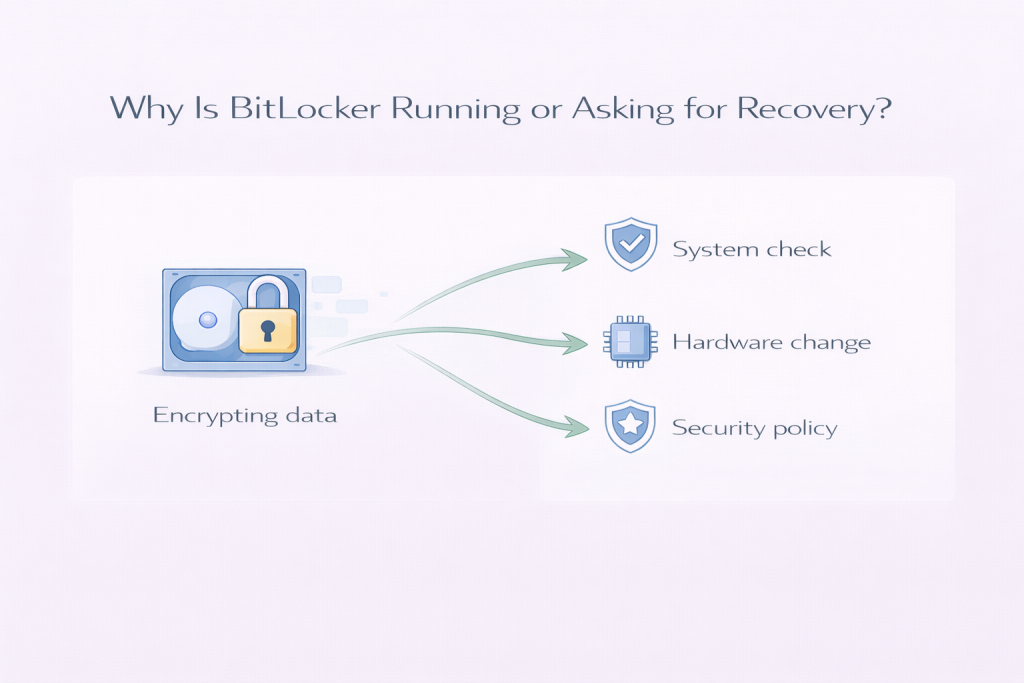
    Most BitLocker Safe Mode loops trace back to one of a few situations:

    Windows updates or restarts
    Large updates sometimes change low-level system components. When Windows restarts afterwards, BitLocker may see that as a meaningful change and ask for confirmation.

    Firmware or BIOS changes
    Even automatic firmware updates can trigger BitLocker. These updates affect how the computer starts, so Windows checks that nothing suspicious has happened.

    TPM and security checks
    BitLocker relies on a small security chip to confirm the system hasn’t been tampered with. If that check doesn’t line up perfectly — even briefly — Windows errs on the side of caution.

    Safe Mode itself
    Safe Mode bypasses many normal startup checks. BitLocker can interpret that as an unexpected boot path and pause until the recovery key is entered.

    Repeated failed startups
    If Windows doesn’t start cleanly a few times, it may change its boot behaviour. That alone can be enough to trigger BitLocker, even though nothing is actually broken.

    None of these mean your files are damaged. They mean Windows is being conservative.


    When It Usually Settles Down on Its Own

    In many cases, once the recovery key is entered and Windows is allowed to start normally, the issue does not return. BitLocker recognises that the system is intact and resumes normal operation.

    If the trigger was an update or one-off change, things often settle after:

    • One or two successful boots
    • Completing background setup tasks
    • Returning to a normal startup instead of Safe Mode

    This can take minutes, or sometimes a day or two if Windows is finishing background activity related to updates.


    When It’s Worth Investigating Further

    It’s reasonable to dig deeper if:

    • The recovery key is requested every single boot
    • You cannot reach normal Windows at all
    • The system re-enters Safe Mode without you asking it to
    • The same screen appears even after successful startups

    These patterns suggest something is repeatedly changing or failing during startup. That doesn’t mean disaster, but it does mean Windows isn’t getting the “all clear” it expects.


    What Not to Do

    This is where many people make things worse, usually out of frustration or panic.

    Don’t disable BitLocker blindly
    Turning off security features without understanding the situation can create new problems, especially if Windows is mid-update.

    Don’t repeatedly force restarts
    Hard power-offs can make Windows think the system is unstable, reinforcing the loop.

    Don’t reset or reinstall immediately
    Data loss often happens because people assume the system is unrecoverable when it isn’t.

    Don’t follow “bypass” advice from random forums
    Anything suggesting you defeat encryption or skip security checks is risky and often outdated.

    In most cases, patience and clarity work better than drastic action.


    A Calm Takeaway

    A BitLocker Safe Mode loop looks intimidating, but it’s usually a sign of Windows protecting itself, not falling apart. The system is pausing because something changed, not because your data is gone.

    If the PC starts normally after a recovery key and stays stable, the safest response is often to let things finish in the background and keep an eye on it. If it doesn’t settle, that’s when a more careful investigation makes sense — not panic.

    Windows can be blunt and unhelpful in how it communicates problems, but most of the time, it’s acting cautiously rather than catastrophically.