
Seeing Antimalware Service Executable near the top of Task Manager can be unsettling, especially when your PC doesn’t appear to be doing anything. It can feel like the system is working hard for no obvious reason, which naturally leads people to worry that something is wrong.
In most cases, though, this behaviour is completely normal.
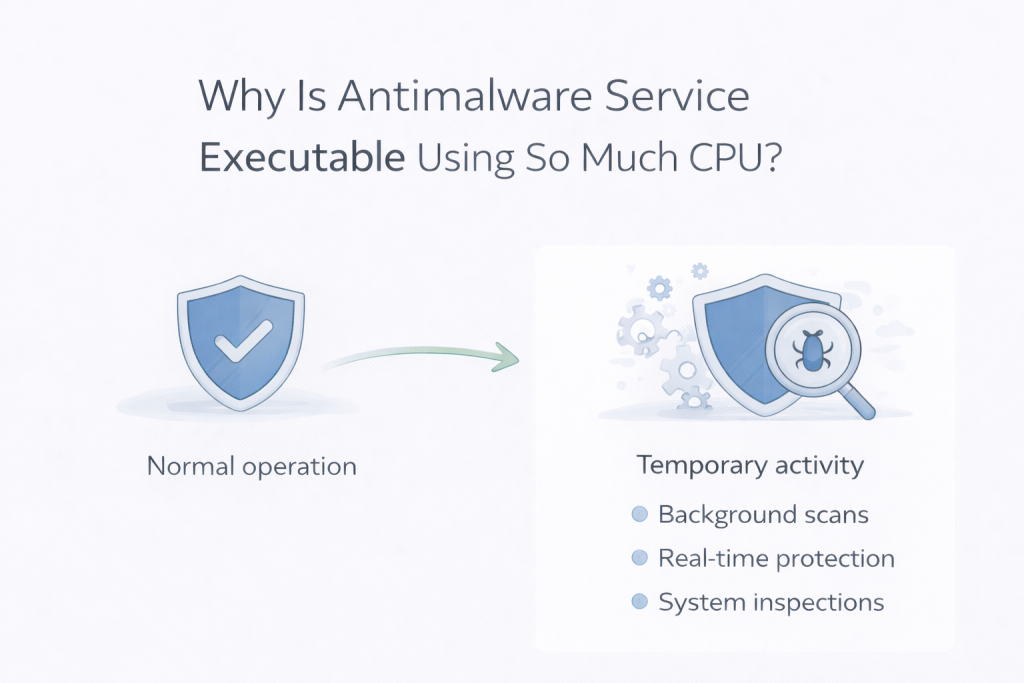
Antimalware Service Executable is part of Windows Defender, Microsoft’s built-in security system. Its job is to scan files, monitor activity, and respond to potential threats. Because these checks can use noticeable system resources, Windows prefers to run them during quiet moments, rather than while you’re actively using the PC.
What’s normal and what isn’t
Short bursts of CPU usage that rise and fall are expected. You’ll commonly see this happen:
- Shortly after starting the PC
- After Windows updates
- When new files are downloaded or accessed
- When the system has been idle for a while
What usually matters more than the spike itself is how long it lasts.
If CPU usage drops again after a short time and the system remains responsive, there’s typically nothing to worry about.
It becomes less normal if usage stays high for a long period, fans run constantly even while the PC is idle, or basic tasks feel sluggish long after startup. Duration and system feel matter more than the number you see in Task Manager.
Why it often feels worse than it is
When nothing is open, any background activity stands out. There’s no visible program to blame, so even moderate CPU usage can feel alarming.
Windows uses idle time deliberately. When you stop interacting with the system, Defender takes that opportunity to scan files and check activity without interrupting you later. From your point of view, it looks like the PC suddenly got busy. From Windows’ point of view, it picked the least disruptive moment.
This is why the issue often appears when the system is otherwise quiet.
Why Task Manager can be misleading
Task Manager shows snapshots and averages, not intent.
Defender may briefly spike CPU usage, finish a scan, and then drop back down — all within a short window. If you open Task Manager at the wrong moment, it can look like a sustained problem when it’s actually a temporary task already finishing.
Watching it for a few minutes often shows the usage rise, fall, and disappear without intervention.
Common reasons Defender becomes active
There are several everyday reasons Antimalware Service Executable may suddenly start using more CPU:
- Scheduled background scans
- Checking newly downloaded or updated files
- Re-scanning system files after Windows updates
- Catching up on security checks after idle time
None of these automatically indicate a threat. They’re part of routine protection.
When it usually settles down
In most cases, Defender activity completes on its own.
It often settles:
- Within a few minutes
- After a background scan finishes
- Once you start using the PC again
- After Windows completes maintenance tasks
Even after larger updates, it usually resolves without action.
When it’s worth looking closer
It may be worth investigating further if:
- CPU usage stays high for hours without settling
- The system feels slow all the time, not just briefly
- Fans run loudly even long after startup
- The behaviour happens constantly, every day
In those cases, the issue is usually related to system state or configuration rather than malware itself.
What not to do
It’s tempting to disable Defender or install third-party “security optimisers”. These often cause more problems than they solve and can reduce protection without improving performance.
Avoid force-ending the process, and avoid piling on extra security software unless there’s a clear reason. Defender restarting itself or repeating the behaviour is common and not a sign of failure.
Final thoughts
Antimalware Service Executable using CPU while the system is idle is usually a sign that Windows is working as intended, not that something is wrong.
If usage rises briefly and then settles on its own, the best response is often to leave it alone. Windows is simply using quiet time to keep the system protected — even if it doesn’t always look reassuring while it does it.
Leave a Reply