
Why Windows Does Odd Things
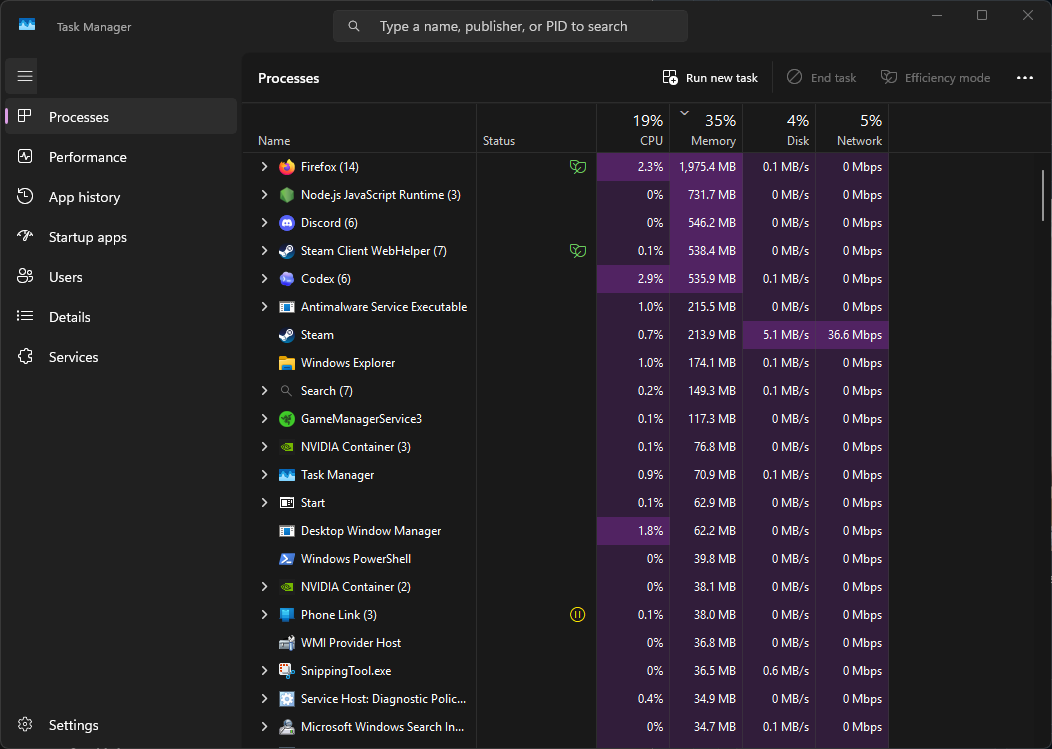
Open Task Manager at the wrong moment and Windows can look faintly absurd. Runtime Broker is using CPU. WMI Provider Host is awake. Windows Modules Installer Worker is busy again. Desktop Window Manager is on the GPU, despite the fact you are mostly looking at a wallpaper and a browser.
Most of the time, nothing is wrong. Windows uses quiet moments to catch up on maintenance, scanning, indexing, update work, hardware checks, and desktop rendering. Task Manager shows those jobs as separate processes, which makes one routine burst of background activity look like a small committee meeting.
The useful question is not “why does this process exist?” It’s “what is Windows doing right now, and does it stop?”
Windows is often busy precisely because you are not
A PC can look idle and still be doing plenty behind the scenes. Windows tends to delay lower-priority work until you stop actively using the machine.
That background work often includes:
- update installation and cleanup
- malware scans
- search indexing
- hardware and software status checks
- app permission handling
- diagnostic or compatibility data collection
- drawing and compositing the desktop through the GPU
This is why CPU or disk usage often rises a few minutes after startup, after an update, after plugging in a device, or after copying a pile of files. Windows sees spare time and fills it.
On a newer desktop with an SSD and a decent CPU, you may barely notice. On an older laptop with a hard drive and two struggling cores, the same job can feel far more dramatic.
Task Manager makes one job look like five
Part of the confusion is how Windows splits work across components.
You may see:
- Service Host running one or more system services
- Windows Modules Installer Worker handling update servicing
- Windows Defender scanning changed files
- Windows Search Indexer updating the search database
- WMI Provider Host answering system queries
- Compatibility Telemetry collecting update and reliability data
- Runtime Broker dealing with app permissions or background app activity
- Desktop Window Manager using the GPU to draw the desktop
Those are not always separate problems. Often they are parts of the same chain of events.
Install updates, for example, and Windows may service components, scan the changed files, update its search index, check compatibility status, and redraw bits of the interface along the way. Task Manager then presents the lot as if each process woke up independently and chose chaos.
Updates are behind a lot of this
If several odd-looking processes are active at once, updates are one of the first explanations to consider.
Windows Modules Installer Worker is the obvious one. It handles Windows component servicing: installing, modifying, and cleaning up system files. It often stays active after an update appears to be finished because Windows is still validating files, rebuilding caches, or removing old update data.
That can mean noticeable CPU and disk use after:
- monthly Windows updates
- feature updates
- enabling or disabling optional Windows features
- the first reboot after patching
A short spell of heavy activity here is normal. A machine that keeps doing it for hours across multiple restarts may have an update problem rather than routine cleanup.
Service Host often appears at the same time, though it tells you less by itself. It is a wrapper for Windows services, not a single service with one clear job. If Service Host is using CPU, the important part is which service inside it is active. During update work, that may be tied to Windows Update, cryptographic services, installer services, or something adjacent.
This is one reason Task Manager can be misleading. “Service Host is busy” is a bit like saying “a van is parked outside.” True, but not specific enough to settle anything.
A quiet desktop is when Defender likes to work
A very common sight is Windows Defender using CPU while the PC appears to be doing nothing.
That is usually deliberate. Defender prefers to scan when the machine is idle or less busy. You stop working, Windows takes the opportunity to inspect recent downloads, changed files, removable drives, or whatever else has piled up.
You are more likely to notice this after:
- startup
- downloading or extracting a lot of files
- connecting USB storage
- security definition updates
- long gaps since the last scan
How annoying this feels depends heavily on the hardware. On a modern CPU with fast storage, Defender may just flicker in Task Manager and move on. On an older PC, especially one still running a hard drive, the same scan can drag the whole system down and announce itself with fan noise.
If Defender is constantly heavy, not just occasionally active, look at the workload around it. Large archives, developer folders full of small files, virtual machine images, and a second antivirus product can all make scanning more expensive than it needs to be.
Search indexing can look suspicious, but it usually has a reason
Windows Search Indexer exists so Start menu and File Explorer searches return results quickly instead of rummaging through the drive every time.
To do that, Windows builds and updates a search index in the background. That activity tends to spike after large file changes, initial setup, email sync, or any event that gives the indexer fresh material to chew through.
Common triggers include:
- setting up a new PC
- moving or copying lots of files
- rebuilding the search index
- syncing Outlook or another indexed app
- adding indexed folders from another drive
The pattern matters here. A temporary burst after a lot of file activity is ordinary. An indexer that keeps returning to the same high CPU or disk use may be dealing with a corrupted index, a troublesome folder, or too many locations being indexed for little benefit.
This is another place where storage speed changes the story. On SSDs, indexing is usually tolerable. On old hard drives, it can feel like the PC has decided to think very hard about documents you forgot existed.
WMI, telemetry, and the business of Windows checking itself
Some Windows processes are not doing visible work for you at all. They are gathering information about the system, hardware, drivers, software state, and update readiness.
That is where WMI Provider Host and Compatibility Telemetry usually enter the picture.
WMI Provider Host
WMI Provider Host is part of Windows Management Instrumentation, which is an unnecessarily long name for a fairly simple idea: it lets Windows and other software ask questions about the system.
Those questions might be about:
- installed hardware
- drivers
- services
- sensors
- event data
- device status
Short WMI spikes are common after startup, hardware changes, driver installs, and software installs. Monitoring tools, motherboard utilities, RGB software, enterprise management tools, and some security products all like to query WMI. Some of them like it a bit too much.
If WMI Provider Host keeps using CPU, the host process is often just the messenger. Another program may be polling it repeatedly, failing a query, or triggering the same error loop over and over.
Compatibility Telemetry
Compatibility Telemetry is tied more closely to diagnostics, update readiness, and reliability data. It tends to appear around updates, software changes, or maintenance cycles, and it may use CPU, disk, and some network activity while it gathers and processes that information.
This often overlaps with update servicing. Windows is not doing random busywork here; it is checking what is installed and whether the system is likely to behave after the next round of changes. On slower PCs, especially older systems with hard drives, it can be much more noticeable than Windows probably intended.
Runtime Broker is often just the middleman
Runtime Broker gets blamed partly because the name sounds vague enough to be suspicious. In practice, it usually handles app permissions and background behavior for certain Windows apps and components.
You may see it wake up when:
- opening built-in apps
- receiving notifications
- changing app permissions
- using Microsoft Store apps
- background app tasks briefly resume
Small bursts are normal. A Runtime Broker process that sits there using high CPU for a long stretch usually points to an app or app feature behaving badly rather than the broker itself. Notifications, broken Store apps, or permission-related loops are common suspects.
This is a recurring Windows theme: the process you can see is not always the one that started the mess.
Why the desktop uses the GPU when “nothing” is happening
Desktop Window Manager using GPU resources tends to worry people because the desktop does not look demanding. It is just windows, menus, transparency, scaling, previews, animations, and whatever else Windows insists on drawing.
That work still has to be composited, and the GPU is the right place for it.
So some GPU use from Desktop Window Manager is normal during:
- moving or resizing windows
- using multiple monitors
- running high refresh rate displays
- watching video in a window
- using browsers or apps with hardware acceleration
- overlays, widgets, screen recording, or wallpaper tools
The amount can rise with higher resolutions, HDR, multiple displays, and older or flaky graphics drivers. A few percent of GPU usage is not a fault. Unusually high usage while the system is doing very little can point to a driver issue, an overlay, a browser tab gone odd, or another app constantly forcing redraws.
Why these processes often show up together
Most of the names people notice are tied to a small set of background jobs:
- servicing Windows
- checking system state
- scanning changed files
- indexing content
- handling app behavior
- drawing the interface
Those jobs overlap.
A Windows update may trigger Windows Modules Installer Worker and a few services under Service Host. Changed files then attract Windows Defender. New or modified files catch the eye of Windows Search Indexer. Diagnostic or readiness checks may involve Compatibility Telemetry and WMI Provider Host. If windows, notifications, or display elements are changing, Desktop Window Manager is there too.
That is why several of these processes can appear within the same hour and still be part of one fairly ordinary maintenance cycle.
When to ignore it, and when to dig deeper
Most of this becomes easier to judge if you stop staring at the process name and look at the pattern instead.
Usually normal:
- CPU or GPU usage rises for a few minutes after boot
- activity appears after updates, installs, or large file changes
- Defender scans while the PC is idle
- Search Indexer gets busy after lots of new files
- Desktop Window Manager shows light GPU activity during normal desktop use
- WMI Provider Host or Runtime Broker spikes briefly and then settles
More suspicious:
- the same process runs hot for hours
- the machine stays busy across several reboots
- fans, stutter, or disk thrashing continue long after updates should be finished
- WMI Provider Host or Runtime Broker never really calms down
- Service Host keeps using CPU and the underlying service points back to one failing component
- Desktop Window Manager is using far more GPU than the desktop activity seems to justify
- the problem started right after one app, driver, utility, or peripheral was added
Hardware matters here more than people sometimes expect. Windows background maintenance has a way of feeling harmless on a recent SSD-based system and much less harmless on an old machine with limited RAM and a mechanical drive.
Older PCs do not see stranger behavior, just slower behavior
A lot of “Windows is doing odd things” reports come from machines that are simply bad at hiding normal maintenance.
The tasks are often the same. The difference is that older hardware has less headroom.
You notice more:
- fan noise
- slow app launches
- pauses while typing or switching windows
- hard drive chatter
- general reluctance
On those systems, even routine background jobs stack up visibly. Defender scans, indexing, update cleanup, and telemetry all compete harder with whatever you are trying to do in the foreground. Windows is still following the same script. The cast is just older and more tired.
What this usually means
When Runtime Broker, Windows Defender, Windows Modules Installer Worker, WMI Provider Host, Service Host, Windows Search Indexer, Compatibility Telemetry, or Desktop Window Manager appear in Task Manager, the name alone does not tell you much.
Timing does.
If the activity shows up after startup, updates, installs, file changes, or long idle periods, Windows is usually catching up on work it postponed. If it clears after a while, that is ordinary system maintenance. If it keeps returning, runs for hours, or started after one specific piece of software or hardware was added, that is the point to investigate.
Windows does a lot in the background. Task Manager just has a talent for making it look stranger than it is.
Leave a Reply