Author: admin

  • How to Check if Your PC Has an SSD

    Every so often someone looks at their computer’s performance and starts wondering what’s actually inside the thing. Perhaps it feels slower than expected. Perhaps someone mentioned that switching to an SSD makes a computer “ten times faster,” which is the sort of statement that tends to spread across the internet like a rumour in a small village.

    So the question pops up: does this PC actually have an SSD, or is it still running on an old hard drive?

    It’s a sensible question. Storage has a huge effect on how fast a computer feels. The good news is that finding out what kind of drive your PC has is usually very straightforward, and the answer often explains a lot about the computer’s overall performance.


    What’s Normal: Not Everyone Has an SSD

    Despite what tech forums might suggest, plenty of computers still use traditional hard drives. These drives store data on spinning disks, which means they physically move parts around to read information.

    SSDs, or solid-state drives, do the same job but with no moving parts. They store data on memory chips, which makes them much faster at accessing files.

    Modern laptops and many newer desktops come with SSDs as standard. Older machines, however, often still rely on hard drives. If a computer feels slower when starting programs or opening files, the storage type is often the reason.

    So if you’re unsure what kind of drive your PC has, you’re not alone. Many people use their computers for years without ever checking.


    Why the Difference Matters

    The type of storage drive in a computer affects how quickly it can retrieve data.

    When you open a program, load a file, or start the operating system, the computer must read information from its storage drive. If that drive is fast, everything appears almost instantly. If it’s slower, the system has to wait while the drive catches up.

    That’s why two computers with similar processors and memory can feel completely different. One might start programs immediately, while the other pauses for a few seconds before anything happens.

    It’s a bit like the difference between grabbing a book from a nearby shelf or walking to the far end of a library every time you need a page.


    Why It Sometimes Looks Like a Performance Problem

    People often assume slow behaviour means something is wrong with the computer.

    In reality, many PCs that feel sluggish are simply using older storage technology. A hard drive isn’t broken just because it’s slower. It’s doing its job exactly as designed.

    The difference is that modern software tends to assume faster storage. Programs load more data than they used to, operating systems perform more background activity, and updates happen regularly.

    When all of that runs on a traditional hard drive, the system can feel busy even when the user isn’t doing much.

    That’s why people often notice heavy disk activity while the computer appears idle.


    Why System Monitors Don’t Always Make It Obvious

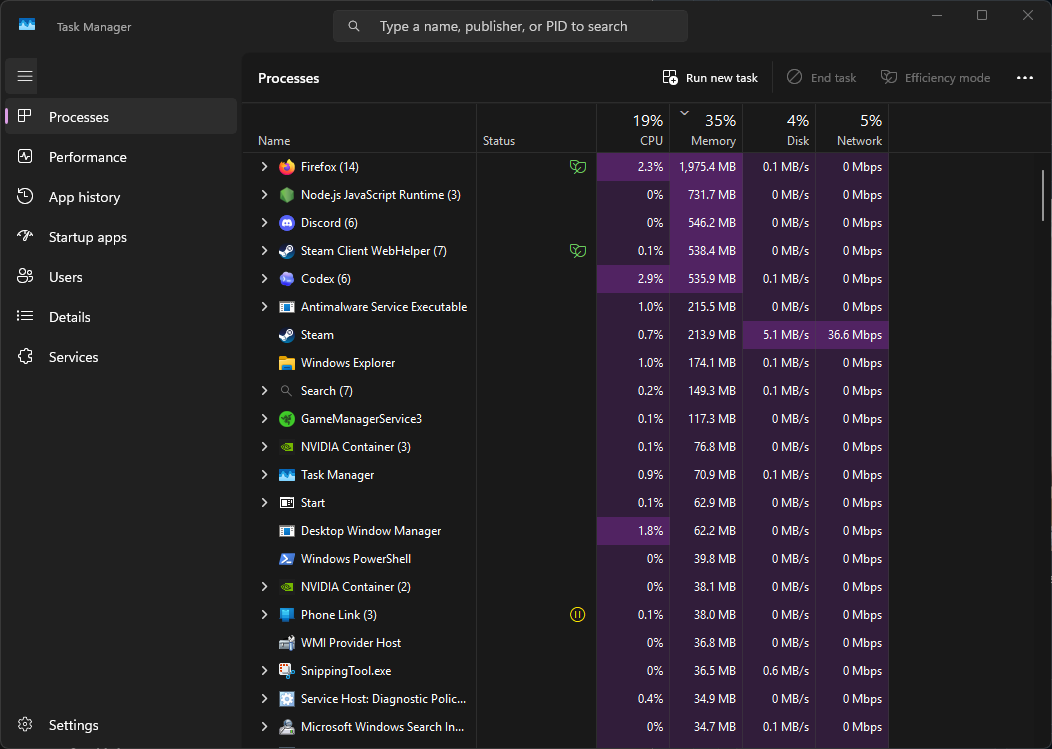
    Opening Task Manager can sometimes help reveal what’s happening, but it can also add to the confusion.

    If the system drive is a hard drive, Task Manager may show high disk activity when programs open or when the operating system is doing background work. This doesn’t mean the computer is malfunctioning. It simply means the drive is working at its normal speed.

    Meanwhile, CPU usage may stay fairly low, which makes the situation look strange. The processor is waiting patiently for data, while the storage drive is doing the slow part of the job.

    This is one of the reasons people sometimes blame the wrong component when a computer feels slow.


    Ways to Tell What Type of Drive Your PC Has

    Most modern versions of Windows make it fairly easy to identify the type of storage device installed.

    One of the simplest ways is through Task Manager. In the Performance section, Windows often labels storage devices directly. If the drive is listed as an SSD, that’s the answer. If it says HDD, the computer is using a traditional hard drive.

    Another method involves looking at the system’s drive information in Windows settings or device listings. These areas often display the model name of the drive, which can be looked up to determine its type.

    Laptop specifications or purchase information can also provide clues. Many manufacturers advertise SSD storage prominently because it’s considered a major performance feature.

    The important point is that there’s usually no mystery. The operating system almost always knows exactly what type of drive is installed.


    What the Computer Is Actually Doing With Its Storage

    Even when nothing appears to be happening, the storage drive rarely sits completely idle.

    The operating system constantly reads and writes small pieces of data. System logs update, temporary files appear and disappear, and services perform routine maintenance.

    These tasks usually happen quietly in the background. On a fast SSD, they finish almost instantly. On a traditional hard drive, they may take a little longer.

    That difference is why systems with older drives often show bursts of disk activity while the computer appears to be doing nothing.

    The hardware isn’t struggling. It’s simply operating at the pace the technology allows.


    Why Modern Computers Prefer SSDs

    SSDs became popular because they eliminate the biggest delay in traditional storage: moving parts.

    Hard drives rely on spinning disks and moving read heads to locate data. Every time a file is needed, the drive must physically move to the correct position.

    SSDs skip that entire process. Because they store data electronically, they can retrieve files almost instantly.

    This dramatically improves tasks such as:

    • Starting the operating system
    • Launching applications
    • Opening large files
    • Switching between programs

    That’s why computers with SSDs often feel far more responsive, even if their processors and memory are similar.


    When the Drive Type Usually Explains Slow Performance

    If a computer feels slow when opening programs, booting up, or loading files, the storage drive is often involved.

    Hard drives can still run modern systems, but they may struggle with workloads that involve many small file operations. Updates, system maintenance, and application launches can all generate bursts of disk activity.

    During these moments, the computer may appear busy even though the processor and memory are not heavily used.

    Once those tasks finish, the system usually settles back into a quieter state.


    When It Might Be Worth Looking Closer

    If the computer is working normally but simply feels slow when loading programs or starting up, the storage type may already explain the behaviour.

    However, there are situations where additional investigation makes sense. For example, if disk activity remains constantly high or the system frequently pauses during everyday tasks, something else could be contributing.

    Software running in the background, large update operations, or heavy file indexing can all increase storage activity.

    But in many cases, simply knowing whether the PC has an SSD or a hard drive helps explain why the system behaves the way it does.


    What Not to Do When Investigating Storage

    When people suspect their storage drive is slowing things down, they sometimes jump straight to extreme solutions.

    Installing aggressive “system cleaners” or optimisation tools rarely helps. These programs often promise to speed up storage performance but mostly just shuffle files around or clear temporary data.

    Another common mistake is assuming the drive is failing just because the system feels slow. Traditional hard drives are slower by design, not necessarily damaged.

    Understanding the type of drive installed usually provides more clarity than trying random fixes.


    Sometimes the Answer Is Simply the Hardware

    Storage technology has changed a lot over the past decade. Computers that once felt perfectly fast can seem sluggish today simply because newer systems use faster drives.

    If your PC has an SSD, the storage probably isn’t the reason it feels slow. If it has a traditional hard drive, the behaviour you’re seeing may simply be the result of how that technology works.or perhaps your sytem ram is struggling.

    Either way, the computer is usually doing exactly what it was built to do.

    And once you know what type of drive is inside the machine, the mystery of its performance often becomes much easier to understand.

  • How Much RAM Is Really Needed?

    People start worrying about RAM when something looks suspicious. Maybe the computer feels a bit slow, maybe Task Manager says most of the memory is already in use, or maybe someone on the internet declared that anything less than 64GB is basically medieval technology.

    That tends to raise a simple question: how much RAM does a PC actually need?

    The answer is less dramatic than most people expect. For everyday use, modern computers rarely need huge amounts of memory. Most of the time, what looks like heavy RAM usage is simply the operating system using memory efficiently rather than struggling.

    RAM is more like workspace than fuel. If there is empty desk space, the computer spreads things out so it can work faster. If space gets tight, it tidies up and makes room.


    What Normal Memory Use Looks Like

    A freshly started Windows computer will already be using some memory before you open a single program. The operating system needs RAM to run its own components, manage hardware, and keep background services ready.

    Once a browser opens, a few tabs appear, and a couple of everyday programs start, memory usage rises quickly. Seeing several gigabytes in use is perfectly normal.

    In fact, many systems will happily sit at 40–70% RAM usage during everyday tasks without any problems at all.

    This is where people often assume something is wrong. They see memory being used and think it should be empty. In reality, unused RAM is about as helpful as an empty warehouse. Windows prefers to fill it with useful things so the computer responds faster.


    Why High RAM Usage Looks Suspicious

    Unlike CPU usage, which constantly jumps up and down, memory usage tends to stay fairly stable.

    If Task Manager shows that most of the RAM is in use, it can look like the computer is permanently under pressure. In reality, much of that memory is simply being used for caching and background services.

    Imagine a kitchen counter. If it’s empty, you constantly have to fetch things from cupboards. If useful items are already on the counter, cooking becomes quicker. RAM works the same way.

    The computer stores recently used files and programs in memory so they can be accessed instantly. That data can be removed the moment another program needs the space.

    So while it may look like the system is “full”, it’s usually just well organised.


    Why Task Manager Can Be Misleading

    Task Manager is useful, but it doesn’t always tell the whole story about memory.

    Some of the RAM listed as “in use” is actually part of the system cache. Cached data includes files that were recently opened or programs that might be used again soon.

    The operating system keeps this information in memory because retrieving it from RAM is far faster than loading it again from storage.

    If a new application suddenly needs more memory, Windows quietly clears that cached space. The user rarely notices this happening.

    This is why a computer can show high RAM usage and still run perfectly smoothly. The memory isn’t stuck — it’s simply being used productively.


    What the Computer Is Doing With All That Memory

    Even when the computer looks quiet, a surprising amount of background activity continues.

    Security software stays loaded so it can react instantly if something suspicious happens. Device drivers remain in memory so hardware like storage drives, keyboards, and graphics cards can communicate with the system.

    The operating system also keeps parts of frequently used applications ready in memory. This is one reason programs often launch faster the second time you open them.

    Browsers also deserve a mention. Modern browsers are extremely good at using memory. Each tab and extension may run its own small process, which means a modest number of tabs can quietly consume several gigabytes of RAM.

    None of this indicates a problem. It’s simply how modern software is designed.


    Why Modern Computers Prefer More RAM

    RAM is one of the fastest parts of a computer. Accessing data from memory is far quicker than reading it from a storage drive, even if that drive is a fast SSD.

    Because of this, operating systems try to keep as much useful data in memory as possible. It makes the system feel more responsive and reduces the amount of time spent retrieving files from disk.

    If a computer has more RAM installed, Windows will naturally make greater use of it. That does not mean the system suddenly needs all of it. It simply means the operating system has more workspace available.

    A computer with extra RAM behaves a bit like a mechanic with a larger workbench. The job is the same, but tools can stay out where they are easy to reach.


    How Much RAM Most PCs Actually Need

    For most everyday users, the amount of RAM needed is surprisingly modest.

    A typical home computer used for browsing, email, streaming video, and office work runs comfortably with 8GB of RAM. This has been the common baseline for several years.

    For people who like to keep many browser tabs open or run several applications at once, 16GB of RAM offers a more comfortable margin. It allows heavier multitasking without the system feeling cramped.

    Beyond that, larger amounts of memory are usually aimed at specialised tasks such as video editing, large design projects, or demanding gaming.

    For the majority of everyday computers, the jump from 8GB to 16GB is noticeable. Beyond that, the improvements depend heavily on the type of work being done.


    When Memory Actually Becomes a Bottleneck

    A computer only begins to struggle when it genuinely runs out of available RAM.

    When this happens, the operating system starts moving data between memory and the storage drive. This allows programs to continue running but slows things down because storage is much slower than RAM.

    You might notice programs pausing briefly when switching between them, or increased disk activity as the system moves memory data back and forth.

    If that behaviour appears regularly, it can indicate that the computer is operating close to its memory limits.

    This is when additional RAM can make a meaningful difference.


    When RAM Usage Settles Down

    High RAM usage often stabilises on its own.

    Once large applications close or browser tabs are reduced, memory becomes available again. The system gradually reorganises itself as it returns to a more idle state.

    Cached data may remain in memory for a while, but it can be cleared instantly whenever space is needed.

    Because of this, the memory numbers you see in system monitors are often just snapshots of a particular moment rather than a permanent condition.


    When It Might Be Worth Looking Closer

    Although high memory usage is often normal, a few situations can suggest that more RAM would help.

    If the computer frequently slows down when switching between applications, or if programs constantly reload when returning to them, the system may be running close to its limits.

    Similarly, if heavy multitasking causes noticeable slowdowns or constant storage activity, the system may be relying on disk space to compensate for limited memory.

    In those cases, adding more RAM can give the system more breathing room.


    Things People Often Try That Don’t Help

    When people see high memory usage, they sometimes install utilities that promise to “clean” or optimise RAM.

    These programs often clear cached memory that Windows intentionally keeps available for performance. The result may briefly lower the numbers shown in Task Manager, but it rarely improves how the computer actually feels.

    Another common reaction is manually closing system processes that appear to be using memory. Many of these services restart immediately because they are essential to how the operating system functions.

    The computer already manages memory automatically. Interfering with that process usually accomplishes little.


    RAM Is Meant to Be Used

    Memory is there so the computer can work quickly. If the system has RAM available, it will use it to keep programs, files, and system data close at hand.

    Seeing memory in use does not mean the computer is struggling. In many cases it means the system is running efficiently and making the most of the resources it has.

    Unless the computer is regularly slowing down under heavy workloads, the amount of RAM installed is probably doing its job just fine.

    And if the memory numbers in Task Manager look high while the system is quietly ticking along with low CPU usage and minimal disk activity, that usually means the computer is exactly where it should be: comfortably busy, but not under pressure.

  • Windows Modules Installer Worker Using High CPU (What It Means)

    Seeing Windows Modules Installer Worker using a lot of CPU in Task Manager can make it look like something is wrong with the system. The name is long, the activity appears suddenly, and the CPU usage can sometimes jump quite high.

    It is easy to assume this is a malfunctioning program or some kind of background process that should not be running.

    In most cases, it is simply Windows handling updates. The Windows Modules Installer Worker is part of the system responsible for installing, modifying, and cleaning up Windows components. When it becomes active, it usually means Windows is preparing or installing updates behind the scenes.

    The process can look dramatic in Task Manager, but most of the time it is just routine maintenance.


    What This Process Actually Does

    Windows Modules Installer Worker is part of the Windows servicing system. Its job is to install and manage system updates and Windows components.

    Whenever Windows downloads updates, they often require preparation before they can be installed. Files need to be unpacked, verified, and staged so they can be applied safely.

    This preparation work is handled by the servicing system, and the Windows Modules Installer Worker process often performs that work.

    Because updates modify important parts of the operating system, the process can briefly use noticeable CPU usage or disk activity while it prepares the changes.

    Once the preparation stage finishes, the process usually becomes quiet again.


    When This Activity Is Normal

    It is normal for the Windows Modules Installer Worker to use CPU occasionally.

    The activity often appears when:

    • Windows has recently downloaded updates
    • The system has just started or restarted
    • The computer has been sitting idle for a while
    • Windows is preparing updates for installation

    Many update tasks run during idle periods so they do not interrupt the user while the computer is being actively used.

    If the system has pending updates, the process may briefly use a noticeable amount of CPU while it verifies files or prepares components.

    The activity typically settles down once the preparation work is finished.


    Why It Often Appears Suddenly

    The Windows update system works quietly most of the time.

    Updates download in the background, and many of the preparation steps happen without any visible notifications. The user may not realise anything is happening until Task Manager shows the CPU becoming active.

    Because the process often starts when the system is idle, it can feel like the computer suddenly decided to do something unexpected.

    From Windows’ perspective, this is simply a convenient moment to perform maintenance.

    Running update preparation while the computer is not being used helps prevent those tasks from slowing down normal work.


    Why Task Manager Can Make It Look Worse

    Task Manager shows a snapshot of what the system is doing at that exact moment.

    If you happen to open it while the Windows Modules Installer Worker is actively preparing update files, the CPU usage may appear high. This can make it look like the system is struggling or stuck.

    In reality, many of these tasks run in short bursts.

    For example, the process may briefly use a large amount of CPU while unpacking update files or verifying system components. Once that stage is finished, the activity usually drops again.

    The graph in Task Manager can exaggerate these bursts because it highlights the busiest moments rather than the average activity over time.


    What Causes High CPU Usage From This Process

    Several common situations can cause the Windows Modules Installer Worker to become active.

    Installing Windows Updates

    The most common reason is simply that Windows is installing updates.

    Updates often require several steps. Files must be checked, unpacked, and prepared before installation.

    This preparation can temporarily increase CPU usage while the system processes update packages.

    Preparing Updates for Later Installation

    Sometimes the system prepares updates in advance so they install faster during the next restart.

    This staging process may involve unpacking files and preparing system components.

    Although it happens quietly in the background, it can briefly use processor time.

    Cleaning Up Old Update Files

    After updates are installed, Windows often removes temporary files and outdated components.

    This cleanup stage can also trigger activity from the Windows Modules Installer Worker.

    It is part of the system keeping the update system organised.

    System Maintenance During Idle Periods

    Windows performs routine maintenance when the computer is not being used.

    During these periods, the system may check update files, verify system components, or tidy up update-related data.

    This type of background activity is another reason the process may appear while the computer seems idle.


    How Long the Activity Usually Lasts

    In most situations, high CPU usage from the Windows Modules Installer Worker is temporary.

    The process typically runs only while it is actively preparing updates or cleaning up files. Depending on the size of the update and the speed of the computer, this might last anywhere from a few minutes to longer on slower systems.

    Older computers or systems with slower storage drives may take more time to process update packages.

    Once the update preparation is finished, the CPU usage usually drops back to normal levels and the process becomes quiet again.

    Many users only notice it because they happen to open Task Manager during the busiest part of the process.


    When It May Be Worth Looking Closer

    Although this behaviour is usually normal, there are situations where further investigation may make sense.

    For example:

    • CPU usage remains very high for many hours
    • The process appears active every day without stopping
    • Windows updates repeatedly fail to install

    These patterns may suggest that the update system is having trouble completing its tasks.

    Sometimes an update may be stuck in a loop of retrying installation or repeatedly verifying files.

    In those cases, the issue usually lies with the update system itself rather than the Windows Modules Installer Worker process.

    The process is simply doing the work it has been assigned.


    What Not to Do When You See It

    When people notice a process using high CPU, the instinct is often to stop it.

    Ending the Windows Modules Installer Worker process in Task Manager is usually not helpful. Windows will often restart the process automatically because the update system still needs to finish its work.

    Interrupting the process may delay updates or cause the same preparation tasks to start again later.

    Another common reaction is disabling Windows Update entirely. This often leads to larger update problems later because the system eventually has to catch up on missed updates.

    Repeatedly restarting the computer while updates are being prepared can also slow things down, as the process may need to restart its work after each reboot.

    In most cases, the best approach is simply to allow the process to finish.


    A Routine Part of Windows Maintenance

    The Windows Modules Installer Worker may look intimidating in Task Manager, especially when it briefly uses a large amount of CPU.

    Most of the time it is simply Windows handling update preparation or cleanup tasks in the background.

    These tasks are part of the operating system keeping itself secure and up to date. They often run while the system is idle so they do not interrupt normal work.

    Once the update process finishes, the CPU usage typically drops and the system returns to its usual quiet state.

  • What Uses RAM While a PC Is Idle?

    It can be unsettling to open Task Manager and see a large amount of memory in use even though the computer appears to be doing nothing. No programs are open, the desktop is quiet, and yet Windows might show several gigabytes of RAM already in use.

    This often leads people to assume something is wrong. In most cases, it simply means the operating system is doing what it was designed to do.

    Modern versions of Windows try to make good use of available memory rather than leaving it empty. Even when the computer appears idle, several background systems are working quietly to keep the system ready and responsive.


    What Normal RAM Usage Looks Like

    It is completely normal for a Windows PC to use a significant portion of memory even when no applications are open.

    Windows itself requires RAM to operate. System services, device drivers, security tools, and other components all run continuously in the background.

    On top of that, Windows also uses spare memory to cache data and prepare commonly used files so programs open faster later.

    Because of this, it is common to see several gigabytes of RAM in use even when the system appears idle.

    The important detail is that Windows releases this memory when applications need it. RAM that looks “used” is often simply reserved temporarily for convenience.


    Why Idle Memory Usage Can Look Suspicious

    Memory usage can feel more concerning than CPU usage because it tends to stay high for long periods rather than rising and falling.

    If you open Task Manager and see that half of your RAM is in use while nothing appears to be running, it can give the impression that something is quietly consuming resources.

    In reality, Windows is intentionally filling unused memory with useful data.

    Leaving RAM completely empty would actually waste a resource that the computer already has available. Instead, Windows uses it to store cached information that may be needed later.

    If a program suddenly needs more memory, Windows simply frees that cached space.

    From the operating system’s perspective, unused RAM is an opportunity to improve performance.


    Why Task Manager Can Be Confusing

    Task Manager shows how much memory is in use, but it does not always make it obvious how that memory is being used.

    Some of the RAM listed as “used” is actually part of the system cache. This cache stores recently accessed files and frequently used system data.

    Because the data is already in memory, Windows can load programs faster when they are needed.

    Another portion of memory may be allocated to background services. These services support networking, security, updates, and system monitoring.

    When you look at the list of processes in Task Manager, many of them are small system services grouped under names like Service Host.

    Each one uses only a small amount of RAM, but together they form the core of the operating system.

    This can make it look as though many things are running at once, even when the system is mostly idle.


    What Windows Is Doing in the Background

    Even when nothing appears to be happening, Windows continues running a variety of background systems.

    These systems keep the computer ready to respond quickly when the user opens programs or connects to networks.

    Several types of background activity commonly use RAM during idle periods.

    System Services

    Windows runs dozens of services that support networking, security, device management, and other system functions.

    These services stay loaded in memory so they can respond instantly when needed.

    For example, services that manage updates, handle printing, or control Bluetooth devices remain active even when you are not actively using those features.

    Security Protection

    Security tools such as Windows Defender operate continuously in the background.

    They monitor files, check system activity, and occasionally perform scans to ensure the system remains safe.

    These processes require a small amount of RAM to stay active and ready.

    File Caching

    Windows keeps frequently used files in memory so they can be accessed quickly later.

    This file caching system is one of the reasons programs sometimes open faster the second time you launch them.

    The data stored in the cache can be cleared instantly if another program needs the memory.

    Hardware Drivers

    Drivers are small pieces of software that allow Windows to communicate with hardware devices.

    Each driver uses a small amount of RAM to remain active.

    Graphics drivers, network drivers, and storage controllers all maintain memory usage even when the system is idle.


    Why Windows Prefers to Use Spare RAM

    Modern operating systems treat memory differently from older systems.

    Years ago, it was common advice to keep RAM usage as low as possible. Today the opposite approach is often more efficient.

    RAM is one of the fastest resources in a computer. If the operating system can store useful data there, programs can load and run faster.

    For that reason, Windows intentionally fills available memory with helpful cached information.

    This improves performance without preventing other programs from using the memory when needed.

    When a new application starts, Windows automatically clears any cached data that is no longer necessary.

    The user rarely notices this happening because the process is extremely fast.


    When Memory Usage Usually Drops

    Even though idle memory usage can appear high, it often changes quickly when new programs open.

    If you start a large application or open many browser tabs, Windows will reclaim cached memory and allocate it to the new workload.

    This is one of the reasons the system may appear stable even when Task Manager shows most of the RAM already in use.

    The memory is not permanently reserved. It is simply being used efficiently until something else needs it.

    When programs close, the operating system may once again fill the free memory with cached data.

    This cycle happens continuously as the system moves between busy and idle states.


    Situations That May Be Worth Checking

    High memory usage while idle is usually normal, but there are a few situations where it may be worth taking a closer look.

    For example:

    • Memory usage remains extremely high even after closing programs
    • The system becomes noticeably slow despite having available RAM
    • A single program appears to consume large amounts of memory continuously

    In these cases the issue may be related to a program that is not releasing memory properly or a background process that has become unusually active.

    Browsers with many extensions, for example, can sometimes continue running processes even when their main window is closed.

    Most of the time, though, Windows itself is simply using memory for caching and background services.


    Common Reactions That Do Not Help

    When people see high RAM usage during idle periods, they sometimes try to force the system to free memory.

    One common reaction is installing memory-cleaning utilities that claim to reduce RAM usage. These tools often clear cached memory that Windows intentionally stored there.

    The result may temporarily lower the number shown in Task Manager, but it usually provides no real performance benefit.

    In some cases it can actually slow the system slightly because Windows has to rebuild the cache later.

    Another mistake is repeatedly closing system processes in Task Manager. Many of these processes restart automatically because they are essential parts of Windows.

    Attempting to remove them does not reduce memory usage for long.

    The operating system already manages memory allocation automatically and generally does so more effectively than manual adjustments.


    A System Using Its Resources Efficiently

    Seeing RAM in use while the computer appears idle can look unusual at first. In practice, it usually means Windows is managing memory exactly as intended.

    Background services, security tools, hardware drivers, and cached files all rely on RAM to keep the system responsive.

    Rather than leaving memory empty, Windows uses it to store useful information and prepare the system for the next task.

    If a program suddenly needs more memory, Windows releases cached data immediately.

    So when Task Manager shows memory usage during idle periods, it is often simply the operating system using available resources to keep the computer running smoothly.

  • System Idle Process CPU & Memory Explained

    If you open Task Manager and see something called System Idle Process using a large percentage of the CPU, it can look alarming. Numbers like 80%, 90%, or even 99% can make it seem like the computer is doing something intense when nothing appears to be happening.

    In reality, the opposite is true.

    The System Idle Process is not a program doing work. It is Windows showing you how much of the processor is not being used. When that number is high, the computer is mostly idle and has plenty of processing power available.

    Because the name sounds technical and the percentage looks large, many people assume it means the system is overloaded. Most of the time it actually means the system is doing very little.


    What the System Idle Process Actually Represents

    The System Idle Process exists mainly so Task Manager can display how busy the processor is.

    Instead of showing unused CPU time as a blank space, Windows groups that unused time into the System Idle Process. When the processor has nothing else to do, it spends that time in this idle state.

    So if Task Manager shows the System Idle Process using 95% CPU, that means the processor is 95% free.

    This can feel backwards at first. Most programs showing high CPU usage are actively doing work, but the System Idle Process is simply measuring how much processing capacity is unused.

    Because of that, a high percentage for this process is normally a good sign.


    What Normal Behaviour Looks Like

    On a typical system, the System Idle Process often sits very high when the computer is not doing much.

    When the system is truly idle, it may show anywhere between 80% and 99%. This means almost all of the processor’s capacity is available for other programs.

    If you open a browser, start a program, or run a game, you will usually see the number drop quickly. That is simply Windows giving the processor time to the program you started instead.

    In other words, the System Idle Process shrinks when the computer becomes busy.

    This is how the operating system keeps track of unused processor time.


    When the Numbers Look Strange

    Although the behaviour is usually normal, the numbers can still be confusing.

    For example, you might see the System Idle Process showing 90% while another process shows 10% CPU usage. That simply means those two numbers together represent the full processing capacity of the system.

    The idle process fills whatever portion of the processor is not being used by other tasks.

    It is not competing with other programs or consuming resources. It is simply representing unused CPU time.

    The only time the idle process becomes low is when other programs are actively using the processor.


    Why It Often Looks Like a Problem

    The biggest source of confusion is the name itself.

    Most processes that appear in Task Manager represent programs or services doing work. When one of them shows high CPU usage, it usually indicates a heavy workload.

    Because the System Idle Process also shows a percentage, it is easy to assume it works the same way.

    In reality, it works in the opposite direction. The higher the percentage, the less work the processor is doing.

    So when someone sees 99% next to the System Idle Process, the natural reaction is to assume something is wrong. In practice, that number simply means the computer has almost nothing to do at the moment.


    Why Task Manager Can Be Misleading

    Task Manager is helpful, but it does not always explain what each process represents.

    When people check CPU usage, they often look for the process with the largest number. That approach works for most programs but does not apply to the System Idle Process.

    The idle process is more like a measurement than an actual program.

    It also appears as if it is always running, which adds to the confusion. The process is present even when the computer is busy because Windows constantly measures unused CPU time.

    This can give the impression that the process itself is consuming resources when it is really just reporting them.

    Memory usage can add to the confusion as well. The System Idle Process may show a small amount of memory usage in Task Manager, but this is simply part of how Windows tracks system activity. It does not mean the process is using large amounts of RAM.


    Why the Idle Process Exists at All

    The operating system needs a way to manage time when the processor is not doing anything.

    Processors cannot simply sit completely inactive between tasks. Instead, the system enters a controlled idle state where it waits for new work.

    During that time, Windows keeps track of unused CPU cycles. Those cycles are grouped under the System Idle Process so the system can display accurate statistics.

    This approach helps the operating system decide how to distribute processing time among programs.

    When another application needs the CPU, Windows immediately reallocates that idle time.


    What Causes the Number to Change

    The percentage shown for the System Idle Process changes constantly depending on what the computer is doing.

    If you open several programs at once, the idle percentage will drop because the processor is busy running those tasks.

    If the computer sits unused for a few minutes, the idle percentage will rise again.

    Certain background activity can also cause temporary changes. For example, updates, security scans, or indexing services may briefly increase CPU usage.

    During those moments the idle process percentage decreases because other tasks are using the processor.

    Once those tasks finish, the idle percentage rises again.


    When It Usually Returns to Normal

    Most fluctuations in the System Idle Process are short-lived.

    When the system finishes a background task or when a program closes, the processor becomes available again. The idle percentage rises as the system returns to a quiet state.

    This often happens when the computer has been left alone for a few minutes.

    Many maintenance tasks are designed to run when the system is idle. These tasks may briefly use CPU resources and then disappear once the work is complete.

    After that, the idle process returns to its usual high value.


    Situations That Might Be Worth Checking

    The System Idle Process itself is rarely the cause of a problem. If something unusual appears to be happening, the issue usually lies with another program.

    For example, if the computer feels slow but the idle process still shows a high percentage, the problem may not be related to CPU usage at all. Storage performance, memory pressure, or other system tasks may be responsible.

    On the other hand, if the idle process stays very low all the time, it simply means another process is constantly using the CPU.

    In that case the focus should be on identifying which program is consuming the processing power.

    The idle process is simply reflecting that activity rather than causing it.


    What Not to Do

    One common reaction when people see unfamiliar processes in Task Manager is to try to stop them.

    The System Idle Process cannot be ended, and attempting to do so would serve no purpose anyway. It is part of how Windows measures processor usage.

    Another mistake is assuming that a high idle percentage means the system is overloaded. Some users begin searching for ways to “reduce” the idle process, which is unnecessary.

    In fact, reducing it would mean the processor is being used more heavily.

    Installing optimisation tools to manage the idle process is also unnecessary. Windows already handles processor scheduling automatically.

    The best approach is simply to understand what the numbers represent.


    A Sign the Computer Is Quiet

    The System Idle Process often causes concern simply because its name and percentage can be misunderstood.

    In practice, it is one of the most reassuring numbers you can see in Task Manager. A high value means the processor is mostly free and the computer is not under heavy load.

    When other programs need processing power, Windows immediately shifts that idle time to them.

    So if you see the System Idle Process sitting near the top of the list with a large percentage, it usually means the system is doing exactly what it should — very little.

  • How to Delay or Cancel a Windows Update Restart

    Few things interrupt a computer session more abruptly than a message saying Windows needs to restart to finish installing updates. Sometimes it appears when you are in the middle of work, or just as you were about to shut the laptop and walk away.

    That can make it feel like Windows is taking control of the computer at the worst possible moment. In reality, the system is simply waiting for a restart so it can finish installing changes that cannot be completed while Windows is running normally.

    The good news is that Windows usually allows some flexibility. A restart can often be delayed, and sometimes cancelled temporarily, without causing problems. The key is understanding what Windows is trying to do and how long those updates can safely wait.


    When a Restart Is Actually Required

    Not every Windows update needs a restart. Many updates install quietly in the background and finish without the user noticing.

    However, some updates modify core parts of the operating system. Files that are currently in use by Windows cannot be replaced while the system is running. In those cases, Windows schedules the remaining work for the next restart.

    That is why you sometimes see messages asking you to restart your PC to finish installing updates. The system has already downloaded and prepared the update through background activity, and it simply needs a moment to apply the final changes.

    A restart becomes unavoidable eventually, but it usually does not have to happen immediately.


    What Happens If You Delay It

    Delaying an update restart is normally safe for a while.

    When Windows requests a restart, the update files are already staged and waiting. The system continues running normally, and most programs continue working exactly as they did before.

    During this time you might still see small bursts of CPU usage related to update services checking their progress or confirming files. That is simply the system keeping track of the update status.

    Windows will eventually remind you again, especially if the update contains security fixes. These reminders are designed to ensure that important updates are not postponed indefinitely.

    In other words, delaying the restart is fine for finishing work, but it is not meant to be permanent.


    Why Restart Prompts Can Appear Suddenly

    Restart requests often seem to appear out of nowhere.

    The reason is that the earlier stages of the update process happen quietly. Windows downloads updates, checks them, and prepares installation files while the computer is running or sitting idle.

    By the time you see the restart prompt, most of the work has already been completed.

    The final stage requires Windows to shut down certain services and replace system files. That step cannot happen while everything is still running, so Windows waits for a restart.

    Because the visible part of the process appears suddenly, it can feel like the system decided to interrupt you without warning.


    Why Task Manager Doesn’t Show Much

    Some users check Task Manager when Windows says a restart is needed, expecting to see heavy update activity.

    Often there is very little visible activity at that point. CPU usage may be low, and there may be no obvious processes doing major work.

    That is because the update preparation stage already happened earlier in the background. The restart prompt simply indicates that the system is ready for the final step.

    From Windows’ perspective, most of the job is finished.


    Ways Windows Lets You Delay a Restart

    Windows usually provides several ways to postpone a restart without cancelling the update itself.

    Restart Later

    When a restart prompt appears, there is usually an option to restart later. This allows the computer to continue running normally until you choose a more convenient time.

    The system will typically remind you again later if the restart has not happened.

    Active Hours

    Windows includes a feature called Active Hours. This tells the system when you normally use the computer so it avoids restarting during that period.

    If updates require a restart, Windows tries to schedule it outside those hours.

    This helps prevent unexpected restarts during work or study.

    Scheduled Restart

    Sometimes Windows offers the option to choose a specific restart time.

    This allows you to schedule the restart for later in the evening or another moment when the computer is not being used.

    For many people, this is the easiest way to handle update restarts without interrupting their workflow.


    When the System Usually Stops Asking

    In most cases the restart prompts disappear once the update has been completed.

    After the system restarts and finishes installing the remaining components, Windows returns to its normal behaviour.

    The system may perform a small amount of background activity during the first few minutes after restarting. This usually involves verifying the update and completing minor configuration tasks.

    Once that process finishes, the computer returns to its normal idle state and the update cycle is complete.


    When You Should Not Keep Delaying It

    Delaying a restart occasionally is fine, but constantly postponing it can create problems.

    Some updates include security fixes that protect the system from known vulnerabilities. Until the restart happens, those protections may not be fully active.

    If updates remain pending for a long time, Windows may become more persistent about requesting a restart.

    You might also notice additional update downloads appearing because the system is trying to keep itself current.

    In general, it is best to allow the restart once you have finished your work.


    Situations Where a Restart May Take Longer

    Sometimes people delay a restart and then notice that the eventual restart takes longer than expected.

    This usually happens because Windows has accumulated several update tasks waiting to finish.

    During the restart process the system may replace files, update services, and configure components. These steps can take a little time, particularly if multiple updates are being applied together.

    Older systems with slower storage can also take longer to complete this process.

    Although it may feel slow, this is usually just Windows finishing work that has been waiting for the restart.


    Things That Often Make the Situation Worse

    When people see repeated restart reminders, they sometimes try to prevent Windows Update from running at all.

    Disabling the update service or blocking updates entirely tends to cause bigger problems later. Eventually Windows must catch up on missed updates, which can lead to larger update installations.

    Another common mistake is forcing the computer to shut down while updates are installing. Holding the power button during an update can interrupt the process and cause Windows to repeat the installation later.

    Repeatedly restarting the computer while updates are pending can also reset the installation stage and delay the process further.

    Most of the time the simplest approach is to delay the restart until you are finished working, then allow Windows to complete the update normally.


    Updates Need a Restart Eventually

    Restart prompts from Windows Update can be inconvenient, but they are usually just the final step of a process that began quietly in the background.

    Delaying the restart for a short time is generally safe and often necessary if you are in the middle of something important. Windows provides several ways to postpone the restart until a more convenient moment.

    Eventually the system does need that restart so it can finish applying the update.

    Once it has done so, the reminders stop, the computer returns to its usual idle behaviour, and the system continues running as normal.

  • PC Takes a Long Time to Restart (What’s Usually Happening)

    A slow restart can feel frustrating because it happens when you expect the computer to quickly turn itself off and back on again. Instead, the screen may sit on Restarting for longer than expected, or Windows may take several minutes before the login screen appears again.

    It is easy to assume something has gone wrong with the system. In many cases, though, the computer is simply finishing tasks that cannot be completed while Windows is fully running.

    Restarting is not just a quick power cycle. Windows uses that moment to close programs, stop services, apply updates, and prepare the system for the next startup. When several of those tasks happen at once, the restart process can take longer than expected.


    What a Normal Restart Looks Like

    A restart involves several stages that happen in sequence.

    First, Windows closes applications and stops running services. Then it shuts down system components, powers off briefly, and starts the normal boot process again.

    Under typical conditions this happens fairly quickly. On most modern systems a restart may take anywhere from 30 seconds to a couple of minutes.

    It is also normal for the system to perform a little background activity during the restart process. For example, Windows may finish update tasks, clear temporary files, or close system services that were running.

    After the computer boots again, you may notice brief bursts of CPU usage or disk activity while Windows completes startup tasks. This short period of activity usually settles down once the system becomes idle again.

    A restart becomes less typical when the computer consistently takes a very long time to shut down or start back up.


    Why Restart Delays Often Look Worse Than They Are

    Restarting tends to draw attention because the computer is unavailable while it happens. You are waiting for the system to return, so every delay feels longer.

    In reality, the restart process is often finishing tasks that began earlier. Updates may have been downloaded in the background, maintenance work may have started while the system was idle, or programs may need extra time to close properly.

    When those tasks reach a stage that requires the system to restart, Windows pauses to complete them safely.

    Because the restart screen appears during this process, it can look like the entire job started at that moment. Most of the work actually began earlier through quiet background processes.

    The restart simply provides the opportunity to finish the remaining steps.


    Why Task Manager Can Give the Wrong Impression

    Many people open Task Manager before restarting because the computer feels slow. The information there can sometimes make the situation look worse than it is.

    During normal operation, background services may show occasional CPU usage while they prepare tasks that will finish later during restart.

    However, Task Manager cannot show what happens after the restart begins. Once Windows starts shutting down services, the tools used to monitor activity are no longer running.

    As a result, the restart screen may appear static even though the system is actively completing tasks behind the scenes.

    This lack of visible activity can create the impression that the computer has frozen when it is actually still working.


    Common Reasons a Restart Takes Longer

    Several routine system activities can extend the time it takes for a computer to restart.

    Windows Updates Finishing Installation

    One of the most common reasons for a slow restart is Windows finishing update work.

    Updates often download and prepare themselves while the system is running. Certain changes, however, can only be completed when Windows shuts down or starts again.

    During restart, the system may replace files, configure services, or apply system changes. These steps must happen carefully to avoid damaging system components.

    When updates are involved, restart times can increase noticeably.

    Programs Taking Time to Close

    When Windows restarts, it must close all running applications and services.

    Some programs shut down instantly. Others may take longer because they are saving data, stopping background processes, or waiting for network connections to close.

    If several programs delay their shutdown, Windows must wait for them before continuing.

    Background Maintenance Tasks

    Windows performs routine maintenance when the system has spare time. These tasks can include disk optimisation, security scans, and update preparation.

    Sometimes a maintenance task reaches a stage where it needs the system to restart. When that happens, Windows finishes the work during the restart process.

    This can briefly extend the shutdown or startup phase.

    Hardware Drivers Resetting

    Drivers control how Windows communicates with hardware devices.

    During a restart, drivers shut down and then initialise again when the system starts back up. If a particular driver takes longer to respond, it can delay the restart sequence.

    Network drivers, storage drivers, and graphics drivers are often involved in this stage.

    Storage Performance

    The speed of the system drive has a noticeable effect on restart times.

    Solid-state drives read and write data quickly, allowing Windows to load files faster. Older mechanical drives are slower because they rely on moving parts to locate data.

    If Windows needs to read or write many files during restart, slower storage can lengthen the process.


    When Restart Delays Usually Resolve Themselves

    In many cases a slow restart only happens once or twice.

    For example, if Windows is finishing updates, the system usually returns to normal restart times once those updates are fully installed.

    The same applies to maintenance tasks. Once the system completes the work it started, restart behaviour typically returns to its normal speed.

    Even when several startup programs launch after the reboot, the heavy activity usually lasts only a short time. Within a minute or two the computer settles back into its normal idle state.

    For most users, occasional slow restarts are simply part of the operating system performing maintenance.


    When It Might Be Worth Investigating

    Although occasional delays are normal, some situations may suggest that something is slowing the restart process more than usual.

    For example:

    • Restart consistently takes several minutes every time
    • The system appears stuck on the restart screen for long periods
    • The computer becomes slow both before and after restarting

    These patterns can sometimes indicate that an update is struggling to install, that a program is delaying shutdown, or that a driver is not responding properly.

    Storage problems can also affect restart behaviour, particularly if the system drive struggles to read or write files during shutdown.

    Even in these cases, the issue is usually gradual and fixable rather than a sign of major failure.


    What Not to Do When Restart Is Slow

    When a computer takes longer than expected to restart, it can be tempting to interrupt the process.

    One of the most common mistakes is forcing the computer to power off by holding the power button. If Windows is in the middle of applying updates or system changes, cutting power can leave those tasks incomplete.

    Windows can usually recover from this, but it may trigger additional repair work during the next startup.

    Repeatedly restarting the computer can also make things worse. Each restart forces Windows to begin the shutdown process again, which may restart the same background tasks.

    Installing random “system cleaner” utilities in an attempt to speed things up can also cause more problems than they solve. Some of these tools disable system services that Windows relies on.

    Often the safest approach is simply to allow the restart process to finish on its own.


    A Restart Is More Than Just Turning the Computer Off and On

    Restarting a PC is not just a quick reset. It is a controlled process where Windows shuts down services, completes background tasks, and prepares the system for the next startup.

    Because of that, occasional delays are completely normal.

    When the computer takes a little longer to restart, it is often just finishing work that began earlier while the system was running or idle.

    Once those tasks are complete, restart behaviour usually returns to normal, and the system continues running as expected.

  • What Can Delay PC Boot Up (And Why It Often Isn’t a Problem)

    A computer that takes longer than usual to start can make people uneasy. You press the power button expecting the system to be ready quickly, but instead you sit watching the Windows logo or waiting for the desktop to finish loading.

    It often feels like something must be wrong with the computer. In many cases, though, the system is simply doing more work during startup than usual.

    Booting a PC involves several stages, and each one includes small tasks that need to happen before Windows is fully ready. When several of those tasks take place at the same time, startup can feel slower than expected.


    What a Normal Startup Looks Like

    A normal Windows boot involves more activity than most people realise.

    When the computer powers on, the hardware performs checks and prepares devices. Windows then loads its core components, followed by drivers, system services, and finally user programs.

    Even after the desktop appears, Windows is still finishing parts of the startup process. Security services start running, background services initialise, and some programs begin loading in the background.

    Because of this, it is completely normal for the computer to feel slightly busy for a minute or two after login. During that time you may notice some CPU usage, disk activity, or small bursts of background activity even if no applications are open.

    Once those tasks finish, the system settles into its normal idle state.

    A slow startup becomes less typical when the delay stretches into several minutes every time the computer is turned on, or when the system remains unresponsive long after the desktop appears.


    Why Startup Delays Can Feel Dramatic

    Startup delays tend to feel worse than they actually are because they happen at a moment when the user is waiting for the computer to become usable.

    During normal operation, Windows spreads work out over time. Updates run in the background, maintenance tasks occur while the system is idle, and programs load only when needed.

    Startup is different. Many system tasks happen at once during a short window. Drivers load, services begin running, and startup programs launch almost simultaneously.

    That brief surge of activity can make the computer look overwhelmed, even if it only lasts a minute or two.

    Once those tasks complete, the system usually returns to normal performance.


    Why Task Manager Doesn’t Always Tell the Whole Story

    Opening Task Manager during a slow startup can sometimes make the situation look worse.

    You might see several processes showing noticeable CPU usage or disk activity. That is expected during the early stages of booting because Windows is launching multiple components at the same time.

    The graphs in Task Manager highlight those spikes clearly, which can give the impression that something is struggling.

    In reality, many of these tasks only run for a few seconds. They appear large simply because the system has just started and several services are briefly competing for resources.

    Once everything has loaded, the activity usually drops quickly and the computer becomes responsive again.

    Task Manager is useful for identifying patterns, but during startup it mostly shows the system’s busiest moment rather than its normal behaviour.


    Common Reasons a PC Takes Longer to Boot

    A slow startup usually comes down to the computer having more work to do during boot.

    Several common factors can contribute to this.

    Too Many Programs Starting Automatically

    One of the most frequent causes is a long list of startup applications.

    Many programs add themselves to the startup sequence during installation. Over time the list grows, and each of those programs launches when Windows starts.

    Individually they may only take a moment to load. Together they can create a short burst of heavy activity that delays the system becoming responsive.

    Background Services Initialising

    Windows relies on a large number of services that run quietly in the background.

    Networking services, security tools, update systems, and system monitoring components all begin starting during boot.

    If several services depend on each other, they may briefly wait for resources before continuing. This can create small delays that add up during the startup process.

    Windows Updates Finishing Installation

    Updates often complete part of their work during startup.

    When Windows installs certain system updates, it may need to configure files or apply system changes when the computer boots. These steps cannot happen while Windows is fully running.

    If an update was recently downloaded, the system may spend extra time preparing components during the next startup.

    Device Drivers Loading

    Drivers are the pieces of software that allow Windows to communicate with hardware such as storage devices, graphics cards, and network adapters.

    During startup, each driver must initialise and confirm that the hardware is responding correctly.

    Most of the time this happens very quickly. Occasionally a driver may take longer to respond, which can delay the next stage of the boot process.

    Storage Speed

    The speed of the system’s storage device has a major impact on boot time.

    Solid-state drives can read system files very quickly, which allows Windows to load faster. Older mechanical hard drives take longer to access data because they rely on moving parts.

    When Windows needs to load many small files during startup, slower storage can make the process noticeably longer.


    When Startup Delays Usually Settle Down

    In many cases, startup delays are temporary.

    If the slowdown is caused by updates finishing installation or background tasks completing, the system usually returns to normal after those jobs finish.

    Even when several programs launch during startup, the heavy activity usually lasts only a short time.

    After a minute or two, the system becomes quiet again. CPU usage drops, disk activity slows down, and the computer enters its normal idle state.

    For many users, the only noticeable delay is during the first minute after logging in.


    When It Might Be Worth Looking Closer

    Occasional slow boots are normal. However, there are situations where the delay may point to something worth investigating.

    For example, it may be sensible to look further if:

    • Startup time continues to increase over several weeks
    • The computer remains slow for a long time after login
    • The system struggles even when very few programs are installed

    In these cases the delay may be caused by an unusually large number of startup programs, a driver that takes too long to initialise, or heavy maintenance tasks running during boot.

    Storage problems can also affect boot speed, particularly if the system drive has difficulty reading files quickly.

    Even then, the cause is usually gradual rather than sudden.


    Mistakes That Often Make Startup Problems Worse

    When a computer boots slowly, people often try quick fixes that do not actually address the cause.

    One common mistake is restarting the computer repeatedly because the startup appears slow. Each restart forces Windows to begin the boot sequence again, which simply repeats the same tasks.

    Another mistake is installing aggressive system optimisation tools that promise faster startup. Some of these programs disable services or modify system settings without explaining what they do.

    Ironically, removing essential services can make startup behaviour less predictable rather than faster.

    Force-closing processes during boot can also create problems. Many tasks running during startup are essential system components that need to complete before Windows is fully ready.

    Most of the time the best approach is simply to allow the system to finish its startup routine before deciding whether anything needs attention.


    A Busy Start Before the System Settles

    Booting a PC is one of the busiest moments in the entire operating system. Windows loads drivers, starts services, launches programs, and prepares the system for normal use within a short period of time.

    Because so many things happen at once, brief delays during startup are common.

    Once those tasks finish, the computer typically returns to its normal idle behaviour and runs as expected.

    If the system becomes responsive after a short time, the delay is usually just Windows completing its startup work rather than a sign that something is seriously wrong.

  • Why Windows Shuts Down Slowly After Updates

    A slow shutdown after Windows updates can make it feel like something has gone wrong. You click Shut down, and instead of turning off quickly, the screen sits on messages like Working on updates or Please don’t turn off your computer. Sometimes it can take several minutes before the system finally powers off.

    This behaviour often looks worse than it actually is. In many cases, the computer is simply finishing update work that could not be completed while Windows was running normally.

    Although the delay can be frustrating, a slow shutdown after updates is usually part of how Windows installs important system changes.


    What Is Normal

    When Windows installs updates, not all of the work can happen while the operating system is fully running. Some changes involve system files that are currently in use. Others modify components that only load when Windows starts.

    Because of this, Windows splits updates into several stages. Some parts happen in the background while the computer is running. The remaining work finishes during shutdown or the next startup.

    This is why you sometimes see messages about updates while shutting down. Windows is finalising changes before turning the system off.

    It is normal for shutdown to take longer than usual after updates. Depending on the size of the update and the speed of the computer, the process may take anywhere from a few minutes to longer in some cases.

    Once the updates are finished, shutdown usually returns to its normal speed.


    What Is Not Normal

    A slow shutdown after updates is expected occasionally, but there are limits to what is typical.

    For example, it is less normal if:

    • The system takes an extremely long time to shut down every time
    • The update screen appears repeatedly over several restarts
    • The shutdown process seems stuck for hours without progress

    These situations can happen, but they are not the usual update experience. Most update installations complete within a reasonable time and do not affect shutdown again once the work is done.

    For many users, the slow shutdown only happens once or twice during a particular update cycle.


    Why It Often Looks Worse Than It Is

    Updates tend to attract attention because they happen when people are trying to finish using their computer.

    If the system decides it needs a few extra minutes to complete an update just as you want to shut down, it feels like the machine is delaying you for no reason.

    In reality, the update process has probably been running quietly in the background for some time already. The computer has downloaded files, checked them, and prepared them for installation while the system was idle or during normal use.

    The shutdown stage is simply where the final pieces fall into place.

    Because the screen displays a message about updates, it creates the impression that the entire update is happening at that moment. Most of the work has already been done earlier through background activity.

    What remains is the final step that Windows cannot complete while the system is fully running.


    Why Task Manager and System Activity Can Be Misleading

    Tools like Task Manager often add to the confusion.

    During normal operation you might see only small bursts of CPU usage related to updates. It can look as though nothing significant is happening. Then suddenly shutdown takes several minutes.

    This happens because much of the preparation work occurs quietly in the background and is spread across multiple services. Windows Update, servicing components, and other system processes all handle different parts of the update.

    The final installation stage requires Windows to restart or shut down because certain system files must be replaced when they are not in use.

    At that point, Task Manager is no longer visible, so it looks like the system suddenly started a large task out of nowhere.

    In reality, the visible delay is only the final stage of a longer process that began earlier.


    What Windows Is Actually Doing During Shutdown

    When Windows shuts down after updates, it is often completing several types of tasks.

    Some updates involve replacing system files that are loaded into memory while Windows is running. Those files cannot be modified safely until the operating system begins shutting down.

    Other updates modify components deep within the system. These changes need to happen while Windows is transitioning between running and powered-off states.

    During shutdown, Windows may be:

    • Replacing system files
    • Updating system components
    • Applying configuration changes
    • Cleaning up temporary update files
    • Preparing services for the next startup

    Each of these steps must happen in a controlled order. Windows deliberately moves slowly during this process to avoid corrupting files or leaving the system in an incomplete state.

    The progress messages you see are simply indicators that this work is still underway.


    Why Some Updates Take Longer

    Not all updates are equal.

    Small updates, such as security definition changes or minor fixes, usually install quickly and do not affect shutdown very much.

    Larger updates, particularly those involving core Windows components, take longer. Feature updates or servicing updates may replace large parts of the operating system. These changes require additional time to prepare and verify.

    Computer hardware also plays a role. Systems with fast solid-state drives usually complete update tasks more quickly than older computers with traditional hard drives.

    Storage speed affects how quickly files can be replaced and verified during the shutdown process.

    The amount of pending update work also matters. If several updates have accumulated, Windows may install them together during the same shutdown cycle.


    When the Issue Usually Resolves

    In most situations, slow shutdown after updates is temporary.

    Once the updates finish installing, Windows no longer needs to perform that extra work. The next shutdown typically returns to normal speed.

    The delay usually occurs only during the first shutdown after updates have been downloaded or prepared.

    After the update cycle completes, the system settles back into its normal behaviour. Regular shutdowns should once again take only a short time.

    Windows also tends to perform update preparation earlier when the system is idle. This spreads the workload out so the final installation stage is shorter.


    When It May Be Worth Investigating

    Although slow shutdown after updates is expected occasionally, there are times when it may be worth looking more closely.

    For example:

    • Shutdown remains slow even when no updates are pending
    • Update messages appear repeatedly but never seem to finish
    • The computer regularly spends a long time installing the same updates

    These situations may indicate that an update is failing to install properly or that Windows Update is retrying the same process repeatedly.

    Network interruptions, corrupted update files, or storage issues can sometimes cause updates to restart their installation process.

    Even then, the issue is usually related to the update system rather than a serious problem with the computer itself.


    What Not to Do

    When shutdown takes longer than expected, the temptation is often to interrupt the process.

    One of the worst things to do during an update shutdown is to force the computer to power off. Holding the power button or cutting power while updates are installing can leave system files in an incomplete state.

    In most cases Windows can recover from an interruption, but it may trigger additional update repair work during the next startup.

    Another common mistake is restarting the system repeatedly when it appears to be taking too long. This simply resets the process and forces Windows to begin the installation stage again.

    Some users also disable Windows Update entirely to avoid delays. This often leads to larger update backlogs later, which can result in even longer installation times when the system eventually tries to catch up.

    The safest approach is usually to allow Windows to complete the update process uninterrupted.


    A Normal Part of the Update Process

    A slow shutdown after updates can feel inconvenient, but it is generally a sign that Windows is finishing important system work.

    Most of the update process happens quietly in the background while the computer is running or idle. The shutdown stage is simply the final moment when Windows can safely replace certain system components.

    Once those updates are complete, shutdown behaviour usually returns to normal.

    Unless the delays happen repeatedly or updates fail to finish, a slow shutdown after updates is simply part of how Windows keeps itself current and functioning properly.

  • How Automatic Maintenance Works in Windows 11

    If you leave a Windows 11 computer sitting for a while and later notice the fan running or some unexpected CPU usage, it can look like the machine has decided to start doing something on its own. Task Manager might show a few Windows processes working in the background even though you have not opened anything.

    That behaviour often comes from something called Automatic Maintenance. It is a built-in part of Windows designed to quietly perform housekeeping tasks when the computer is not being actively used.

    Most people never notice it at all. Those who do usually discover it by checking Task Manager and wondering why the system is busy while it appears idle.


    What Automatic Maintenance Is Supposed to Do

    Automatic Maintenance is essentially Windows scheduling routine work for later. Instead of running every system task the moment it becomes necessary, Windows groups a lot of them together and runs them during quiet periods.

    The operating system tries to wait until the computer is idle. That usually means no keyboard or mouse activity for a short time. Once the system decides the machine is not being actively used, it starts running maintenance tasks in the background.

    These tasks can include things like:

    • Windows Update checks and preparation
    • Security scans from Windows Defender
    • Diagnostic checks
    • Disk optimisation tasks
    • System file checks
    • App update maintenance
    • Indexing improvements for search

    Individually these jobs are small. Combined, they represent a lot of the routine upkeep that keeps Windows running smoothly over time.

    When Automatic Maintenance is working normally, it runs quietly in the background and pauses as soon as you start using the computer again.


    What Is Normal Behaviour

    It is completely normal for Windows 11 to perform maintenance work during idle periods.

    You may notice short bursts of background activity that include some CPU usage or disk usage. The computer might briefly become more active even though no programs are open.

    A few signs that maintenance tasks are running normally include:

    • CPU usage that rises temporarily while the system is idle
    • Several Windows processes briefly appearing in Task Manager
    • Disk activity occurring even when no apps are open
    • The system settling down again after a short time

    This behaviour is intentional. Windows is simply using spare system resources while nothing else needs them.

    The maintenance system is designed to run in the background with a lower priority than normal programs. That means if you begin using the computer again, most tasks will pause or slow down automatically.


    What Is Not Normal

    Although maintenance activity is expected, there are a few situations where something may not be behaving as intended.

    For example:

    • CPU usage remaining unusually high for many hours
    • Maintenance tasks running constantly even when the system is not idle
    • The computer becoming noticeably slow during maintenance

    These situations are less common. In most cases Automatic Maintenance runs for a short period and then stops once its work is complete.

    When the system behaves normally, the user may not even realise it happened.


    Why It Often Looks Worse Than It Is

    Automatic Maintenance tends to attract attention precisely because it happens when the system appears to be doing nothing.

    If you open Task Manager while the computer is idle and see activity, it feels suspicious. The assumption is often that something must be wrong because nothing should be happening.

    From Windows’ point of view, however, idle time is the best time to do routine work.

    Running maintenance tasks while the computer is busy could slow down applications. Running them while the machine is idle avoids that problem.

    So when people say their computer is “doing things on its own,” the system is simply catching up on housekeeping tasks it deliberately postponed earlier.

    The activity may look sudden, but it is usually scheduled behaviour.


    Why Task Manager Can Be Misleading

    Task Manager is useful, but it does not always provide the full story.

    It shows which processes are using resources at a particular moment. What it does not show clearly is why those processes started running.

    Automatic Maintenance often involves several background services starting at roughly the same time. In Task Manager you might see multiple Windows processes appear together, each using a small amount of CPU.

    This can give the impression that something complicated or unusual is happening.

    In reality, Windows is simply running several maintenance jobs as part of a scheduled routine.

    Another issue is that Task Manager shows percentages of CPU usage without context. A spike to 20% or 30% CPU while the computer is idle might look alarming, but on a modern system that is still a very small workload.

    Because the system is idle, even modest background tasks can look large on the graph.


    What Happens During Automatic Maintenance

    Windows 11 uses Automatic Maintenance as a way to group several system tasks into one coordinated process.

    Instead of running each maintenance job independently, the system waits until a suitable idle period and then begins processing them together.

    Some of the most common tasks involved include update preparation, security scans, system diagnostics, and performance optimisation.

    Windows Update Preparation

    Updates often require more work than simply downloading files. Windows needs to verify them, prepare installation components, and sometimes stage files for later installation.

    Much of this preparation happens quietly in the background during maintenance periods.

    Security Scanning

    Windows Defender performs routine security scans that check files and system behaviour. These scans often run during Automatic Maintenance so they do not interrupt normal computer use.

    A security scan can cause brief CPU usage and disk activity, especially if many files need to be checked.

    Disk Optimisation

    Windows also performs storage maintenance tasks such as disk optimisation and cleanup.

    On solid-state drives this may involve maintenance commands that help the drive manage its storage efficiently. On traditional hard drives it can involve light reorganisation of files to keep access times consistent.

    These operations are usually short and run quietly in the background.

    Diagnostic Checks

    Windows periodically checks system health information to identify potential issues early. These diagnostic checks are another reason the system may show occasional background activity during idle periods.

    They rarely cause noticeable performance impact.


    When Automatic Maintenance Usually Runs

    By default, Windows schedules Automatic Maintenance once per day.

    The exact time can vary, but the system tries to perform it when the computer is not being used. If the scheduled time arrives while you are actively using the machine, Windows will postpone the maintenance until the system becomes idle.

    For many users this means maintenance runs later in the evening or during periods when the computer is left on but unattended.

    If the system is asleep during the scheduled time, Windows may run the tasks the next time it wakes up and becomes idle.

    The whole process typically completes within a short window. On most computers it lasts anywhere from a few minutes to around half an hour, depending on what tasks are waiting.


    When It Is Worth Investigating Further

    Automatic Maintenance itself is rarely the cause of serious system problems. However, sometimes one of the tasks it triggers may take longer than expected.

    It may be worth investigating if:

    • CPU usage stays unusually high for many hours
    • The same maintenance activity runs every day without finishing
    • Updates repeatedly fail to install
    • Security scans restart constantly

    In those cases the underlying task may be struggling to complete. For example, a large update may be stuck preparing, or a system scan may be restarting repeatedly.

    Even then, the issue is usually limited to that specific task rather than the maintenance system itself.


    What Not to Do

    When people notice unexpected background activity, the natural reaction is to try to stop it. Unfortunately, some of the common fixes people attempt tend to cause more trouble than they solve.

    One of the most frequent mistakes is force-ending Windows services in Task Manager. Interrupting update preparation or system maintenance can leave tasks partially completed, which often causes the same work to start again later.

    Another common reaction is disabling maintenance tasks entirely. Some users disable services or scheduled tasks in an attempt to stop the system from “doing things on its own.” This can lead to missed updates, incomplete security scans, and larger maintenance jobs building up over time.

    Repeatedly restarting the computer during maintenance is also unhelpful. Many maintenance tasks simply restart the next time the system becomes idle, which can make the activity appear stuck in a loop.

    Most of the time the best approach is simply to let Windows finish the work it started.


    Quiet Maintenance in the Background

    Automatic Maintenance in Windows 11 is not something most users need to manage. It is simply the operating system organising routine tasks so they run when the computer has spare time.

    The occasional CPU usage or background activity that appears while the system is idle is usually just Windows performing routine upkeep.

    Once those tasks are finished, the system returns to its normal idle state and the activity disappears.

    It may look unusual if you happen to catch it in Task Manager, but it is generally just the operating system quietly keeping itself in good shape.