Category: Hardware & Upgrades

  • Does Higher Resolution Actually Matter on Smaller Monitors?

    Does Higher Resolution Actually Matter on Smaller Monitors?

    Monitor Resolutions Relative to Screen Size

    Monitor resolution makes sense only in relation to screen size.
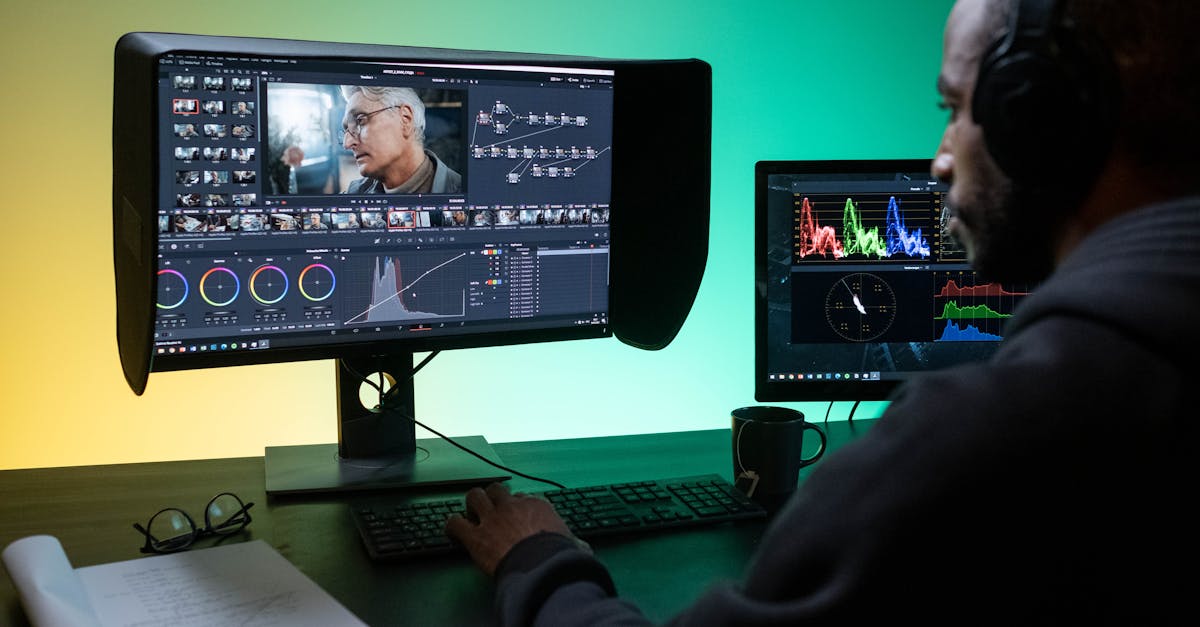
    Man editing footage on dual monitors in a modern studio setting.
    Photo by Ron Lach on Pexels.

    A 1080p screen can look perfectly fine at 24 inches and fairly rough at 27 inches. A 4K screen can look wonderfully sharp, then immediately ask your GPU to work overtime for a benefit you may not care much about. The number on the spec sheet is only part of the story.

    The useful measure is pixel density, usually written as PPI: pixels per inch. More pixels packed into the same space means a sharper image. Fewer pixels spread across a larger panel means a softer one.

    That, plus how far away you sit, is what decides whether a monitor looks crisp, average, or a bit blocky.

    The simple idea: resolution and size have to match

    These are the common desktop resolutions:

    • 1920 × 1080 — 1080p
    • 2560 × 1440 — 1440p
    • 3840 × 2160 — 4K

    Those numbers tell you how many pixels the screen has. They do not tell you how tightly those pixels are packed.

    A few rough examples make the point:

    • 24-inch 1080p: about 92 PPI
    • 27-inch 1080p: about 82 PPI
    • 27-inch 1440p: about 109 PPI
    • 32-inch 1440p: about 92 PPI
    • 32-inch 4K: about 138 PPI

    You do not need to memorise those numbers, but they explain a lot.

    For desktop use, many people find:

    • Around 90 to 110 PPI is a comfortable normal range
    • Below roughly 90 PPI, pixels and rough text edges become easier to notice
    • Above roughly 140 PPI, the image looks very sharp, but scaling often becomes part of the conversation

    Not everyone sees the same thing equally quickly, and not everyone cares equally. Some people spot low pixel density instantly. Others are too busy actually using the PC, which is probably healthier.

    How viewing distance changes things

    A monitor sits much closer to you than a TV, so pixel density matters more.

    For typical desk use, think roughly like this:

    • About 50 to 60 cm away: lower PPI is easier to spot, especially in text
    • About 70 to 80 cm away: differences are still visible, but less harsh
    • Much farther back: resolution matters less, screen size matters more

    This is why a large TV across the room can look fine at a resolution that would seem unimpressive on a desk. It is also why a big monitor used up close can look oddly coarse if the resolution is too low for its size.

    What you do on the screen matters too:

    • Text-heavy work makes low pixel density more obvious
    • Photo work and design benefit from higher sharpness
    • Gaming and video can be more forgiving, especially from a slightly longer distance

    If you spend all day reading documents, browsing, coding, or staring at spreadsheets, you will usually notice pixel density more than someone mostly playing games.

    Where common size and resolution pairings land

    24-inch: 1080p still makes sense

    A 24-inch 1080p monitor lands around 92 PPI, which is why this combination has stayed popular for so long. It is decent for general use, affordable, and easy to drive in games.

    It is not especially sharp by modern standards, but it usually looks fine at normal desk distance. Text is readable, scaling is rarely an issue, and budget GPUs will be much happier here than at 1440p or 4K.

    A 24-inch 1440p display is noticeably crisper, at around 122 PPI. Text looks cleaner and the desktop feels roomier. This can be very nice for office work, editing, and anyone who spends hours reading small UI elements.

    The trade-off is simple enough:

    • higher price
    • more GPU load in games
    • some apps or interfaces may feel a bit small without scaling

    For budget gaming, 24-inch 1080p remains sensible. For desktop sharpness, 24-inch 1440p is clearly better if you are willing to pay for it.

    27-inch: this is where 1080p starts to wear thin

    A 27-inch 1080p monitor drops to roughly 82 PPI. That is low enough that many people notice it quickly, especially with text, icons, and fine edges.

    It is not unusable. It is just not very refined at normal desk distance.

    This pairing mostly makes sense if:

    • price matters more than clarity
    • you want a larger screen without increasing GPU load
    • the monitor is used mostly for gaming rather than text-heavy work

    If you sit close, 27-inch 1080p can look a little stretched. Some people tolerate it happily. Some cannot unsee it once they notice it. Both reactions are common.

    A 27-inch 1440p screen lands around 109 PPI, and that is why it gets recommended so often. It looks clearly sharper than 1080p, gives more desktop space, and usually works well at 100% scaling.

    For mixed use, this is one of the easiest monitor choices to defend:

    • sharp enough to feel like an upgrade
    • not so dense that scaling becomes annoying
    • much easier to run than 4K
    • good for both work and gaming

    A 27-inch 4K monitor pushes density to about 163 PPI, which is very sharp indeed. Text can look excellent. Fine detail looks superb. Photos and high-resolution media benefit.

    The catch is equally predictable:

    • most people will want scaling
    • it costs more
    • 4K gaming is much harder on the GPU

    For productivity and creative work, 27-inch 4K can be great. For gaming, it depends heavily on your hardware and expectations. Buying 4K because “more pixels is better” is a good way to spend extra money and then spend your evenings adjusting graphics settings.

    32-inch: 4K starts to feel more convincing
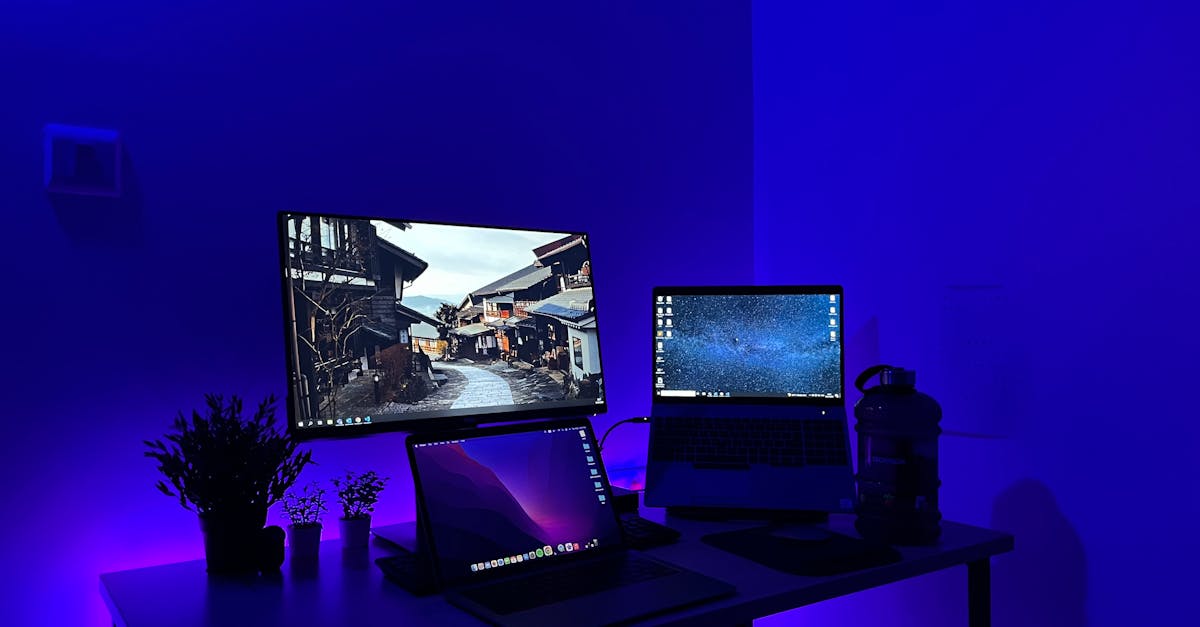
    Sleek gaming desk setup with multiple screens and blue neon lighting, perfect for tech enthusiasts.
    Photo by Nikhil Soni on Pexels.

    A 32-inch 1440p monitor comes out at roughly 92 PPI. That is basically the same pixel density as 24-inch 1080p.

    This surprises people sometimes. The screen is much larger, but it is not sharper. You get a bigger image, not a denser one.

    That can still be fine if you want:

    • a large display for gaming
    • a screen you sit slightly farther from
    • lower GPU demand than 4K

    It is less appealing if you want crisp text at close range. For desktop work, 32-inch 1440p often looks softer than buyers expect.

    A 32-inch 4K screen sits around 138 PPI, which is a strong fit for a large desk monitor. It looks sharp without being quite as scaling-dependent as 27-inch 4K for many users. You get plenty of workspace, very good text clarity, and a large panel that actually justifies the resolution.

    This is one of the more sensible “big and sharp” combinations, assuming:

    • you can afford it
    • your PC can handle it
    • your desk is large enough that the monitor does not become overpowering

    Ultrawides follow the same rule, just sideways

    Ultrawides are not exempt from basic pixel math.

    A 2560 × 1080 ultrawide can look fairly coarse on larger panels because the vertical pixel count is still only 1080. You get width, but not much extra sharpness.

    A 3440 × 1440 ultrawide is often a much better match around 34 inches. It gives more workspace and better pixel density without becoming absurdly demanding.

    A 5120 × 1440 display offers a huge amount of horizontal space, but it also asks more from your GPU. It is excellent for some workloads, less excellent if your graphics card already sounds slightly offended by 1440p.

    The same question still applies: are there enough pixels for the size and distance you actually use?

    Why the highest resolution is not automatically the best choice

    More pixels cost performance

    For gaming, resolution is directly tied to GPU workload.

    Moving from 1080p to 1440p is a meaningful jump. Moving from 1440p to 4K is much heavier again. More pixels per frame means lower frame rates unless the hardware is strong enough to absorb it.

    That can leave you with a monitor that is technically impressive but not especially enjoyable to game on.

    A good 1440p setup often makes more sense than a compromised 4K one.

    Scaling is real, and some apps still behave oddly

    High-density monitors can make text and interface elements too small at native scaling. Modern operating systems handle display scaling reasonably well, but not every app does it gracefully.

    This matters most on smaller 4K screens, where sharpness is excellent but usability can get fiddly. If you use older software, odd enterprise tools, or random utilities that look like they survived from 2009 by sheer stubbornness, scaling problems are not hypothetical.

    Extra sharpness has diminishing returns

    At a normal desk distance, there is a point where more resolution stops feeling transformative and starts feeling merely nice.

    That point depends on your eyesight, your workload, and how close you sit. Someone editing photos all day may value 4K far more than someone mostly gaming from 75 cm away.

    A 27-inch 1440p monitor is popular partly because it sits in a very practical middle ground. It looks sharp enough to be satisfying without dragging in all the compromises of 4K.

    Resolution is only one part of image quality

    A mediocre 4K monitor is still mediocre.

    Panel quality matters too:

    • contrast
    • colour accuracy
    • brightness
    • motion handling
    • viewing angles
    • backlight consistency

    A well-balanced 1440p monitor can be a better screen overall than a disappointing 4K one. Resolution helps, but it does not fix everything.

    Sensible choices for most people

    If you want practical pairings rather than a spreadsheet exercise, these are the combinations that usually make the most sense:

    • 24-inch 1080p — budget-friendly, fine for general use and mainstream gaming
    • 24-inch 1440p — sharper, better for text and desktop work
    • 27-inch 1440p — the easiest all-round recommendation
    • 32-inch 4K — a strong choice for a large, sharp desktop display
    • 34-inch ultrawide 3440 × 1440 — a good balance for ultrawide use

    More situational options:

    • 27-inch 1080p — acceptable if cost and gaming performance matter more than sharpness
    • 27-inch 4K — excellent clarity, but scaling and GPU demands matter
    • 32-inch 1440p — fine if you want size more than crispness

    What to choose based on how you use your PC

    Choose 1080p if:

    • you are on a tighter budget
    • your monitor is smaller
    • gaming performance matters more than desktop sharpness
    • your GPU is modest or older

    Choose 1440p if:

    • you want a clearer image without going overboard
    • you use a 27-inch monitor
    • you split time between work and gaming
    • you want a good balance of sharpness and performance

    Choose 4K if:

    • you care a lot about text clarity and fine detail
    • you use a larger screen
    • you do photo, design, or detail-heavy work
    • your PC is capable enough to run it properly

    A monitor is not better just because the resolution number is bigger. The best choice is the one that fits the screen size, your viewing distance, your workload, and the PC attached to it.

    For most desks, the practical standouts are still pretty straightforward: 24-inch 1080p, 27-inch 1440p, and 32-inch 4K. The rest depends on budget, eyesight, and how much punishment your GPU is expected to take.
  • How Much RAM Does a PC Really Need?

    How Much RAM Does a PC Really Need?

    What RAM to Use

    Choosing RAM is less about picking a favourite and more about buying what your PC can actually use.

    Your motherboard and CPU usually decide the big things first:

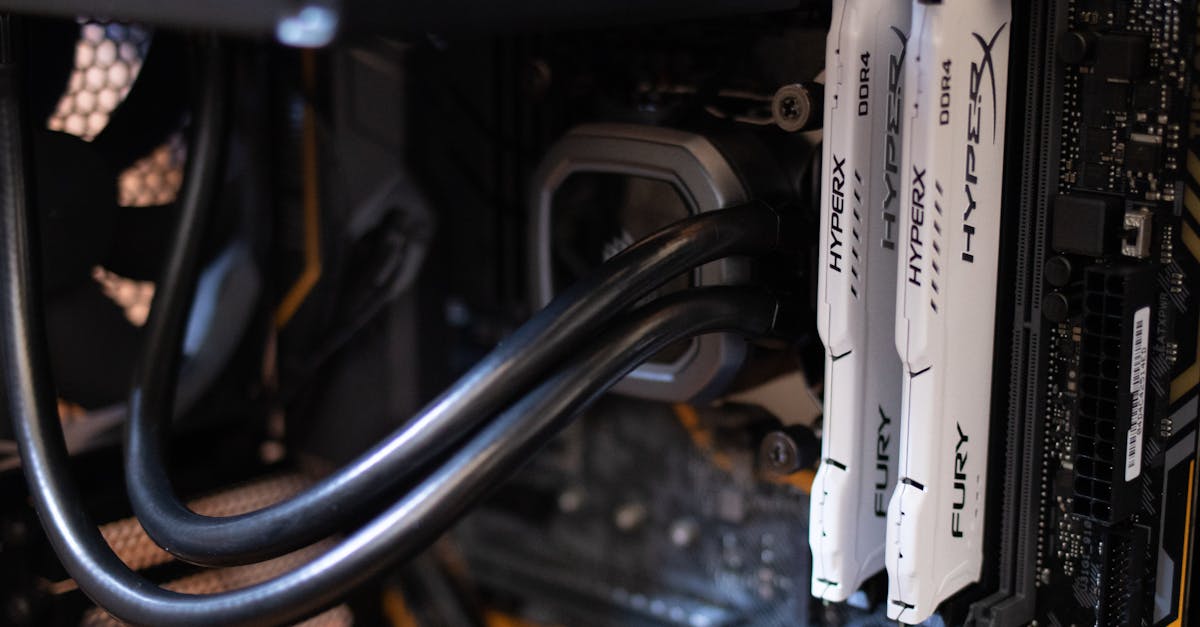
    • DDR generation: DDR3, DDR4, or DDR5
    • Form factor: DIMM or SO-DIMM
    • ECC support: if applicable

    What you normally get to choose is the rest: capacity, speed, timings, and whether you want one stick or a matched pair.

    That matters, but not equally. For most people, enough RAM is the first priority. After that, aim for a sensible speed for your platform and do not pay silly money for tiny gains.

    First, check what your system supports

    Before looking at any kit, confirm these basics:

    • DDR generation your system uses
    • DIMM or SO-DIMM
    • Maximum supported capacity
    • Supported speeds
    • ECC or non-ECC

    You cannot mix DDR generations. A DDR4 system does not take DDR5, and a DDR3 board is not secretly waiting for a modern upgrade. The slots are different, the electrical requirements are different, and the memory controller has to support the standard in the first place.

    If you are upgrading a laptop or prebuilt PC, check the manual or manufacturer specs. Guessing is a good way to buy RAM twice.

    DDR3 vs DDR4 vs DDR5

    These are different generations of memory. Newer generations offer more bandwidth and usually higher module capacities, but they are not interchangeable.

    DDR3

    DDR3 belongs to older desktops and laptops.

    It is still usable for light work:

    • web browsing
    • office tasks
    • media playback
    • older games

    Where DDR3 starts to feel dated is modern gaming, heavier multitasking, and workloads that lean hard on memory bandwidth or need lots of capacity. If you have an older DDR3 system, the sensible move is usually to add enough RAM to make the machine comfortable, not to expect miracles from tuning it.

    DDR4

    DDR4 has been the mainstream standard for years and is still common for both new-ish and older systems.

    For most people, DDR4 remains perfectly adequate for:

    • gaming
    • home and office use
    • schoolwork
    • moderate content creation
    • general multitasking

    It is mature, widely available, and usually easier on the budget than DDR5. A decent DDR4 kit with enough capacity is often a better choice than an ultra-fast kit bought mostly for bragging rights.

    DDR5

    DDR5 is the current standard on newer platforms.

    It offers higher bandwidth than DDR4 and tends to make the most sense in:

    • new gaming builds on current platforms
    • higher-end productivity PCs
    • heavy multitasking systems
    • workstations with large projects or data-heavy software

    DDR5 can improve gaming performance, but the size of that improvement depends heavily on the rest of the system. In CPU-limited games, faster memory can help. At higher resolutions, where the graphics card is doing most of the heavy lifting, the gap often shrinks.

    DIMM and SO-DIMM

    This part is straightforward.

    DIMM

    DIMM is the full-size RAM used in most desktop PCs.

    If you are building or upgrading a standard tower desktop, this is what you are looking for.

    SO-DIMM

    SO-DIMM is the smaller format used in many laptops and mini PCs.

    If the machine takes laptop-style removable RAM, it will usually be SO-DIMM.

    DIMM and SO-DIMM are not interchangeable, even if both are DDR4 or both are DDR5. Same family, different shape, different slot.

    Also worth checking: some laptops have soldered memory instead of removable modules. In those systems, the upgrade path is mostly wishful thinking.

    ECC RAM: who actually needs it

    ECC stands for Error-Correcting Code memory. It can detect and correct certain memory errors automatically.

    That is useful in systems where stability and data integrity matter more than raw value:

    • servers
    • workstations
    • systems running virtual machines all day
    • scientific or technical workloads
    • business-critical machines
    • long-running compute jobs

    For a normal home or gaming PC, non-ECC RAM is usually the right answer. It is more common, usually cheaper, and widely supported on consumer platforms.

    ECC is about reliability, not extra speed. It is not a gaming upgrade. Your frame rate will not salute respectfully because you bought workstation memory.

    RAM speed: how much it matters

    RAM speed is shown as ratings like:

    • DDR4-3200
    • DDR4-3600
    • DDR5-5600
    • DDR5-6000

    Higher numbers mean more bandwidth. That can help when the CPU or integrated graphics needs to move data through memory quickly.

    Where faster RAM can make a noticeable difference:

    • CPU-limited gaming
    • integrated graphics, which use system RAM as video memory
    • some content creation tasks
    • code compilation
    • compression
    • certain simulation or productivity workloads

    Where it usually matters much less:

    • web browsing
    • office apps
    • video streaming
    • general desktop use
    • gaming scenarios where the GPU is already the bottleneck

    This is why RAM speed discussions often sound more dramatic online than they feel on an actual PC. Faster RAM can help. It just is not usually the first thing holding a system back.

    RAM timings, without the ceremony

    Timings are the delay values on a RAM kit, often shown as something like CL16 or CL30.

    Lower timings mean lower latency, all else being equal. The catch is that speed and timings have to be considered together. A kit with a higher data rate and looser timings can still outperform a slower kit with tighter timings.

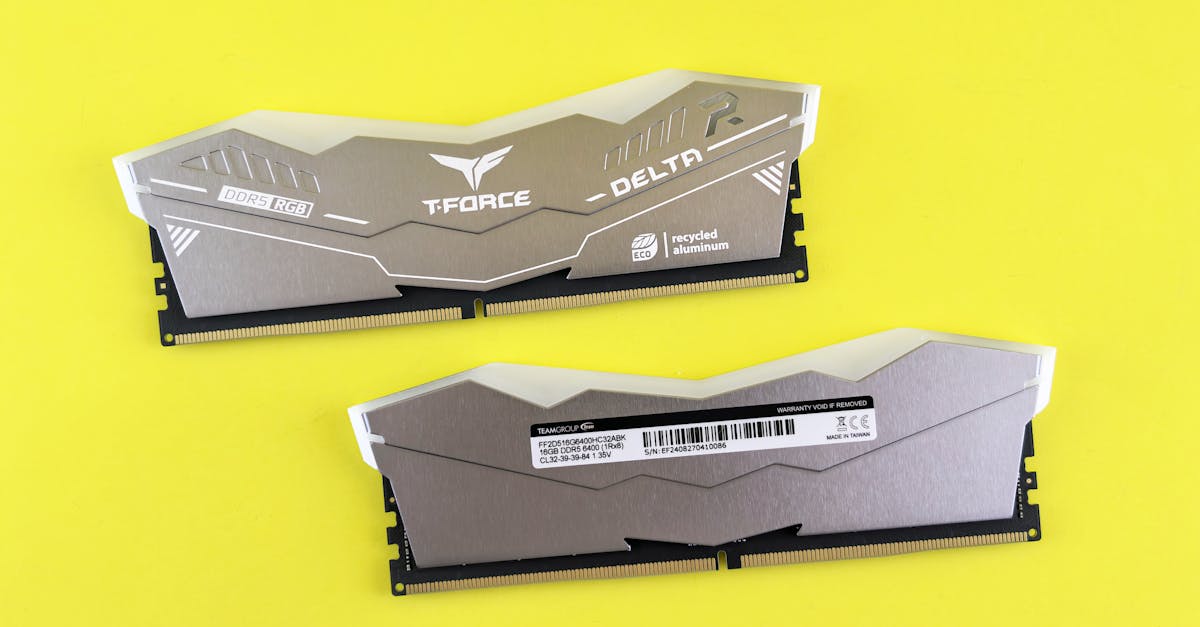
    T-Force Delta RGB DDR5 memory modules on vibrant yellow surface.
    Photo by Andrey Matveev on Pexels.

    So yes, timings matter. Usually not enough to obsess over unless you are tuning a performance build and the prices are close.

    For most buyers, the sensible approach is:

    • avoid unusually slow kits
    • avoid badly overpriced “enthusiast” kits
    • buy RAM that suits the platform and budget
    • prioritise capacity before chasing tiny latency gains

    You do not need to become a part-time memory analyst to buy decent RAM.

    Capacity matters more than speed for most people

    This is the part people underestimate.

    A PC with too little RAM starts leaning on the storage drive as overflow memory, which is much slower. That is when the whole system begins to feel sticky, especially with lots of apps or browser tabs open.

    8GB

    Still workable for:

    • very basic use
    • office tasks
    • light browsing
    • older systems

    It is not a great fit for modern gaming or heavier multitasking.

    16GB

    For most people, this is the current baseline.

    It suits:

    • mainstream gaming
    • home and office use
    • schoolwork
    • general multitasking

    If you are buying a general-purpose PC today, 16GB is the safe starting point.

    32GB

    This makes sense for:

    • newer games with background apps running
    • streaming while gaming
    • content creation
    • development work
    • larger photo or video projects
    • people who routinely have far too many things open

    64GB and above

    This is mostly workstation territory:

    • heavy video editing
    • 3D work
    • virtual machines
    • simulation
    • large datasets
    • professional workloads with genuinely high memory use

    More RAM is only useful if your workload can use it. There is no prize for having 128GB to browse the same four websites.

    What to buy for different uses

    Here is the simple version.

    Basic home or office PC

    Aim for 16GB if the system supports it.

    If you are upgrading an older DDR3 or DDR4 machine for email, documents, and web use, adding enough memory will usually do more than buying a slightly faster kit.

    Gaming PC

    Start at 16GB.
    Go to 32GB if you play newer games, multitask heavily, stream, or want more headroom.

    For the RAM itself:

    • on DDR4, a sensible mid-range kit is usually the sweet spot
    • on DDR5, balanced speed and timings are usually better value than chasing the fastest number on the shelf

    If the budget forces a choice between slightly fancier RAM and a better graphics card, the graphics card usually deserves the money more.

    Laptop upgrade

    Check three things before buying anything:

    • does it use SO-DIMM or soldered memory?
    • how many slots are there?
    • what capacity and speed does it support?

    A jump from 8GB to 16GB is often very noticeable on a laptop. A jump from one decent RAM speed to a slightly higher one often is not.

    Content creation and heavier work

    For video editing, development, large spreadsheets, 3D work, and similar tasks, 32GB is a sensible place to start. For serious professional workloads, 64GB or more may be appropriate.

    Speed can help, especially on newer platforms, but once projects get large, capacity tends to matter more.

    Workstation or reliability-focused system

    If the machine is doing scientific work, business-critical tasks, virtualisation, or long compute jobs, prioritise:

    • platform compatibility
    • stability
    • enough capacity
    • ECC, if the system supports it

    This is the boring answer, which is exactly what you want from a workstation.

    One stick or two?

    Most systems perform better with two matching RAM modules than with one, because they can run in dual-channel mode.

    Common examples:

    • 2x8GB is often better than 1x16GB
    • 2x16GB is often better than 1x32GB

    Dual-channel can improve:

    • gaming performance
    • integrated graphics performance
    • some memory-sensitive workloads

    Not every system behaves the same way, and some laptops have unusual slot layouts, so it is still worth checking the manual. But in general, matched pairs are the safer bet.

    The sensible answer

    Use the RAM your system supports, buy enough of it, and then worry about speed.

    If you want a quick rule of thumb:

    • DDR3: only for older systems
    • DDR4: still a strong choice for many PCs
    • DDR5: the right fit for newer platforms and higher-end builds
    • DIMM: desktop PCs
    • SO-DIMM: laptops and many mini PCs
    • ECC: for workstations, servers, and reliability-focused systems
    • 16GB: solid baseline for most people
    • 32GB or more: better for heavier gaming, creation work, and demanding multitasking

    Most RAM buying mistakes are not about timings or a missing 200 MT/s on the spec sheet. They are much simpler: buying the wrong type, buying too little, or paying extra for specs the machine will barely notice.

    Related reading

  • Backup Raid Configurations

    Backup RAID Configurations: What Each One Does and What It Doesn’t

    People often look at RAID for backup storage because it seems like a tidy solution: more space, some protection against drive failure, maybe better performance too.

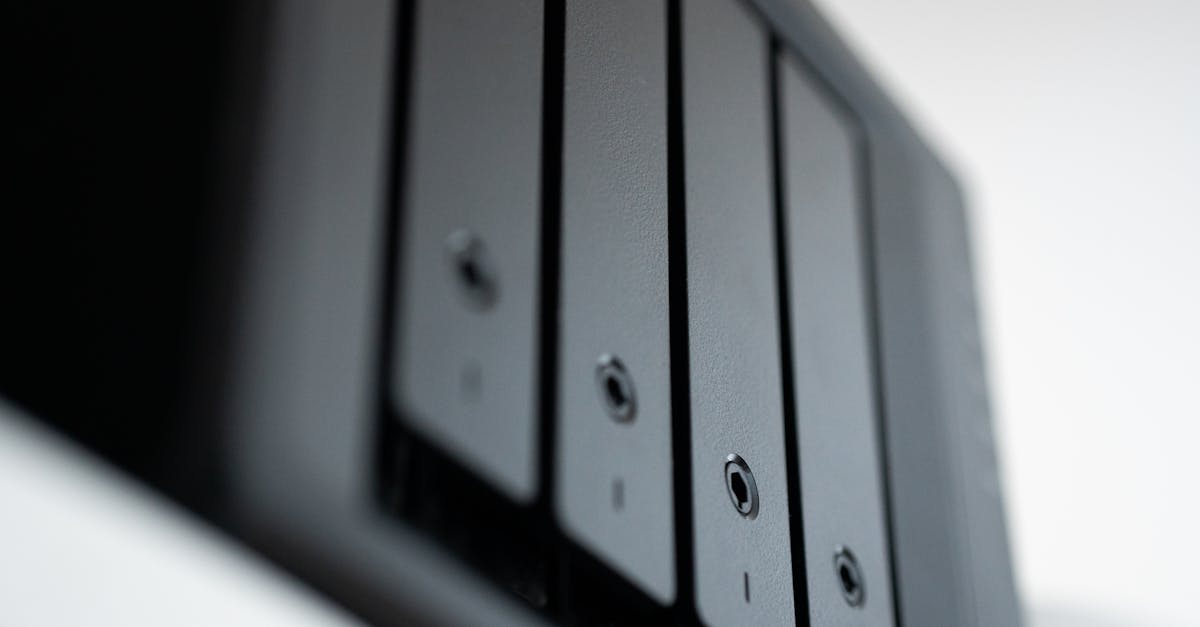
    Detailed view of a black data storage unit highlighting modern technology and data management.
    Photo by Jakub Zerdzicki on Pexels.

    Fair enough. The important catch is that RAID is not a backup. It can make a storage system more resilient. It does not replace having another copy of your data somewhere else.

    That matters most with backup systems, because a backup that fails in the same way as the original is not doing much useful work.

    RAID helps with drive failure, not every kind of data loss

    A RAID array may let you keep running if a drive dies. Depending on the level, that can be very useful. It does not protect you from:

    • accidental deletion
    • corrupted files
    • ransomware
    • theft
    • fire or flood
    • power problems
    • enclosure or controller failure in some setups
    • user error, still one of the great constants in computing

    If your backup data matters, you still want at least one separate copy elsewhere. Different device, different place, ideally different failure path.

    What RAID is, briefly

    RAID stands for Redundant Array of Independent Disks. It combines multiple drives into one logical volume or storage pool.

    What you get depends on the RAID level:

    • more speed
    • more fault tolerance
    • better usable capacity
    • some compromise between them

    There is no RAID level that gives you all of those perfectly. Storage would be much less annoying if there were.

    The RAID levels people actually use

    RAID 0

    RAID 0 stripes data across multiple drives for speed and full combined capacity.

    Two 4TB drives in RAID 0 give you 8TB usable. They also give you zero redundancy. If either drive fails, the array is gone.

    This makes RAID 0 a poor fit for backup storage. It is sometimes useful for temporary workspace, scratch disks, or fast disposable data. For backups, it is the wrong kind of exciting.

    Where it makes sense

    • temporary editing cache
    • scratch storage
    • data you can recreate easily

    Where it doesn’t

    • backup targets
    • long-term file storage
    • anything you would be annoyed to lose

    Expansion

    Expansion support varies a lot. Some platforms can grow a RAID 0 array, many do not do it neatly, and rebuilding from scratch is often simpler.

    RAID 1

    RAID 1 mirrors one drive onto another. With two 4TB drives, you get 4TB usable.

    This is the simplest RAID option for backup storage if you have a two-bay system. One drive can fail and your backup volume still exists. Recovery is usually more straightforward than with parity-based arrays.

    The downside is obvious: half your raw capacity disappears into redundancy. There is no clever trick here. You are paying for simplicity.

    Where it makes sense

    • two-bay NAS boxes
    • local backup storage
    • small office file storage
    • systems where easy recovery matters more than capacity efficiency

    Where it falls short

    • large storage pools where losing 50% of capacity gets expensive fast
    • workloads where you need strong write performance gains

    Expansion

    RAID 1 is rarely graceful to expand. Usually you replace both drives with larger ones, one at a time if the system supports rebuilds. Some software platforms can migrate to another RAID level later, but you should not assume that without checking.

    RAID 5

    RAID 5 uses striping with single-drive parity. It needs at least three drives and can survive one drive failure.

    Three 4TB drives in RAID 5 give you 8TB usable. Four give you 12TB. This is why RAID 5 became so popular: better capacity efficiency than RAID 1, with some fault tolerance.

    For backup storage, RAID 5 can make sense in a small NAS where you want a decent amount of usable space without mirroring everything. The awkward part is rebuilds. On larger drives, rebuilds can take a long time, and the array is vulnerable while that is happening.

    That is one reason RAID 5 is less appealing than it used to be for big modern disks.

    Good fit for

    • home NAS backup storage
    • media archives with separate backups elsewhere
    • read-heavy file storage

    Less ideal for

    • very large arrays
    • high-write workloads
    • systems where rebuild risk is a major concern

    Expansion

    This depends much more on the platform than the RAID level itself. Some NAS systems and software RAID tools let you add drives or replace them one by one with larger models. Some do not. Product pages are often more optimistic than real life.

    RAID 6

    RAID 6 is RAID 5 with two parity blocks instead of one. It needs at least four drives and can survive two drive failures.

    With four 4TB drives, you get 8TB usable. With six, 16TB.

    For backup storage, RAID 6 is often the safer choice once arrays get larger or the drives themselves are large enough that rebuild times stop being a small detail. You lose more usable capacity than RAID 5, and writes are usually slower, but you get more breathing room during a rebuild.

    Good fit for

    • larger NAS systems
    • backup arrays using high-capacity drives
    • storage where uptime matters more than squeezing out every last terabyte

    Less ideal for

    • small arrays where the extra parity cost feels heavy
    • workloads that care a lot about write speed

    Expansion

    Same story as RAID 5: possible on some platforms, awkward on others.

    RAID 10

    RAID 10 combines mirroring and striping. You need at least four drives. It gives you the performance advantages of striping with the simpler fault model of mirrored pairs.

    Four 4TB drives in RAID 10 give you 8TB usable.

    This is often the practical choice for people who want speed and redundancy without parity rebuild headaches. It is especially attractive for heavier workloads like virtualization, databases, and active project storage.

    For backup storage alone, RAID 10 is sometimes overkill. It is excellent, but you pay for it by losing half the raw capacity.

    Good fit for

    • performance-focused NAS boxes
    • active project storage
    • virtualization hosts
    • mixed workloads where write speed matters

    Less ideal for

    • budget-sensitive bulk backup storage
    • anyone trying to maximize usable capacity

    Expansion

    RAID 10 usually expands in mirrored pairs, not one drive at a time. Planning ahead helps.

    JBOD and spanning

    JBOD usually means Just a Bunch Of Disks, though vendors do a fine job of using the term inconsistently.

    In one setup, each drive is exposed separately. In another, drives are combined into one larger volume without redundancy. That second version is often closer to spanning than true JBOD, but the naming is not always tidy.

    For backup storage, JBOD can be useful if you want to use mixed-size drives cheaply and you already have proper backups elsewhere. It is not a substitute for redundancy.

    Why people use it

    • full capacity is usable
    • mixed drive sizes are easier to work with
    • setup is often simple
    • individual disks may be easier to access outside the array

    Why it can go wrong

    • little or no redundancy
    • if one disk in a spanned volume fails, you may lose part or all of the volume
    • performance improvements are usually minimal

    JBOD is fine for non-critical bulk storage. It is a poor way to create a backup target if that backup target is your only safety net.

    Which RAID levels make sense for backup storage?

    This is the part the title promised, so let’s not pretend every RAID level is equally sensible here.

    For a simple local backup destination

    A single large drive is often enough. If you want the backup storage itself to survive a drive failure, RAID 1 is the usual answer.

    Good options:

    • one large external drive
    • two-drive RAID 1 enclosure
    • two-bay NAS with mirrored drives

    This works well for straightforward PC backups, photo libraries, and home office data. You still want another copy somewhere else if the files matter.

    For a larger home NAS used for backups

    Once you have three or more drives, the choice usually becomes:

    • RAID 5 if usable capacity matters and the array is not huge
    • RAID 6 if you have more drives, larger drives, or lower tolerance for rebuild risk
    • RAID 10 if performance matters more than capacity efficiency

    For many home users, RAID 5 or RAID 6 is the sensible middle ground in a NAS. For small two-bay systems, RAID 1 is simpler.

    For external workstation backup and project storage

    If the enclosure is doing double duty as active storage and backup target:

    • RAID 1 is a solid conservative option
    • RAID 5 can make sense in larger enclosures
    • RAID 10 suits heavier professional workloads

    RAID 0 only belongs here if the data is temporary and backed up elsewhere. Using RAID 0 for the only copy of anything important is how people end up pricing data recovery services with a slightly haunted expression.

    Software RAID, hardware RAID, and motherboard RAID

    The RAID level is only part of the decision. How the array is managed matters too.

    Software RAID

    Software RAID is handled by the operating system or storage platform. Examples include Linux mdadm, Windows Storage Spaces, ZFS-based systems, and many NAS operating systems.

    For home servers and backup systems, software RAID is often the sensible option.

    Why it appeals

    • no need for a dedicated RAID card
    • often cheaper
    • usually more flexible
    • easier to migrate in some cases
    • modern CPUs can generally handle the overhead just fine in home and small office setups

    Where it gets awkward

    • boot drive setups can be trickier
    • portability depends on the platform
    • some implementations are much better than others

    If you are building a backup server or NAS on standard PC hardware, software RAID is usually the first thing worth considering.

    Hardware RAID

    Hardware RAID uses a dedicated controller card or a RAID-capable enclosure to manage the array.

    Proper hardware RAID can be useful in server environments, especially where you need enterprise features or established management tools. For ordinary consumer backup storage, it is often less compelling than the label suggests.

    Pros

    • can simplify management in some server setups
    • may offer cache protection features on higher-end controllers
    • works well in systems designed around that controller

    Cons

    • extra cost
    • recovery may depend on the same controller family
    • controller failure can become its own problem
    • cheap implementations are often not very impressive

    A failed RAID card is a fine way to discover how portable your data was not.

    Motherboard RAID

    Motherboard RAID sits in the awkward middle. It is usually presented in BIOS or UEFI, but often depends on drivers and the host CPU rather than doing everything on dedicated hardware.

    It can work. It is just rarely the cleanest option for a backup build. Good software RAID is often easier to live with.

    Internal arrays, external enclosures, and NAS boxes

    You can integrate RAID into a system in a few different ways.

    Internal RAID

    Drives live inside the PC or server case and connect directly to the motherboard or controller.

    Best for

    • DIY NAS builds
    • workstations with spare bays
    • people who want direct control over the platform

    Trade-offs

    • limited by case space and cooling
    • expansion may mean replacing the case, PSU, or controller
    • more noise and heat inside the main system

    External direct-attached RAID enclosures

    These connect over USB, Thunderbolt, eSATA, or similar interfaces and present storage to one host system.

    Best for

    • workstations that need more storage without opening the case
    • editors and creators using large local project files
    • backup targets for a single main PC

    Trade-offs

    • speed depends heavily on the interface
    • enclosure quality matters
    • some use proprietary management or formatting
    • if the enclosure electronics fail, recovery may be more awkward than with plain internal drives

    Useful, yes. Magical, no.

    NAS and separate network enclosures

    A NAS is its own storage box on the network, usually with its own operating system and RAID management.

    Best for

    • backups from multiple PCs
    • shared household or office storage
    • keeping backup storage separate from the main computer

    Trade-offs

    • higher upfront cost
    • more setup than a USB drive
    • network speed can limit performance
    • some NAS-specific RAID schemes are not especially portable outside that brand or platform

    For backup use, a NAS is often the nicest option if more than one device needs to send data to the same place.

    Expansion is where plans either help or vanish

    RAID expansion depends on more than the RAID level itself:

    • how many bays you started with
    • whether your platform supports online expansion
    • whether all drives are the same size
    • how long rebuilds take
    • how much downtime you can accept

    The broad pattern looks like this:

    • RAID 0: often easier to rebuild than expand properly
    • RAID 1: usually expanded by replacing both drives with larger ones
    • RAID 5/6: may support adding drives or replacing them one at a time, but rebuilds can be long
    • RAID 10: usually expanded by adding another mirrored pair
    • JBOD: easiest for mixed-drive growth, offers little protection by itself

    If you expect to grow, buy more bays than you need today. People rarely regret having spare bays. They do regret discovering that “future expansion” meant replacing the entire box.

    A sensible way to choose

    Pick the storage role first, then the RAID level.

    Ask:

    1. Is this for backups, active working data, or both?
    2. Do I need the storage to stay online if one drive fails?
    3. How many drive bays do I actually have?
    4. Am I likely to expand later?
    5. Is capacity more important than performance?
    6. Do I already have a separate backup copy?

    Then the usual answers look like this:

    • Two-drive backup box: RAID 1
    • Small NAS where capacity matters: RAID 5
    • Larger NAS with bigger drives: RAID 6
    • Performance-heavy storage that also needs redundancy: RAID 10
    • Cheap bulk storage with backups elsewhere: JBOD
    • Never for sole backup storage: RAID 0

    Conclusion

    For backup storage, the best RAID setup is usually the boring one.

    • RAID 1 makes the most sense for simple two-drive backup systems.
    • RAID 5 works for smaller multi-drive NAS boxes where usable capacity matters.
    • RAID 6 is often the better choice for larger arrays and larger disks.
    • RAID 10 is excellent if you want speed and resilience and can live with the capacity hit.
    • JBOD is flexible, but it is not protective.
    • RAID 0 has no real place as the only storage for backups.
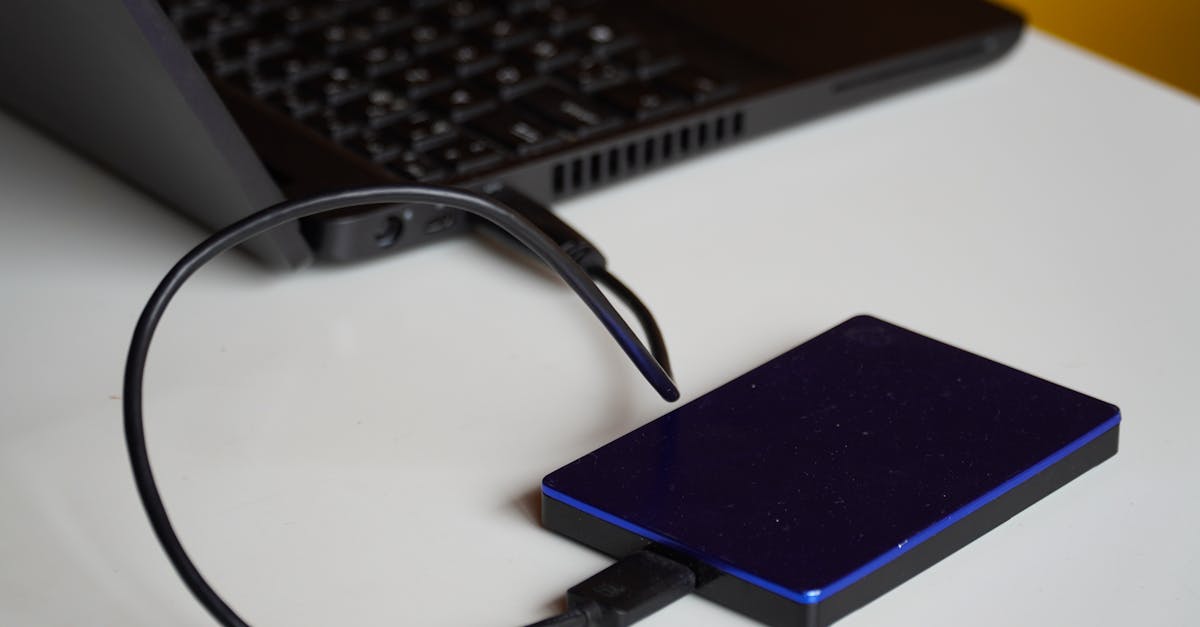
    External hard drive connected to a laptop, showcasing portable storage solution.
    Photo by Budget Bizar on Pexels.

    Use RAID to reduce downtime and survive a drive failure. Use backups to recover your data when something broader goes wrong. You usually need both, and they are not the same job.

  • How to Check if Your PC Has an SSD

    How to Check if Your PC Has an SSD

    How to Check if Your PC Has an SSD

    The fastest way to check is in Task Manager.

    On Windows 10 and Windows 11:

    1. Right-click the Start button
    2. Select Task Manager
    3. If it opens in the simple view, click More details
    4. Open the Performance tab
    5. Click Disk 0 on the left, then any other disks listed

    Near the top right, Windows will usually label the drive as SSD or HDD.

    If your PC has more than one drive, check each one. Quite a few systems use an SSD for Windows and a larger hard drive for files.

    Check in Optimize Drives

    This is another quick built-in method.

    1. Open Start
    2. Type Defragment and Optimize Drives
    3. Open it
    4. Check the Media type column

    You’ll usually see one of these:

    • Solid state drive
    • Hard disk drive

    It’s one of the clearest places to check, which is mildly surprising given where Microsoft hid it.

    If Windows is vague, check the model number

    Sometimes Windows doesn’t identify the drive cleanly. In that case, look up the model.

    In Device Manager

    1. Right-click Start
    2. Select Device Manager
    3. Expand Disk drives
    4. Note the drive name or model number

    Search that model online. The manufacturer’s specs should tell you whether it’s:

    • a SATA SSD
    • an NVMe SSD
    • an HDD

    This is also the best option if you want to know what kind of SSD you have, not just whether one exists.

    PowerShell and System Information

    These are useful if you want a bit more detail.

    PowerShell

    1. Right-click Start
    2. Open Windows PowerShell or Terminal
    3. Run:
    Get-PhysicalDisk
    

    Check the MediaType field. You may see:

    • SSD
    • HDD
    • Unspecified

    If it says Unspecified, don’t read too much into it. Windows is not always very good at labeling storage.

    System Information

    1. Press Windows + R
    2. Type msinfo32
    3. Press Enter
    4. Go to Components > Storage > Disks

    This usually shows the model name, capacity, and interface details. It may not plainly say “SSD,” but it often gives you enough to identify the drive.

    Checking the hardware directly

    If Windows is barely cooperating, or you just want to confirm it physically, inspect the drive itself.

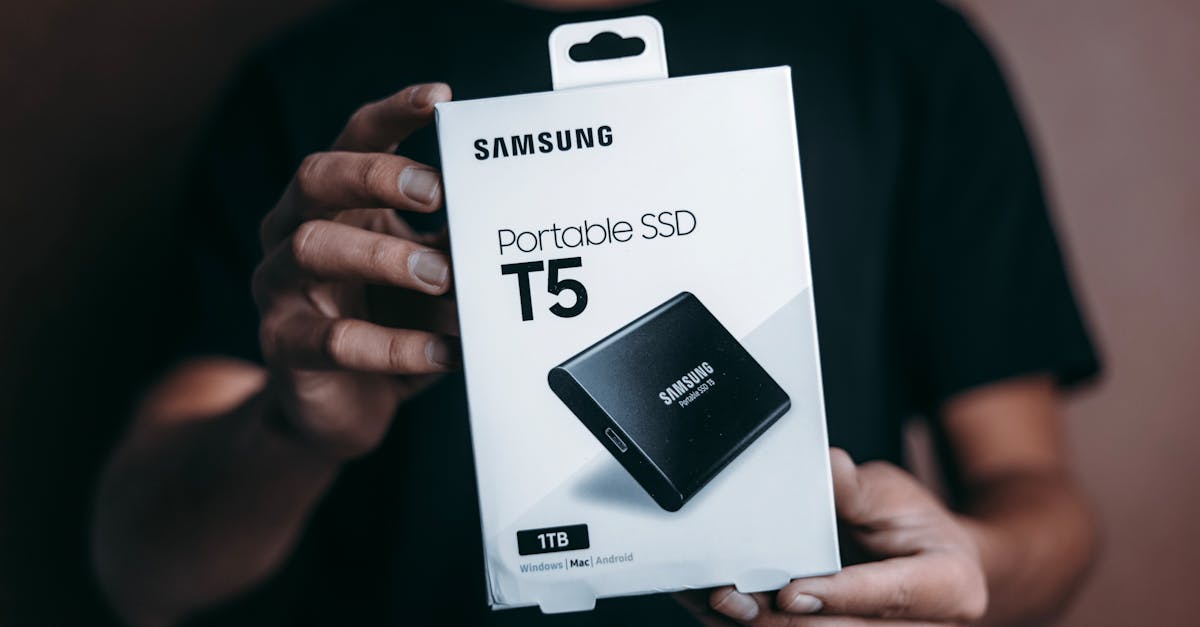
    Close-up of a person holding a Samsung T5 Portable SSD box, emphasizing modern technology.
    Photo by Luis Quintero on Pexels.

    Desktop PC

    Shut the PC down, unplug it, and remove the side panel.

    You’re looking for one of these:

    • 2.5-inch SSD: small, thin rectangular drive
    • 3.5-inch hard drive: larger, thicker metal drive
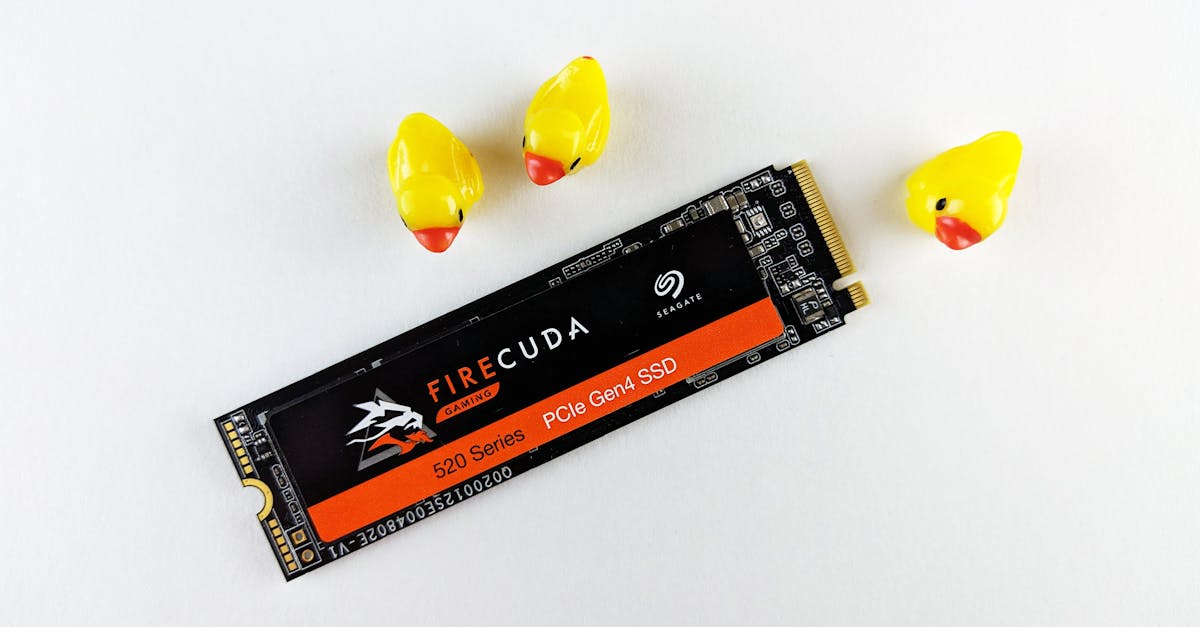
    • M.2 SSD: slim board mounted directly to the motherboard

    An M.2 drive is not automatically fast just because it’s small, but it is an SSD-type form factor, not an old spinning hard drive.

    Laptop

    This depends heavily on the laptop. Some are easy to open. Some behave as if the manufacturer would rather you didn’t. If you’re not comfortable removing the bottom cover, stick with the Windows methods.

    Signs your PC probably has an SSD

    This is only a clue, not proof.

    Your PC is more likely to have an SSD if it:

    • boots fairly quickly
    • opens apps without much waiting
    • makes little or no drive noise
    • is a newer mid-range or higher-end system

    A mechanical hard drive often makes spinning or clicking sounds and tends to feel slower during startup, updates, and large file loads.

    Still, overall speed can be misleading. A modern PC can feel decent even with a hard drive, and an older PC with an SSD can still feel slow if the CPU, RAM, or both are struggling.

    If your PC has both an SSD and a hard drive

    This is common, and it changes the question a bit.

    You may have:

    • an SSD for Windows and programs
    • an HDD for documents, photos, videos, or game libraries

    That’s a sensible setup. The important part is where Windows is installed.

    How to check which drive Windows uses

    In Task Manager > Performance, click each disk and look at the activity while the system is busy. That can give you a rough clue, but there’s a cleaner method:

    1. Right-click Start
    2. Select Disk Management
    3. Look for the partition marked C:
    4. On that same disk, look for labels such as Boot, System, or Page File

    That disk is the one Windows is using as its main system drive.

    If your PC has an SSD but Windows is installed on the hard drive, you won’t get most of the SSD’s benefit. You’ll still own an SSD, technically. It just won’t be doing the job people usually buy one for.

    If your PC doesn’t have an SSD

    If it’s running only a hard drive, an SSD upgrade is usually one of the most effective ways to make the system feel faster.

    It usually improves:

    • boot times
    • app launches
    • file searches
    • Windows updates
    • general responsiveness

    It usually does not improve:

    • CPU speed
    • graphics performance
    • gaming frame rates, unless storage load times were the bottleneck

    Whether the upgrade is easy depends on the machine:

    • Desktops are usually straightforward
    • Laptops vary a lot
    • Older systems may only support SATA SSDs
    • Newer systems may support NVMe M.2 SSDs

    Check what your motherboard or laptop supports before buying anything. Storage upgrades are useful. Buying the wrong one is less so.