
How to Check if Your PC Has an SSD
The fastest way to check is in Task Manager.
On Windows 10 and Windows 11:
- Right-click the Start button
- Select Task Manager
- If it opens in the simple view, click More details
- Open the Performance tab
- Click Disk 0 on the left, then any other disks listed
Near the top right, Windows will usually label the drive as SSD or HDD.
If your PC has more than one drive, check each one. Quite a few systems use an SSD for Windows and a larger hard drive for files.
Check in Optimize Drives
This is another quick built-in method.
- Open Start
- Type Defragment and Optimize Drives
- Open it
- Check the Media type column
You’ll usually see one of these:
- Solid state drive
- Hard disk drive
It’s one of the clearest places to check, which is mildly surprising given where Microsoft hid it.
If Windows is vague, check the model number
Sometimes Windows doesn’t identify the drive cleanly. In that case, look up the model.
In Device Manager
- Right-click Start
- Select Device Manager
- Expand Disk drives
- Note the drive name or model number
Search that model online. The manufacturer’s specs should tell you whether it’s:
- a SATA SSD
- an NVMe SSD
- an HDD
This is also the best option if you want to know what kind of SSD you have, not just whether one exists.
PowerShell and System Information
These are useful if you want a bit more detail.
PowerShell
- Right-click Start
- Open Windows PowerShell or Terminal
- Run:
Get-PhysicalDisk
Check the MediaType field. You may see:
- SSD
- HDD
- Unspecified
If it says Unspecified, don’t read too much into it. Windows is not always very good at labeling storage.
System Information
- Press Windows + R
- Type
msinfo32 - Press Enter
- Go to Components > Storage > Disks
This usually shows the model name, capacity, and interface details. It may not plainly say “SSD,” but it often gives you enough to identify the drive.
Checking the hardware directly
If Windows is barely cooperating, or you just want to confirm it physically, inspect the drive itself.
Desktop PC
Shut the PC down, unplug it, and remove the side panel.
You’re looking for one of these:
- 2.5-inch SSD: small, thin rectangular drive
- 3.5-inch hard drive: larger, thicker metal drive
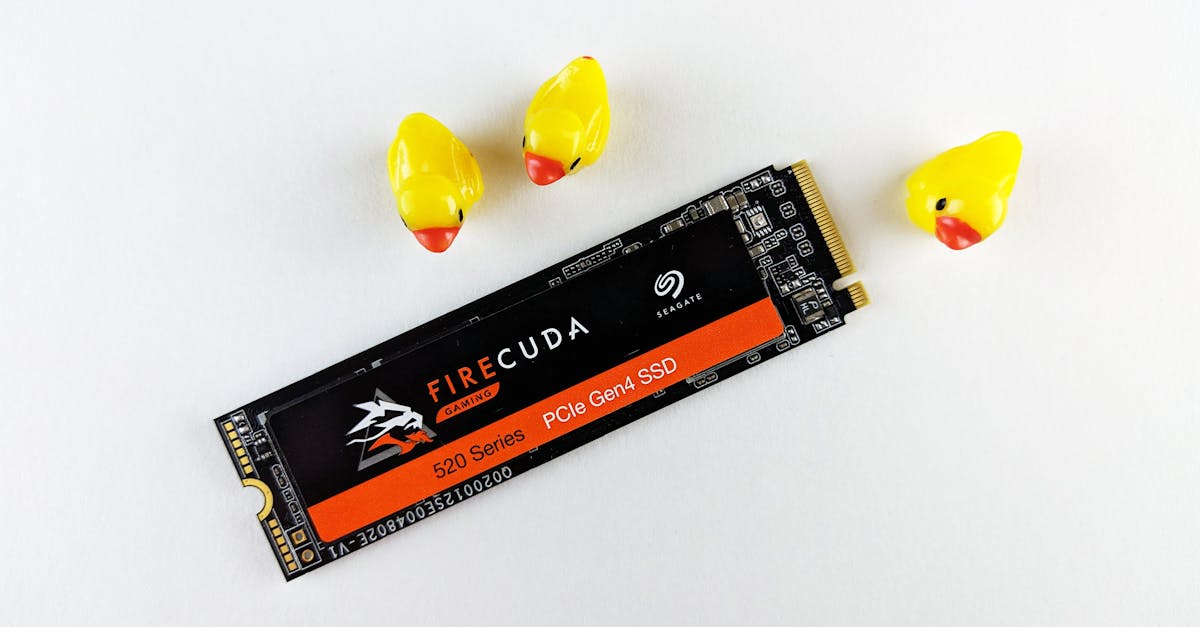
- M.2 SSD: slim board mounted directly to the motherboard
An M.2 drive is not automatically fast just because it’s small, but it is an SSD-type form factor, not an old spinning hard drive.
Laptop
This depends heavily on the laptop. Some are easy to open. Some behave as if the manufacturer would rather you didn’t. If you’re not comfortable removing the bottom cover, stick with the Windows methods.
Signs your PC probably has an SSD
This is only a clue, not proof.
Your PC is more likely to have an SSD if it:
- boots fairly quickly
- opens apps without much waiting
- makes little or no drive noise
- is a newer mid-range or higher-end system
A mechanical hard drive often makes spinning or clicking sounds and tends to feel slower during startup, updates, and large file loads.
Still, overall speed can be misleading. A modern PC can feel decent even with a hard drive, and an older PC with an SSD can still feel slow if the CPU, RAM, or both are struggling.
If your PC has both an SSD and a hard drive
This is common, and it changes the question a bit.
You may have:
- an SSD for Windows and programs
- an HDD for documents, photos, videos, or game libraries
That’s a sensible setup. The important part is where Windows is installed.
How to check which drive Windows uses
In Task Manager > Performance, click each disk and look at the activity while the system is busy. That can give you a rough clue, but there’s a cleaner method:
- Right-click Start
- Select Disk Management
- Look for the partition marked C:
- On that same disk, look for labels such as Boot, System, or Page File
That disk is the one Windows is using as its main system drive.
If your PC has an SSD but Windows is installed on the hard drive, you won’t get most of the SSD’s benefit. You’ll still own an SSD, technically. It just won’t be doing the job people usually buy one for.
If your PC doesn’t have an SSD
If it’s running only a hard drive, an SSD upgrade is usually one of the most effective ways to make the system feel faster.
It usually improves:
- boot times
- app launches
- file searches
- Windows updates
- general responsiveness
It usually does not improve:
- CPU speed
- graphics performance
- gaming frame rates, unless storage load times were the bottleneck
Whether the upgrade is easy depends on the machine:
- Desktops are usually straightforward
- Laptops vary a lot
- Older systems may only support SATA SSDs
- Newer systems may support NVMe M.2 SSDs
Check what your motherboard or laptop supports before buying anything. Storage upgrades are useful. Buying the wrong one is less so.
Leave a Reply