
Backup RAID Configurations: What Each One Does and What It Doesn’t
People often look at RAID for backup storage because it seems like a tidy solution: more space, some protection against drive failure, maybe better performance too.
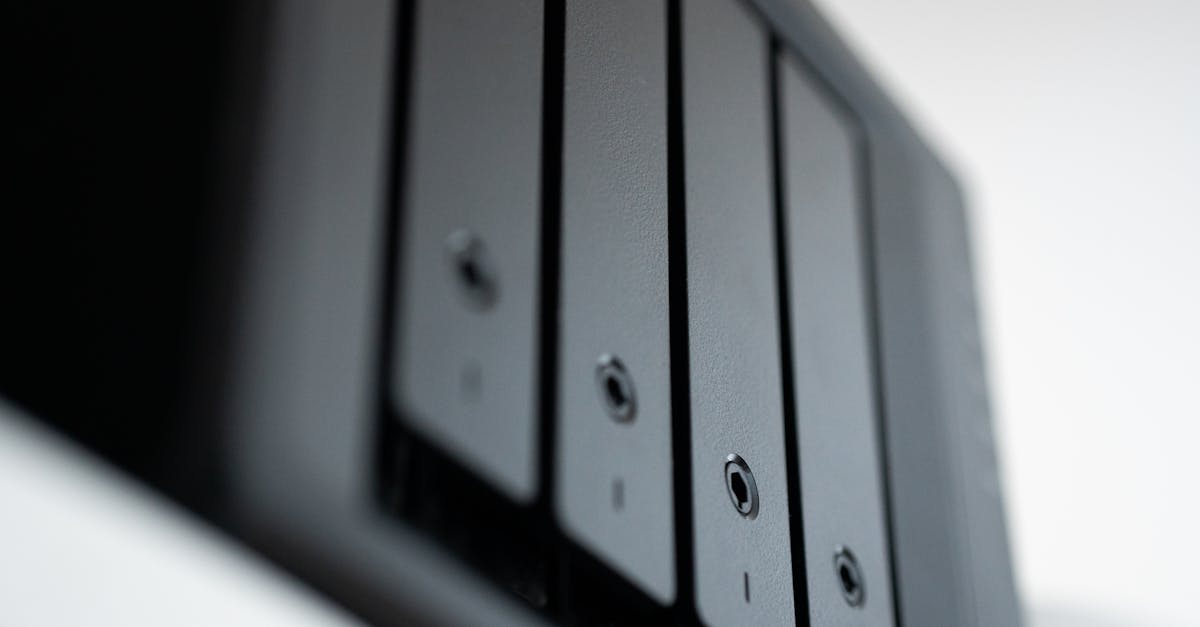
Fair enough. The important catch is that RAID is not a backup. It can make a storage system more resilient. It does not replace having another copy of your data somewhere else.
That matters most with backup systems, because a backup that fails in the same way as the original is not doing much useful work.
RAID helps with drive failure, not every kind of data loss
A RAID array may let you keep running if a drive dies. Depending on the level, that can be very useful. It does not protect you from:
- accidental deletion
- corrupted files
- ransomware
- theft
- fire or flood
- power problems
- enclosure or controller failure in some setups
- user error, still one of the great constants in computing
If your backup data matters, you still want at least one separate copy elsewhere. Different device, different place, ideally different failure path.
What RAID is, briefly
RAID stands for Redundant Array of Independent Disks. It combines multiple drives into one logical volume or storage pool.
What you get depends on the RAID level:
- more speed
- more fault tolerance
- better usable capacity
- some compromise between them
There is no RAID level that gives you all of those perfectly. Storage would be much less annoying if there were.
The RAID levels people actually use
RAID 0
RAID 0 stripes data across multiple drives for speed and full combined capacity.
Two 4TB drives in RAID 0 give you 8TB usable. They also give you zero redundancy. If either drive fails, the array is gone.
This makes RAID 0 a poor fit for backup storage. It is sometimes useful for temporary workspace, scratch disks, or fast disposable data. For backups, it is the wrong kind of exciting.
Where it makes sense
- temporary editing cache
- scratch storage
- data you can recreate easily
Where it doesn’t
- backup targets
- long-term file storage
- anything you would be annoyed to lose
Expansion
Expansion support varies a lot. Some platforms can grow a RAID 0 array, many do not do it neatly, and rebuilding from scratch is often simpler.
RAID 1
RAID 1 mirrors one drive onto another. With two 4TB drives, you get 4TB usable.
This is the simplest RAID option for backup storage if you have a two-bay system. One drive can fail and your backup volume still exists. Recovery is usually more straightforward than with parity-based arrays.
The downside is obvious: half your raw capacity disappears into redundancy. There is no clever trick here. You are paying for simplicity.
Where it makes sense
- two-bay NAS boxes
- local backup storage
- small office file storage
- systems where easy recovery matters more than capacity efficiency
Where it falls short
- large storage pools where losing 50% of capacity gets expensive fast
- workloads where you need strong write performance gains
Expansion
RAID 1 is rarely graceful to expand. Usually you replace both drives with larger ones, one at a time if the system supports rebuilds. Some software platforms can migrate to another RAID level later, but you should not assume that without checking.
RAID 5
RAID 5 uses striping with single-drive parity. It needs at least three drives and can survive one drive failure.
Three 4TB drives in RAID 5 give you 8TB usable. Four give you 12TB. This is why RAID 5 became so popular: better capacity efficiency than RAID 1, with some fault tolerance.
For backup storage, RAID 5 can make sense in a small NAS where you want a decent amount of usable space without mirroring everything. The awkward part is rebuilds. On larger drives, rebuilds can take a long time, and the array is vulnerable while that is happening.
That is one reason RAID 5 is less appealing than it used to be for big modern disks.
Good fit for
- home NAS backup storage
- media archives with separate backups elsewhere
- read-heavy file storage
Less ideal for
- very large arrays
- high-write workloads
- systems where rebuild risk is a major concern
Expansion
This depends much more on the platform than the RAID level itself. Some NAS systems and software RAID tools let you add drives or replace them one by one with larger models. Some do not. Product pages are often more optimistic than real life.
RAID 6
RAID 6 is RAID 5 with two parity blocks instead of one. It needs at least four drives and can survive two drive failures.
With four 4TB drives, you get 8TB usable. With six, 16TB.
For backup storage, RAID 6 is often the safer choice once arrays get larger or the drives themselves are large enough that rebuild times stop being a small detail. You lose more usable capacity than RAID 5, and writes are usually slower, but you get more breathing room during a rebuild.
Good fit for
- larger NAS systems
- backup arrays using high-capacity drives
- storage where uptime matters more than squeezing out every last terabyte
Less ideal for
- small arrays where the extra parity cost feels heavy
- workloads that care a lot about write speed
Expansion
Same story as RAID 5: possible on some platforms, awkward on others.
RAID 10
RAID 10 combines mirroring and striping. You need at least four drives. It gives you the performance advantages of striping with the simpler fault model of mirrored pairs.
Four 4TB drives in RAID 10 give you 8TB usable.
This is often the practical choice for people who want speed and redundancy without parity rebuild headaches. It is especially attractive for heavier workloads like virtualization, databases, and active project storage.
For backup storage alone, RAID 10 is sometimes overkill. It is excellent, but you pay for it by losing half the raw capacity.
Good fit for
- performance-focused NAS boxes
- active project storage
- virtualization hosts
- mixed workloads where write speed matters
Less ideal for
- budget-sensitive bulk backup storage
- anyone trying to maximize usable capacity
Expansion
RAID 10 usually expands in mirrored pairs, not one drive at a time. Planning ahead helps.
JBOD and spanning
JBOD usually means Just a Bunch Of Disks, though vendors do a fine job of using the term inconsistently.
In one setup, each drive is exposed separately. In another, drives are combined into one larger volume without redundancy. That second version is often closer to spanning than true JBOD, but the naming is not always tidy.
For backup storage, JBOD can be useful if you want to use mixed-size drives cheaply and you already have proper backups elsewhere. It is not a substitute for redundancy.
Why people use it
- full capacity is usable
- mixed drive sizes are easier to work with
- setup is often simple
- individual disks may be easier to access outside the array
Why it can go wrong
- little or no redundancy
- if one disk in a spanned volume fails, you may lose part or all of the volume
- performance improvements are usually minimal
JBOD is fine for non-critical bulk storage. It is a poor way to create a backup target if that backup target is your only safety net.
Which RAID levels make sense for backup storage?
This is the part the title promised, so let’s not pretend every RAID level is equally sensible here.
For a simple local backup destination
A single large drive is often enough. If you want the backup storage itself to survive a drive failure, RAID 1 is the usual answer.
Good options:
- one large external drive
- two-drive RAID 1 enclosure
- two-bay NAS with mirrored drives
This works well for straightforward PC backups, photo libraries, and home office data. You still want another copy somewhere else if the files matter.
For a larger home NAS used for backups
Once you have three or more drives, the choice usually becomes:
- RAID 5 if usable capacity matters and the array is not huge
- RAID 6 if you have more drives, larger drives, or lower tolerance for rebuild risk
- RAID 10 if performance matters more than capacity efficiency
For many home users, RAID 5 or RAID 6 is the sensible middle ground in a NAS. For small two-bay systems, RAID 1 is simpler.
For external workstation backup and project storage
If the enclosure is doing double duty as active storage and backup target:
- RAID 1 is a solid conservative option
- RAID 5 can make sense in larger enclosures
- RAID 10 suits heavier professional workloads
RAID 0 only belongs here if the data is temporary and backed up elsewhere. Using RAID 0 for the only copy of anything important is how people end up pricing data recovery services with a slightly haunted expression.
Software RAID, hardware RAID, and motherboard RAID
The RAID level is only part of the decision. How the array is managed matters too.
Software RAID
Software RAID is handled by the operating system or storage platform. Examples include Linux mdadm, Windows Storage Spaces, ZFS-based systems, and many NAS operating systems.
For home servers and backup systems, software RAID is often the sensible option.
Why it appeals
- no need for a dedicated RAID card
- often cheaper
- usually more flexible
- easier to migrate in some cases
- modern CPUs can generally handle the overhead just fine in home and small office setups
Where it gets awkward
- boot drive setups can be trickier
- portability depends on the platform
- some implementations are much better than others
If you are building a backup server or NAS on standard PC hardware, software RAID is usually the first thing worth considering.
Hardware RAID
Hardware RAID uses a dedicated controller card or a RAID-capable enclosure to manage the array.
Proper hardware RAID can be useful in server environments, especially where you need enterprise features or established management tools. For ordinary consumer backup storage, it is often less compelling than the label suggests.
Pros
- can simplify management in some server setups
- may offer cache protection features on higher-end controllers
- works well in systems designed around that controller
Cons
- extra cost
- recovery may depend on the same controller family
- controller failure can become its own problem
- cheap implementations are often not very impressive
A failed RAID card is a fine way to discover how portable your data was not.
Motherboard RAID
Motherboard RAID sits in the awkward middle. It is usually presented in BIOS or UEFI, but often depends on drivers and the host CPU rather than doing everything on dedicated hardware.
It can work. It is just rarely the cleanest option for a backup build. Good software RAID is often easier to live with.
Internal arrays, external enclosures, and NAS boxes
You can integrate RAID into a system in a few different ways.
Internal RAID
Drives live inside the PC or server case and connect directly to the motherboard or controller.
Best for
- DIY NAS builds
- workstations with spare bays
- people who want direct control over the platform
Trade-offs
- limited by case space and cooling
- expansion may mean replacing the case, PSU, or controller
- more noise and heat inside the main system
External direct-attached RAID enclosures
These connect over USB, Thunderbolt, eSATA, or similar interfaces and present storage to one host system.
Best for
- workstations that need more storage without opening the case
- editors and creators using large local project files
- backup targets for a single main PC
Trade-offs
- speed depends heavily on the interface
- enclosure quality matters
- some use proprietary management or formatting
- if the enclosure electronics fail, recovery may be more awkward than with plain internal drives
Useful, yes. Magical, no.
NAS and separate network enclosures
A NAS is its own storage box on the network, usually with its own operating system and RAID management.
Best for
- backups from multiple PCs
- shared household or office storage
- keeping backup storage separate from the main computer
Trade-offs
- higher upfront cost
- more setup than a USB drive
- network speed can limit performance
- some NAS-specific RAID schemes are not especially portable outside that brand or platform
For backup use, a NAS is often the nicest option if more than one device needs to send data to the same place.
Expansion is where plans either help or vanish
RAID expansion depends on more than the RAID level itself:
- how many bays you started with
- whether your platform supports online expansion
- whether all drives are the same size
- how long rebuilds take
- how much downtime you can accept
The broad pattern looks like this:
- RAID 0: often easier to rebuild than expand properly
- RAID 1: usually expanded by replacing both drives with larger ones
- RAID 5/6: may support adding drives or replacing them one at a time, but rebuilds can be long
- RAID 10: usually expanded by adding another mirrored pair
- JBOD: easiest for mixed-drive growth, offers little protection by itself
If you expect to grow, buy more bays than you need today. People rarely regret having spare bays. They do regret discovering that “future expansion” meant replacing the entire box.
A sensible way to choose
Pick the storage role first, then the RAID level.
Ask:
- Is this for backups, active working data, or both?
- Do I need the storage to stay online if one drive fails?
- How many drive bays do I actually have?
- Am I likely to expand later?
- Is capacity more important than performance?
- Do I already have a separate backup copy?
Then the usual answers look like this:
- Two-drive backup box: RAID 1
- Small NAS where capacity matters: RAID 5
- Larger NAS with bigger drives: RAID 6
- Performance-heavy storage that also needs redundancy: RAID 10
- Cheap bulk storage with backups elsewhere: JBOD
- Never for sole backup storage: RAID 0
Conclusion
For backup storage, the best RAID setup is usually the boring one.
- RAID 1 makes the most sense for simple two-drive backup systems.
- RAID 5 works for smaller multi-drive NAS boxes where usable capacity matters.
- RAID 6 is often the better choice for larger arrays and larger disks.
- RAID 10 is excellent if you want speed and resilience and can live with the capacity hit.
- JBOD is flexible, but it is not protective.
- RAID 0 has no real place as the only storage for backups.
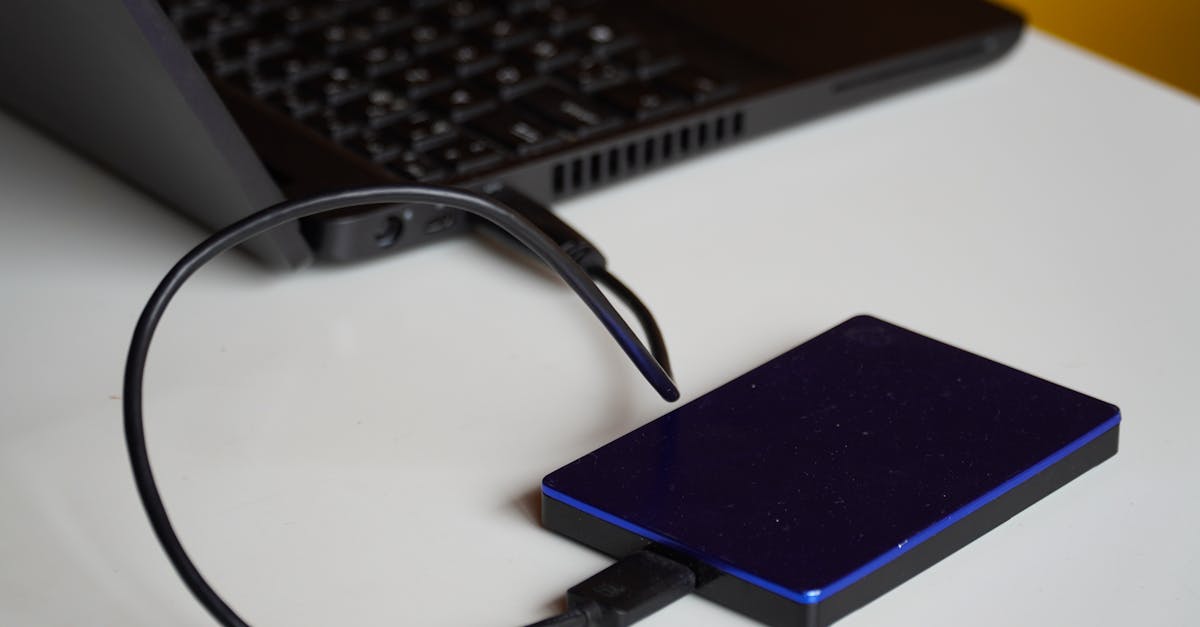
Use RAID to reduce downtime and survive a drive failure. Use backups to recover your data when something broader goes wrong. You usually need both, and they are not the same job.
Leave a Reply