Category: Windows Issues

  • CPU Usage High After Waking From Sleep

    You close the lid, come back later, open it up — and suddenly the fan spins up like you’ve launched a video render. Task Manager shows high CPU usage even though you haven’t opened anything heavy.

    That’s a common moment of concern. It feels like something is wrong because the machine was doing nothing a minute ago. In most cases, nothing is broken. The system is simply catching up.

    The key is understanding what normally happens when a PC wakes from sleep, and what doesn’t.


    What’s normal after waking from sleep

    Sleep mode doesn’t shut Windows down. It pauses it. Your open programs remain in memory. The processor powers down to save energy. Network connections may drop and reconnect.

    When you wake the system, Windows has to:

    • Re-establish network connections
    • Check for updates
    • Resume paused tasks
    • Sync cloud files
    • Restart certain services
    • Handle anything that was scheduled while the machine was asleep

    A brief spike in CPU usage during that period is normal. You might see 40%, 60%, even higher for a short time.

    What isn’t normal is sustained high CPU usage for an hour with no clear reason.

    Short burst? Expected.
    Constant load long after wake? Worth checking.


    Why it looks worse than it is

    Sleep creates a backlog.

    While the computer is asleep, time still moves forward. Updates are released. Emails arrive. Cloud files change. Scheduled maintenance windows pass.

    When the system wakes up, it processes those missed tasks. From your perspective, nothing is open. From Windows’ perspective, there’s background activity waiting.

    It’s a bit like opening your office in the morning and finding emails queued overnight. The work isn’t new — it was just delayed.

    The fan noise and visible CPU usage make it feel dramatic, but most of the time it’s just routine housekeeping compressed into a short window.


    Why Task Manager can be misleading after wake

    Task Manager shows what is happening right now. It doesn’t show why it started.

    After waking from sleep, you might see:

    If you open Task Manager during that initial surge, it can look alarming. But the important question isn’t “Is the CPU high?” It’s “Does it settle?”

    The Performance tab shows a graph over time. If usage spikes and gradually drops, the system is behaving normally. If it remains flat and high long after wake, something else is happening.

    Another detail people miss: the processor may ramp up to maximum speed briefly to complete tasks quickly. That’s by design. Modern CPUs boost aggressively for short bursts, which can exaggerate the impression of strain.

    High CPU usage for a few minutes after waking does not mean the processor is being damaged.


    Common causes of high CPU usage after sleep

    Most cases fall into predictable categories.

    1. Windows Update resuming work

    If an update downloaded while you were away, the system may unpack and prepare it when you wake the machine. That can use noticeable processor time.

    It often settles within 10–30 minutes.

    2. Windows Defender running a quick scan

    Security software may perform scans when the system becomes active again. If the PC was idle or asleep overnight, it may trigger a scan once you return.

    Again, temporary.

    3. Network reconnection and syncing

    Cloud storage services — OneDrive, Google Drive, Dropbox — check for changes once the internet reconnects. Email clients sync. Browsers refresh background tabs.

    This is normal background activity.

    4. Search indexing

    If files changed before sleep, Windows may update its search index after wake. That can briefly increase CPU usage.

    5. A browser restoring suspended tabs

    Some browsers suspend tabs during sleep to save memory. When you wake the PC, those tabs reload. If several media-heavy pages resume at once, CPU usage rises quickly.

    6. A driver behaving badly

    This is less common, but sometimes a device driver doesn’t resume cleanly. That can cause persistent CPU usage.

    Usually you’ll notice this because the behaviour repeats every time the PC wakes.


    When it usually resolves on its own

    For most users, the pattern is:

    1. Wake PC
    2. CPU usage spikes
    3. Fan ramps up
    4. After 5–20 minutes, everything quiets down

    That’s normal.

    If you wake the PC and immediately start working, you may overlap with those background tasks, making the system feel sluggish. If you give it a few minutes, it often settles.

    On older systems with slower drives, this settling period can be longer — especially after major Windows updates.

    If the CPU usage drops back to low levels once the system is idle again, nothing is wrong.


    When it’s worth investigating

    You should look more closely if:

    • CPU usage stays above 70–80% for extended periods
    • The same process consistently dominates after every wake
    • The system becomes unstable or freezes
    • The issue started after installing new software or drivers

    If it happens once, it’s likely routine. If it happens every time, there’s a pattern.

    In that case, check which process is at the top in Task Manager. If it’s a third-party program, try updating it. If it’s a driver-related process, check for hardware driver updates.

    If it’s always Windows Update or Defender, let it finish at least once without interrupting it. Sometimes repeated waking and sleeping prevents it from completing properly.


    What not to do

    This is where frustration makes things worse.

    Don’t force shutdown repeatedly

    If you shut the PC down mid-update or mid-scan every time you see high CPU usage, the tasks never finish. That can create a loop where the system keeps trying again after every wake.

    Let it complete once.

    Don’t disable core services

    Turning off Windows Update or Defender because they used CPU after wake is rarely a good idea. Those services exist for a reason.

    High CPU usage during maintenance is not a fault.

    Don’t install “optimizer” tools

    Third-party utilities promising to “fix high CPU after sleep” often add their own background services. That usually increases load rather than reducing it.

    If the system was stable before, adding more software isn’t the solution.

    Don’t assume hardware failure

    Sleep-related CPU spikes are almost always software-driven. A failing processor does not selectively misbehave only after sleep.

    Hardware problems show up under sustained load, not just during background activity after waking.


    A practical way to judge the situation

    When you wake your PC and notice high CPU usage:

    1. Open Task Manager.
    2. Sort by CPU usage.
    3. Identify the top process.
    4. Wait 10–15 minutes without interrupting it.
    5. Check again.

    If usage drops back to low levels while the system is idle, you’re fine.

    If it does not drop and the same process remains active every time, then you have something specific to investigate.

    Most of the time, the system simply needed a moment to resume work.


    The grounded reality

    Sleep mode isn’t a freeze-frame. It’s a pause. When you resume, Windows clears whatever built up while it was paused.

    That short burst of CPU usage is often just the system doing its job — updates, syncing, indexing, scanning. It looks dramatic because it happens all at once.

    If it settles, leave it alone. If it repeats consistently and never calms down, look at the specific process involved.

    High CPU usage after waking from sleep is common. Persistent high CPU usage long after waking is not. Knowing the difference keeps you from fixing a problem that doesn’t exist.
  • How to Check Which Program Is Using Your CPU

    If your PC suddenly sounds like it’s about to take off, or everything feels sluggish for no obvious reason, it’s natural to wonder what’s eating the processor. Most of the time, there is a reason. It’s rarely mysterious, and it’s rarely permanent.

    Checking which program is using your CPU isn’t complicated. Interpreting what you see is the part that causes confusion.

    Let’s go through it properly.


    What’s normal, and what isn’t

    Modern versions of Windows are designed to use available resources. If something needs the processor, it gets it. If nothing needs it, the system sits mostly idle.

    It is normal to see:

    • Brief spikes in CPU usage when opening programs
    • Higher usage during updates
    • Activity when the PC is sitting idle but connected to the internet
    • Short bursts of background activity after startup

    It is not normal to see:

    • CPU usage pinned near 100% for long periods with no obvious reason
    • The system constantly slow even when nothing demanding is open
    • Fans running loudly for hours

    Short spikes are fine. Constant saturation is not.


    Why it often looks worse than it is

    People usually open Task Manager during a moment of stress — when the system is already slow. What they see is a number in bold, often higher than expected. That number feels alarming.

    What’s easy to miss is context.

    If your CPU jumps to 70% for ten seconds while Windows completes background activity, that’s normal behaviour. If it stays at 70% for an hour while you’re doing nothing, that’s different.

    The processor is built to be used. High CPU usage by itself is not damage. It’s only a problem if it doesn’t settle.


    How to check which program is using your CPU

    Press Ctrl + Shift + Esc. That opens Task Manager directly.

    If you see a simplified view, click More details.

    Now look at the Processes tab.

    There’s a column labelled CPU. Click the word “CPU” at the top of the column. This sorts programs from highest usage to lowest.

    The program at the top is using the most processor time at that moment.

    That’s the basic answer.

    But there are a few things to understand before jumping to conclusions.


    Why Task Manager can mislead you

    Task Manager shows a snapshot of what’s happening right now. It does not show:

    • What was happening five minutes ago
    • What will happen next
    • Whether a task is temporary

    It also shows grouped services. For example, you might see:

    Those are not random names. They are Windows components performing background work.

    If you sort by CPU usage and see something unfamiliar at the top, that doesn’t automatically mean it’s harmful. It may simply be a built-in process doing maintenance.

    Another thing that causes confusion is percentage scaling. A program using 25% CPU on a four-core system might only be using one core fully. That’s not the same as the whole processor being overwhelmed.


    Looking a little deeper (without overcomplicating it)

    If the top entry is unclear, right-click it and choose Search online. That usually clarifies what it is.

    You can also switch to the Details tab. This shows the exact executable name — the actual file running. It’s more technical, but sometimes clearer.

    If you want to see longer-term behaviour, click the Performance tab and select CPU. The graph shows overall usage over time. If it spikes and falls, that’s healthy. If it’s flat and high, that’s worth investigating.


    Common causes of high CPU usage

    In most cases, the culprit is predictable.

    Windows Update

    Updates often run quietly in the background. They can temporarily increase CPU usage while downloading, unpacking, or preparing files.

    This often happens while the PC is idle or shortly after startup.

    Windows Defender

    Security scans use processor time. If Defender is scanning, you’ll see activity. It usually settles once the scan completes.

    Search Indexing

    If you’ve installed new programs or added many files, Windows may reindex content. That can cause noticeable background activity.

    A web browser

    Modern browsers can use significant CPU if:

    • Many tabs are open
    • Video is playing
    • A page is poorly optimised

    It’s common for a browser to appear at the top of the list.

    Third-party software

    Occasionally, an application misbehaves and fails to release CPU resources properly. This is less common but does happen.

    Usually, closing and reopening the program resolves it.


    When it resolves on its own

    In many cases, high CPU usage is temporary.

    Typical timeframes:

    • Windows Update: 5–30 minutes
    • Defender scan: depends on disk size, often under 30 minutes
    • Indexing: can take longer after major updates, but gradually reduces
    • Startup background tasks: usually settle within 10–15 minutes

    If you leave the PC alone and CPU usage falls back down, the system was just catching up.

    That’s normal maintenance behaviour.


    When it’s worth investigating further

    You should look closer if:

    • CPU usage remains high for hours
    • The same program constantly returns to the top
    • The system feels permanently slower
    • You see unknown software using significant resources

    In that case, the goal isn’t to panic. It’s to identify whether:

    • A specific application needs updating
    • A driver is misbehaving
    • A scheduled task is repeatedly failing

    Persistent issues are usually software conflicts or update problems — not hardware failure.


    What not to do

    This is where people often make things worse.

    Don’t immediately end random processes

    If you start ending system processes at random, Windows may restart them. Or worse, you may interrupt something important.

    Ending a web browser is fine. Ending core Windows services without understanding them isn’t.

    Don’t install “PC cleaner” tools

    Many third-party optimisation tools promise to reduce CPU usage. Most add their own background services and create more load.

    If you can’t identify the program in Task Manager yourself, adding more software isn’t the solution.

    Don’t assume high CPU means hardware damage

    Processors are designed to operate at full load. They throttle themselves if necessary. High usage alone does not harm them.

    The concern is sustained, unexplained behaviour — not brief peaks.


    A simple way to think about it

    Your CPU is a shared workspace. Programs take turns using it. Sometimes one program needs more time. That doesn’t mean it’s broken.

    When you check Task Manager:

    1. Sort by CPU
    2. Identify the top process
    3. Ask: is this something I recognise?
    4. Wait a few minutes and see if it drops

    Often, that’s all that’s needed.


    The grounded reality

    If your PC feels slow and you see high CPU usage, you’re not wrong to check. That’s sensible.

    Most of the time, what you’ll find is routine background activity — updates, scans, indexing, or a busy browser tab. Once those tasks complete, the system returns to normal.

    If something truly unusual is happening, it will be persistent and obvious. Short spikes are part of how modern Windows systems manage resources.

    Checking which program is using your CPU is straightforward. Interpreting it calmly is what makes the difference.

    If the usage settles, leave it alone. If it doesn’t, investigate methodically. There’s almost always a practical explanation.

  • What Windows Automatic Maintenance Actually Does

    If you’ve ever noticed your PC’s fan spin up, disk activity increase, or CPU usage rise when you’re not doing anything, Automatic Maintenance is often involved. It tends to run quietly in the background, which is good, but that also means it’s easy to misunderstand when you do notice it.

    Nothing is usually wrong. Windows is just doing the sort of housekeeping most people never see.


    The short version

    Automatic Maintenance is Windows grouping a lot of small background jobs together and running them when your PC is idle. Instead of slowing things down while you’re working, Windows waits for a quiet moment and gets on with it.

    That can look suspicious if you weren’t expecting it.


    What counts as “normal” behaviour

    It’s normal for Automatic Maintenance to cause:

    • Brief CPU usage while the PC appears idle
    • Disk activity with no apps open
    • Fans ramping up for a few minutes
    • Activity shortly after the PC wakes from sleep

    What’s normal is that this comes and goes. You’ll see activity, then it settles back down.

    What isn’t normal is constant heavy usage that never stops, or a PC that stays slow for hours afterward. That’s not how maintenance is meant to behave.


    Why it often looks worse than it is

    Automatic Maintenance runs at the exact moment people tend to notice their system most: when they’re not actively using it.

    When you’re browsing the web or working, background activity blends in. When you step away and the PC suddenly gets busy, it feels unnecessary — even though it’s been designed that way on purpose.

    Windows also tends to stack tasks together. Instead of lots of tiny interruptions, it prefers one short burst of activity. That burst can look dramatic in tools that measure usage moment by moment.


    Why Task Manager can be misleading here

    Task Manager is very literal. It shows what’s happening right now, not why it’s happening or how long it will last.

    During Automatic Maintenance, you might see:

    • Service Host processes using CPU
    • Windows Update components waking up
    • Indexing or scan-related activity
    • Disk usage spiking briefly

    Task Manager doesn’t label any of this as “maintenance”. It just shows the individual pieces. Without context, it’s easy to assume something is stuck or misbehaving.

    Most of the time, it’s just background activity doing exactly what it’s supposed to do.


    What Automatic Maintenance actually includes

    Automatic Maintenance isn’t one task. It’s a schedule that allows Windows to run several different jobs together.

    Security checks

    Windows Defender uses maintenance windows to:

    • Run background scans
    • Check definitions
    • Clean up old scan data

    These scans are usually low priority, but they still use CPU for short periods.

    Windows Update housekeeping

    Even when updates aren’t installing, Windows Update still needs to:

    • Check update status
    • Clean up old update files
    • Prepare pending updates

    This often explains CPU or disk usage when no update appears to be happening.

    Disk and file maintenance

    Depending on your system, Windows may:

    • Optimize SSDs
    • Run traditional disk maintenance on HDDs
    • Clean up temporary files
    • Check file system consistency

    These tasks are designed to be safe to interrupt, which is why they’re allowed to run in the background.

    Search and indexing work

    If files have changed, indexing tasks often run during idle periods. This is especially noticeable after updates, new software installs, or large file changes.

    It’s a common source of background CPU usage that looks odd if you weren’t expecting it.


    Why this often happens after sleep or startup

    Many people notice maintenance activity shortly after waking their PC.

    That’s because Windows avoids running these tasks while the system is asleep. When the PC wakes, Windows checks whether it finally has a chance to catch up.

    If it does, maintenance starts.

    This is also why CPU usage after waking from sleep can briefly spike, even if the PC seems idle.


    How long Automatic Maintenance usually runs

    In most cases:

    • A few minutes on a well-maintained system
    • Up to 20–30 minutes after updates or long downtime
    • Longer on slower disks or older hardware

    What matters isn’t the exact time — it’s that the activity finishes.

    Once maintenance completes, CPU usage drops, disk activity settles, and the system feels normal again.


    When it’s worth looking closer

    It’s reasonable to investigate further if:

    • Maintenance appears to run constantly, day after day
    • CPU usage stays high for hours
    • The system becomes slower instead of recovering
    • Fans run loudly even after long idle periods

    At that point, the issue usually isn’t maintenance itself, but something maintenance keeps triggering — such as a stuck update, corrupted cache, or a service that keeps restarting.


    What not to do

    This is where people often make things worse.

    Don’t disable Automatic Maintenance entirely

    It sounds tempting, but you’re mostly just postponing problems. Updates, security scans, and system cleanup don’t go away — they pile up.

    When they finally do run, they tend to be heavier and more disruptive.

    Don’t panic and start killing processes

    Ending background services mid-maintenance can cause more work later. Windows will often retry failed tasks, sometimes repeatedly.

    Letting them finish is usually faster in the long run.

    Don’t assume high CPU means damage

    CPU usage during idle time isn’t harmful by itself. Modern systems are designed to use available resources when nothing else needs them.

    High usage that never settles is the problem — not short-lived spikes.


    The calm reality

    Automatic Maintenance is one of those things that works best when you don’t notice it. When you do notice it, it’s usually because Windows has found a quiet moment to catch up.

    Most of the time, the right response is simply to leave the PC alone for a bit and let it finish. Once it does, things go back to normal.

    If it doesn’t, that’s when it’s worth digging deeper — but not before.

    For most systems, Automatic Maintenance is just background housekeeping doing its job, even if it looks a little noisy while it’s happening.

  • Why Windows Keeps Booting Into Safe Mode

    When Windows keeps starting in Safe Mode without being asked, it feels like the system has decided to ignore you. The interface is stripped down, performance is odd, and restarting doesn’t help.

    Usually, Windows is doing exactly what it was told — even if you don’t remember giving the instruction.


    What’s normal, and what isn’t

    It’s normal for Windows to boot into Safe Mode:

    • after repair attempts
    • during troubleshooting
    • when explicitly configured to do so

    It’s not normal for Safe Mode to persist indefinitely with no explanation.


    Why it feels more serious than it is

    Safe Mode disables drivers, limits background activity, and removes most visual features. That makes the system feel broken even when it isn’t.

    Safe Mode isn’t a failure state. It’s a restricted one.


    Why Windows doesn’t explain itself clearly

    Windows doesn’t display a message explaining why Safe Mode is still active. It just boots that way.

    This is similar to how idle CPU usage can look suspicious without context. You see behaviour, not intent.


    Common reasons Safe Mode keeps returning

    The most common reason is simple: Safe Mode was enabled and never turned off.

    Other causes include:

    Windows keeps choosing Safe Mode because it believes it’s still the safest option.


    When it usually stops

    If Safe Mode was triggered by a temporary issue, it often clears once:

    • Windows starts successfully a few times
    • background checks complete
    • startup stabilises

    Normal boot usually returns quietly.


    When it’s worth investigating

    You should dig deeper if:

    • Safe Mode appears every boot
    • normal startup never works
    • the system feels stuck in recovery behaviour

    That points to a persistent trigger.


    What not to do

    Avoid:

    • forcing repeated restarts
    • reinstalling Windows immediately
    • assuming Safe Mode means failure

    Those reactions usually add complexity rather than removing it.


    Closing thought

    Safe Mode isn’t Windows being stubborn. It’s Windows being cautious. Once the system believes normal startup is safe again, it usually returns there without ceremony.


  • How to Find Your BitLocker Recovery Key (and What It Means If It Doesn’t Work)

    When Windows asks for a BitLocker recovery key, it doesn’t explain much. It simply stops and waits. That lack of context is what causes most of the panic.

    In most cases, the key already exists and hasn’t gone anywhere. The real issue is knowing where it was stored and recognising it when you see it.


    What the recovery key actually is

    The BitLocker recovery key is a fixed 48-digit number created when encryption was enabled. It doesn’t change unless BitLocker is turned off and re-enabled.

    Windows isn’t generating a new key. It’s asking for the one that already belongs to that drive.


    Where the key is usually stored

    Microsoft account

    If you signed into Windows with a Microsoft account, the recovery key is often stored there automatically.

    On another device, go to:

    account.microsoft.com/devices/recoverykey

    Sign in with the same account used on the PC.

    You may see several keys. That’s normal. Each encrypted drive gets its own entry.

    This is where most people find it.


    Work or school systems

    If the device was issued or managed by an organisation, the key is usually stored by them. Even if the PC looks personal, this still applies.

    In that case, only IT support can retrieve it.


    Saved copies

    Some users saved the key during setup:

    • to a USB drive
    • to cloud storage
    • as a printed page

    It’s worth checking carefully. People often forget they did this.


    Entering the key correctly

    The recovery screen is strict.

    • Numbers only
    • Dashes are added automatically
    • One wrong digit means rejection

    Typing errors are far more common than genuinely invalid keys.


    If the key doesn’t work

    A rejected key doesn’t automatically mean it’s wrong.

    Common reasons include:

    • using a key for a different drive
    • using an old key after BitLocker was re-enabled
    • simple entry mistakes

    Double-check before assuming anything worse.


    When the key truly can’t be found

    This is the hard boundary.

    If the recovery key was never saved and you can’t access the account it was tied to, the data cannot be recovered. That’s not a Windows limitation — it’s the point of full-disk encryption.

    It’s less common than people fear, but it does happen.


    What not to do

    Don’t:

    • reset the system before checking properly
    • trust “BitLocker bypass” tools
    • reinstall Windows in frustration

    Those actions don’t recover encrypted data.


    Closing thought

    A BitLocker recovery prompt feels final, but most of the time it isn’t. If the key exists, using it correctly resolves the issue. If it doesn’t, encryption is doing exactly what it was designed to do.

  • Why Windows Can Get Stuck in a BitLocker Safe Mode Loop

    Bitlocker loop

    If your PC suddenly keeps booting into Safe Mode, or repeatedly asks for a BitLocker recovery key, it’s understandable to feel worried. It can look like Windows is broken, locked, or stuck in some kind of loop you didn’t cause. Many people fear they’ve lost access to their files or that something serious has gone wrong.

    In most cases, though, this situation is Windows reacting to a change, not failing outright. BitLocker and Safe Mode are both designed to protect your system, and sometimes they interact in ways that feel far more dramatic than they actually are.


    What’s Normal — and What Isn’t

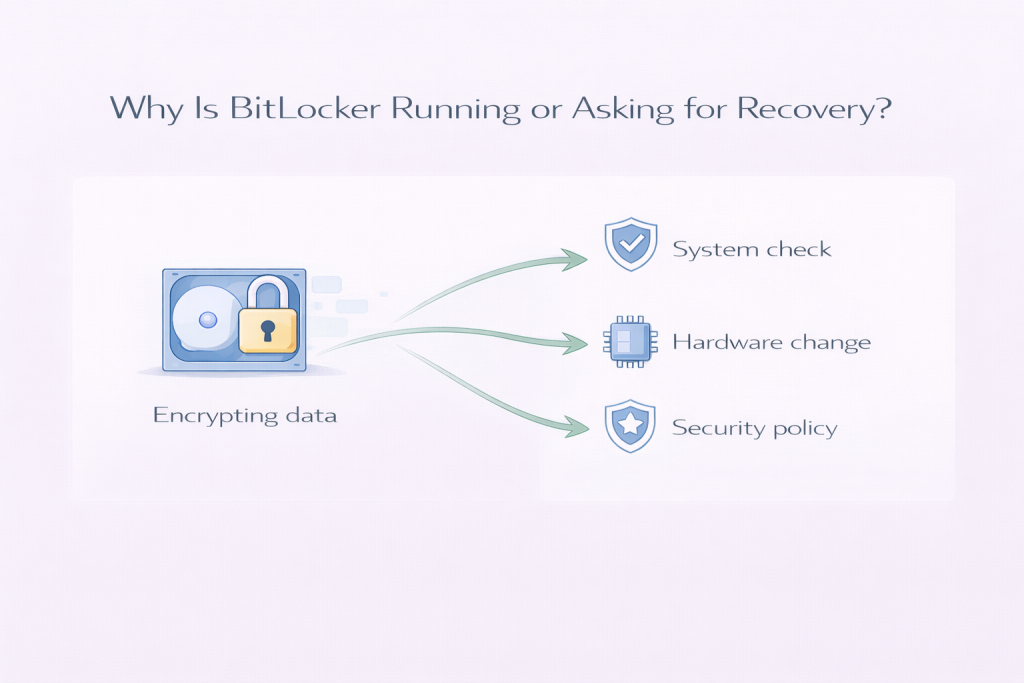
    It’s normal for Windows to ask for a BitLocker recovery key after certain changes. These include system updates, firmware changes, or booting in a way Windows considers unusual. From Windows’ point of view, it’s simply checking that the person starting the PC is authorised.

    It’s also normal for Safe Mode to limit what Windows can load. Safe Mode strips things back to the basics so problems can be isolated. That restricted environment is exactly why BitLocker sometimes reacts.

    What’s not normal is being permanently locked out with no recovery options, or Windows repeatedly rebooting without explanation. Those cases are much rarer than they feel at first, and they’re usually caused by something specific rather than random failure.


    Why This Looks Worse Than It Is

    BitLocker problems tend to happen at the worst possible moment — during startup. When something goes wrong at boot, you don’t get the comfort of a familiar desktop or clear error messages. Instead, you’re faced with a stark screen asking for a long recovery key.

    That lack of context makes the situation feel far more serious. In reality, Windows is often just being cautious. It has noticed that the system isn’t starting in its usual way and is pausing until it’s confident everything is safe.

    Safe Mode adds to that feeling. Because it looks different and behaves differently, it’s easy to assume the system is damaged, even when it isn’t.


    Why System Screens and Messages Can Be Misleading

    Windows doesn’t explain why BitLocker is triggered in plain language. It simply asks for a recovery key. There’s no message saying “this happened because of an update” or “this is temporary”.

    This is similar to how tools like Task Manager can make background activity or CPU usage look alarming during idle time. You see the symptom, but not the reason behind it.

    BitLocker screens are the same. They show the security check, not the chain of events that led to it.


    Common Underlying Causes (In Plain English)

    Most BitLocker Safe Mode loops trace back to one of a few situations:

    Windows updates or restarts
    Large updates sometimes change low-level system components. When Windows restarts afterwards, BitLocker may see that as a meaningful change and ask for confirmation.

    Firmware or BIOS changes
    Even automatic firmware updates can trigger BitLocker. These updates affect how the computer starts, so Windows checks that nothing suspicious has happened.

    TPM and security checks
    BitLocker relies on a small security chip to confirm the system hasn’t been tampered with. If that check doesn’t line up perfectly — even briefly — Windows errs on the side of caution.

    Safe Mode itself
    Safe Mode bypasses many normal startup checks. BitLocker can interpret that as an unexpected boot path and pause until the recovery key is entered.

    Repeated failed startups
    If Windows doesn’t start cleanly a few times, it may change its boot behaviour. That alone can be enough to trigger BitLocker, even though nothing is actually broken.

    None of these mean your files are damaged. They mean Windows is being conservative.


    When It Usually Settles Down on Its Own

    In many cases, once the recovery key is entered and Windows is allowed to start normally, the issue does not return. BitLocker recognises that the system is intact and resumes normal operation.

    If the trigger was an update or one-off change, things often settle after:

    • One or two successful boots
    • Completing background setup tasks
    • Returning to a normal startup instead of Safe Mode

    This can take minutes, or sometimes a day or two if Windows is finishing background activity related to updates.


    When It’s Worth Investigating Further

    It’s reasonable to dig deeper if:

    • The recovery key is requested every single boot
    • You cannot reach normal Windows at all
    • The system re-enters Safe Mode without you asking it to
    • The same screen appears even after successful startups

    These patterns suggest something is repeatedly changing or failing during startup. That doesn’t mean disaster, but it does mean Windows isn’t getting the “all clear” it expects.


    What Not to Do

    This is where many people make things worse, usually out of frustration or panic.

    Don’t disable BitLocker blindly
    Turning off security features without understanding the situation can create new problems, especially if Windows is mid-update.

    Don’t repeatedly force restarts
    Hard power-offs can make Windows think the system is unstable, reinforcing the loop.

    Don’t reset or reinstall immediately
    Data loss often happens because people assume the system is unrecoverable when it isn’t.

    Don’t follow “bypass” advice from random forums
    Anything suggesting you defeat encryption or skip security checks is risky and often outdated.

    In most cases, patience and clarity work better than drastic action.


    A Calm Takeaway

    A BitLocker Safe Mode loop looks intimidating, but it’s usually a sign of Windows protecting itself, not falling apart. The system is pausing because something changed, not because your data is gone.

    If the PC starts normally after a recovery key and stays stable, the safest response is often to let things finish in the background and keep an eye on it. If it doesn’t settle, that’s when a more careful investigation makes sense — not panic.

    Windows can be blunt and unhelpful in how it communicates problems, but most of the time, it’s acting cautiously rather than catastrophically.

  • Desktop Window Manager high CPU: should you be worried?

    Seeing Desktop Window Manager near the top of Task Manager can be unsettling. It’s not a program you installed, you didn’t open anything unusual, and yet it looks like it’s using a noticeable chunk of CPU. For a lot of people, that immediately triggers the thought that something is wrong.

    In most cases, it isn’t. Desktop Window Manager doing some work is normal, and short bursts of higher CPU use are part of how modern Windows systems behave. The key is understanding when what you’re seeing is expected, and when it’s actually a sign that something needs attention.


    What Desktop Window Manager normally does

    Desktop Window Manager (often shown as dwm.exe) is responsible for how Windows looks and feels. It handles things like:

    • Window animations and transparency
    • Moving and resizing windows smoothly
    • Drawing what you see on the screen using the graphics system

    On modern versions of Windows, almost everything you see on the desktop passes through Desktop Window Manager. That means it’s always running, even when your PC feels idle.

    Because of that, zero CPU usage is not the goal. Some activity is expected.

    What’s normal:

    • Low CPU usage most of the time
    • Short spikes when opening, closing, or moving windows
    • Slight increases when waking from sleep or changing displays

    What’s not normal:

    • Constantly high CPU usage that doesn’t settle
    • Noticeable system slowdowns that match the CPU spikes
    • Fans running hard even when you aren’t doing anything visual

    Why it often looks worse than it actually is

    Desktop Window Manager tends to draw attention because it sits close to the core of the system. When Windows does any kind of visual work in the background, it often shows up there.

    Two things make this feel worse than it is:

    First, Desktop Window Manager reacts to many small events. A notification animation, a background app updating its window, or Windows adjusting display settings can all cause brief CPU activity. None of these are problems on their own.

    Second, Windows often does this work when the PC is otherwise quiet. If there’s little else happening, even a small amount of CPU usage can look large in percentage terms. This is especially noticeable when the system is idle or you’ve just stopped using it.


    Why Task Manager can be misleading here

    Task Manager is useful, but it isn’t always comforting.

    CPU percentages are relative. If your system isn’t busy, a task using a small amount of processing power can suddenly look important simply because nothing else is competing with it. A few percent of CPU usage from Desktop Window Manager doesn’t mean it’s “working hard” in an absolute sense.

    Task Manager also updates frequently. You might catch Desktop Window Manager in the middle of a brief spike and assume that’s its constant state. If you watch for a minute or two, you’ll often see the number drop back down on its own.

    This is why many people think they have a problem when what they’re really seeing is normal background activity being surfaced very clearly.


    Common reasons Desktop Window Manager uses more CPU

    When Desktop Window Manager does use more CPU than usual, there’s usually a straightforward reason behind it.

    One common cause is display changes. Plugging in a second monitor, changing resolution, adjusting scaling, or even waking the PC can cause Desktop Window Manager to re-draw and re-sync the desktop. That can push CPU usage up temporarily.

    Another cause is graphics driver behaviour. Desktop Window Manager relies heavily on your graphics system. If a driver has just updated, is slightly unstable, or is falling back to software rendering, the CPU may do more work than usual.

    Background apps can also play a role. Some programs keep windows or overlays active even when you’re not interacting with them. When those windows refresh or animate, Desktop Window Manager has to handle that work.

    Finally, Windows updates and maintenance can indirectly affect it. During certain background tasks, Windows may adjust visual elements or restart services, which again creates short bursts of activity that look concerning if you’re watching closely.


    When it usually settles on its own

    In many cases, high CPU usage from Desktop Window Manager is temporary.

    It often settles after:

    • A few minutes following startup or waking from sleep
    • Display changes finish applying
    • A background process completes its work
    • Windows finishes adjusting after an update

    For most systems, this means things calm down within a few minutes, sometimes up to half an hour if the PC has been idle and catching up on background tasks.

    If the CPU usage drops back to low levels on its own, that’s a strong sign everything is working as intended.


    When it’s worth investigating further

    There are times when Desktop Window Manager using high CPU is worth a closer look.

    It’s reasonable to investigate if:

    • CPU usage stays high for a long time without settling
    • Your PC feels sluggish or unresponsive alongside it
    • Fans run loudly even when you’re doing very little
    • The issue appears every time you start the PC

    At that point, the issue is often not Desktop Window Manager itself, but something interacting with it. Display drivers, third-party software that draws on the screen, or system settings can all be involved.

    Looking at overall CPU usage and checking whether the problem happens only under certain conditions (such as with an external monitor connected) can help narrow things down calmly and methodically.


    What not to do

    When people see Desktop Window Manager using CPU, they often make things worse by reacting too aggressively.

    Avoid force-closing it. Desktop Window Manager is a core part of Windows. Ending it doesn’t fix the underlying cause and can destabilise the desktop.

    Avoid installing “CPU cleaner” or “optimizer” tools. These often interfere with normal background activity and create more problems than they solve.

    Avoid constant monitoring. Watching Task Manager every few seconds will make normal behaviour feel abnormal. If something is genuinely wrong, you’ll usually feel it in performance, not just see it in a number.

    And avoid assuming malware straight away. Desktop Window Manager itself is a legitimate Windows process. While malware can exist on any system, high CPU usage here is far more commonly explained by graphics, display, or background behaviour.


    A calm way to think about it

    Desktop Window Manager sits at the centre of how Windows draws the desktop. Because of that, it shows activity whenever anything visual happens — even things you don’t consciously notice.

    Seeing it use some CPU, especially when your PC is idle or just waking up, is usually normal. Short spikes are expected. Even occasional higher usage doesn’t automatically mean something is broken.

    If your system feels fine and the CPU usage settles on its own, that’s Windows doing its job quietly in the background. If it doesn’t, there are sensible steps to investigate without panic.

    Most of the time, this is one of those cases where Windows looks busy, but everything is actually working as it should.

  • Is My Hard Drive Failing or Just Busy?

    When a hard drive is constantly active or the PC feels slow, it’s natural to worry about drive failure. Storage issues feel serious, and the fear of data loss makes any unusual behaviour feel urgent.

    In many cases, though, a busy drive is not the same as a failing one.

    What’s Normal vs What Isn’t

    A busy drive is normal if:

    • Activity comes and goes
    • Performance improves over time
    • No unusual noises occur

    It’s more concerning if:

    • Performance degrades rapidly
    • The drive makes persistent clicking or grinding sounds
    • Errors or crashes become frequent

    Busy behaviour is common. Physical failure is less so.

    Why It Often Looks Worse Than It Really Is

    Hard drives are mechanical and slow by modern standards. Background activity during idle periods can easily saturate them, making the system feel strained even when nothing is actually broken.

    This makes routine behaviour feel like a warning sign.

    Why System Metrics Can Be Misleading

    High disk usage doesn’t indicate damage. It only shows that the drive is occupied. A healthy drive can be busy for long periods without failing.

    Metrics alone can’t distinguish between workload and wear.

    Common Underlying Causes

    A drive that seems busy is often dealing with:

    • Background system tasks
    • Security scans
    • Indexing
    • Limited performance due to age
    • Nearly full storage

    None of these necessarily indicate failure.

    When It Usually Settles on Its Own

    If the drive is healthy:

    • Activity reduces once tasks finish
    • Performance returns during idle periods
    • The system stabilises over time

    Improvement is reassuring.

    When It’s Reasonable to Investigate Further

    It’s worth investigating if:

    • Performance declines rapidly
    • Errors appear repeatedly
    • Unusual noises persist

    These can point to genuine hardware problems.

    Common Mistakes That Make Things Worse

    Avoid:

    • Panicking and reinstalling Windows immediately
    • Running repeated aggressive disk tests
    • Ignoring backups altogether

    Overreaction can cause more harm than the original issue.

    Closing Thoughts

    A busy hard drive is far more common than a failing one. If activity settles and performance returns, the drive is usually fine. If warning signs appear, that’s the time to investigate calmly.

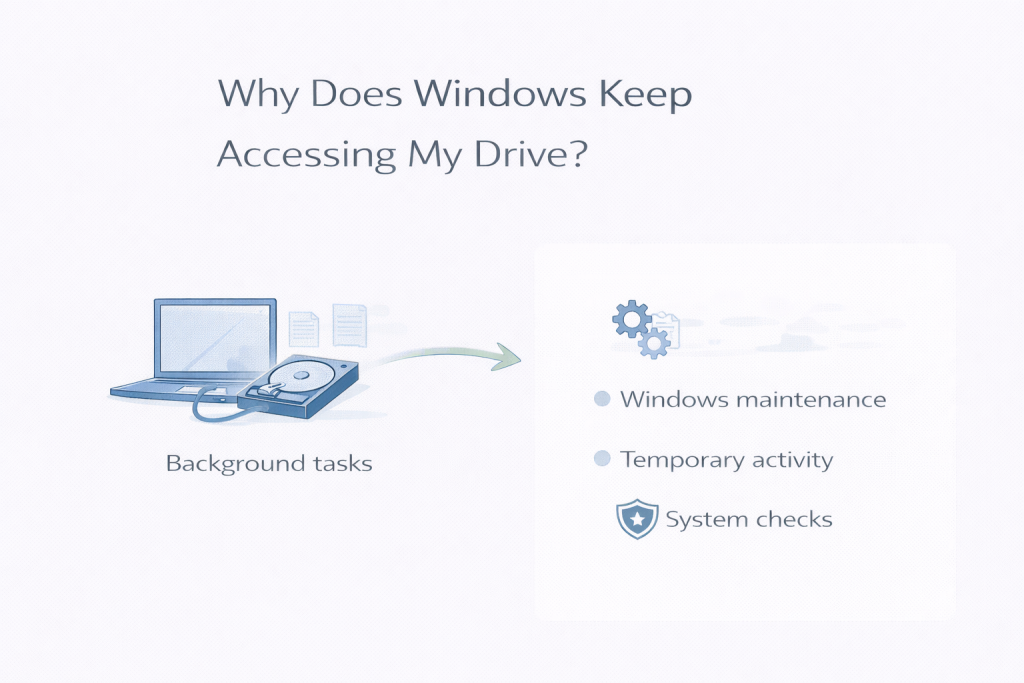
  • Why Does Windows Keep Accessing My Drive?

    Hearing or seeing constant drive access can feel intrusive, especially when you’re not actively using the PC. It’s natural to wonder why Windows keeps reading or writing to the drive without obvious reason.

    In most cases, this behaviour is routine rather than suspicious.

    What’s Normal vs What Isn’t

    It’s normal for Windows to access the drive:

    • During background maintenance
    • After updates
    • When monitoring system health
    • When the system is idle

    It’s less normal if:

    • Access never stops
    • The PC becomes unusable
    • Errors or crashes occur

    Regular access is expected. Constant disruption is not.

    Why It Often Looks Worse Than It Really Is

    Drive access is more noticeable than other background activity. On some systems, you can hear it or see indicator lights, which makes normal maintenance feel excessive.

    Windows schedules much of this work during idle periods to avoid interrupting active use.

    Why System Metrics Can Be Misleading

    Task Manager shows activity, but not purpose. It doesn’t clearly indicate whether Windows is:

    • Scanning
    • Indexing
    • Cleaning up
    • Updating files

    Without that context, the behaviour can feel unexplained.

    Common Underlying Causes

    Windows frequently accesses the drive for:

    • Update preparation
    • File indexing
    • Security monitoring
    • System diagnostics
    • App background tasks

    These are part of keeping the system stable and secure.

    When It Usually Settles on Its Own

    In many cases:

    • Drive access reduces after maintenance completes
    • Activity becomes less noticeable
    • Performance improves during idle periods

    If access gradually decreases, that’s normal.

    When It’s Reasonable to Investigate Further

    Investigate further if:

    • Access is constant for long periods
    • Performance degrades steadily
    • Warnings or errors appear

    These may point to storage or software issues.

    Common Mistakes That Make Things Worse

    Avoid:

    • Blocking Windows background processes
    • Using third-party “monitoring blockers”
    • Disabling update-related services

    These can cause instability or failed updates.

    Closing Thoughts

    Windows accessing the drive regularly is usually part of routine maintenance. If activity settles naturally, it’s a sign the system is working as designed.

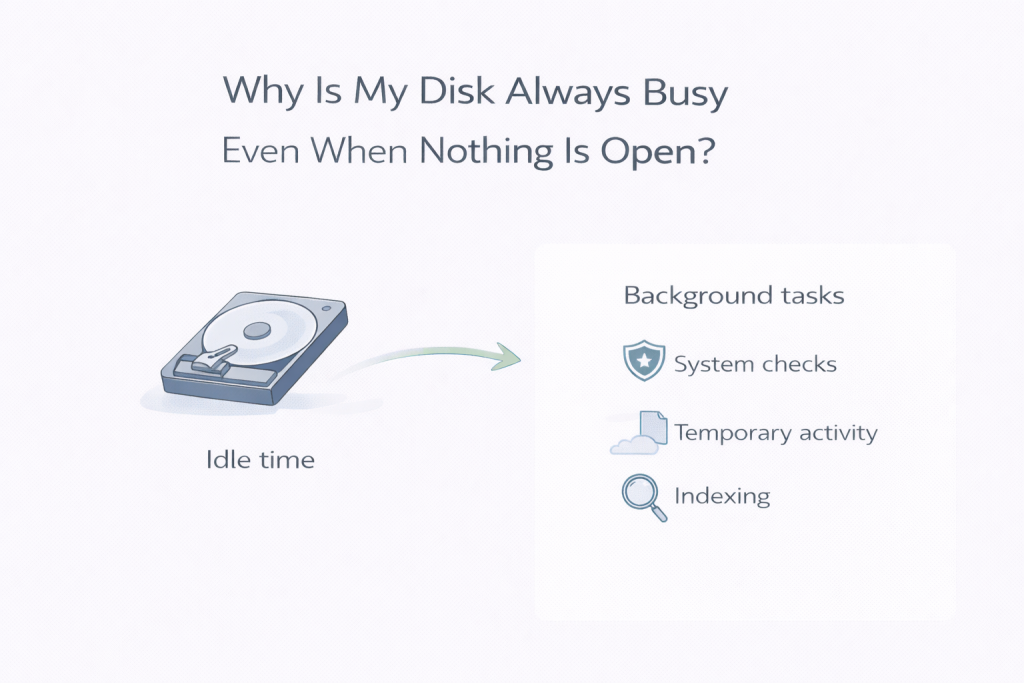
  • Why Is My Disk Always Busy Even When Nothing Is Open?

    It can be unsettling to see constant disk activity when no apps are open and you’re not actively doing anything. The system feels busy for no visible reason, and it’s easy to assume something is wrong or out of control.

    In many cases, this behaviour is normal and tied to how Windows manages background work.

    What’s Normal vs What Isn’t

    It’s normal for a disk to stay active:

    • After startup
    • After updates
    • During background maintenance
    • When the system appears idle

    It’s less normal if:

    • Disk activity never slows down
    • The PC remains sluggish all day
    • Performance steadily worsens

    Occasional background activity is expected. Constant disruption is not.

    Why It Often Looks Worse Than It Really Is

    When nothing is open, expectations are high. Any noise, delay, or blinking disk light feels unnecessary. In reality, Windows uses quiet periods to catch up on tasks it avoids running during active use.

    This makes normal background behaviour feel intrusive.

    Why System Metrics Can Be Misleading

    Disk usage doesn’t show intent. Task Manager can’t easily distinguish between:

    • Heavy transfers
    • Many small background requests
    • Maintenance tasks working through queues

    This makes the disk look constantly “busy” even when it’s making steady progress.

    Common Underlying Causes

    A disk that appears busy at idle is often handling:

    • File indexing
    • Security scanning
    • System cleanup
    • Update-related tasks
    • App background services

    These processes are routine and usually temporary.

    When It Usually Settles on Its Own

    In many cases:

    • Activity reduces once maintenance completes
    • The system becomes responsive again
    • Disk usage drops during idle periods later in the day

    If things quieten down naturally, that’s a reassuring sign.

    When It’s Reasonable to Investigate Further

    It’s worth investigating if:

    • Disk activity never eases
    • Performance remains poor for days
    • Errors or warnings appear

    These may indicate deeper storage issues.

    Common Mistakes That Make Things Worse

    Avoid:

    • Disabling essential background services
    • Installing aggressive “drive management” tools
    • Restarting repeatedly without allowing tasks to finish

    These can interrupt normal system behaviour.

    Closing Thoughts

    A disk that stays busy when nothing is open is often just Windows doing background work. If activity settles over time, the system is usually functioning as intended.