Category: Windows Issues

  • Why Is My PC Slow When Opening Files?

    If opening folders or files takes longer than expected, it can make the whole system feel unresponsive. This is especially noticeable when it happens repeatedly.

    In many cases, this kind of slowdown is linked to background processes rather than a fault with the files themselves.

    What’s Normal vs What Isn’t

    It’s normal for some folders to open more slowly, especially if they contain:

    • Lots of files
    • Large media files
    • Mixed file types
    • Are loading from idle

    It’s less normal if:

    • Every folder opens slowly
    • File Explorer regularly freezes
    • Performance doesn’t improve over time

    Occasional delays are expected. Constant delays are not.

    Why It Often Looks Worse Than It Is

    Opening a folder does more than just show filenames. Windows may:

    • Generate previews
    • Scan files for security
    • Check file details

    When this happens during light use or idle periods, the delay feels unnecessary, even though Windows is doing legitimate work.

    Why Task Manager Can Be Misleading

    Task Manager may not clearly show what’s happening when files open slowly. Brief spikes in CPU usage or disk activity can interrupt responsiveness without appearing dramatic in the graphs.

    This makes the slowdown feel mysterious.

    Common Underlying Causes

    Slowness when opening files is often caused by:

    • Antivirus scanning new files
    • File indexing
    • Preview generation
    • Disk performance limits

    These are common background activities rather than errors.

    How Long This Usually Takes to Settle

    In many cases:

    • Folder performance improves after the first open
    • Background scans finish
    • Subsequent access is faster

    If delays lessen over time, that’s a good sign.

    When It’s Worth Investigating Further

    You may want to investigate if:

    • File Explorer regularly becomes unresponsive
    • Delays happen even in small folders
    • Performance worsens instead of improving

    This can point to disk issues or misbehaving background processes.

    What Not to Do

    Avoid:

    • Installing file “speed booster” tools
    • Disabling security scanning entirely
    • Making random registry changes

    These often create more problems than they solve.

    Final Thoughts

    A slow response when opening files is usually tied to background scanning or indexing. If performance improves after a short delay, the system is behaving normally.
  • Why Is My PC Slow After Startup?

    A PC that feels slow right after you turn it on can be frustrating, especially if it improves later. It often gives the impression that something is wrong with the system or that startup itself is broken.

    In most cases, this kind of slowdown is expected and temporary.

    What’s Normal vs What Isn’t

    It’s normal for a PC to feel sluggish for the first few minutes after startup. During this time, Windows is still finishing tasks that couldn’t run while the PC was turned off.

    It’s less normal if:

    • The PC stays slow long after startup
    • Performance never improves
    • Fans run constantly even when the system is idle

    Short-term slowness is normal. Ongoing slowness is not.

    Why It Often Looks Worse Than It Is

    Startup gives the impression that Windows is “ready” as soon as you reach the desktop. In reality, that’s only the visible part. A lot of background activity continues once you log in.

    This includes:

    • Loading background services
    • Running security checks
    • Starting scheduled maintenance tasks

    Because this work happens quietly, the system can feel slow without an obvious reason.

    Why Task Manager Can Be Misleading

    Task Manager may show moderate CPU usage, but that doesn’t always reflect how responsive the system feels. Short bursts of background CPU usage can interrupt responsiveness without showing as sustained high usage.

    This is why a PC can feel slow even when Task Manager looks relatively calm.

    Common Underlying Causes

    Slow startup performance is often caused by:

    • Too many startup programs
    • Security software running checks
    • System services initialising
    • Disk activity from background processes

    These are all normal to a degree, especially on systems with slower storage.

    How Long This Usually Takes to Settle

    On most systems:

    • Performance improves within a few minutes
    • Background tasks gradually complete
    • The system becomes fully responsive

    If things steadily improve, that’s a good sign.

    When It’s Worth Investigating Further

    You may want to investigate if:

    • Startup slowness lasts 15–20 minutes or more
    • The system remains sluggish even when idle
    • Startup time gets worse over time

    This can indicate too many startup items or a background process that isn’t behaving properly.

    What Not to Do

    Avoid:

    • Disabling core Windows services
    • Using aggressive startup “optimisers”
    • Randomly turning off background processes

    These often cause instability and rarely solve the underlying issue.

    Final Thoughts

    A slow PC after startup is usually Windows finishing its background work. If performance improves on its own, the system is behaving normally and doesn’t need fixing.

  • Why Is Windows 11 Running Slower Than Windows 10?

    Some people notice that Windows 11 feels slower than Windows 10, especially on older systems. This can be worrying, particularly if performance was fine before upgrading.

    In many cases, the difference comes down to how Windows 11 is designed.

    What’s Normal vs What Isn’t

    Windows 11 generally uses more system resources than Windows 10. Small performance changes are normal, particularly on older hardware.

    It’s less normal if:

    • Performance drops dramatically
    • The system becomes unstable
    • Everyday tasks feel unreasonably slow

    Minor differences are expected. Major issues are not.

    Why It Often Looks Worse Than It Is

    Windows 11 runs more background services, especially related to security and system integrity. Many of these tasks are scheduled during idle periods, which can make the system feel busier even when you’re not doing much.

    Why Task Manager Can Be Misleading

    Modern Windows versions spread work across many background processes. CPU usage may look moderate, but frequent background interruptions can still affect responsiveness.

    This makes the system feel slower even when numbers don’t look alarming.

    Common Underlying Causes

    Slower performance on Windows 11 often comes from:

    • Increased background security checks
    • More visual effects
    • Older drivers that aren’t fully optimised
    • Hardware near the minimum requirements

    These factors add up over time.

    How Long This Usually Takes to Settle

    After upgrading:

    • Performance may improve over a few days
    • Background optimisation continues quietly
    • Driver updates can help over time

    If things gradually improve, the system is likely adjusting normally.

    When It’s Worth Investigating Further

    It’s worth investigating if:

    • Performance keeps getting worse
    • Fans run constantly at idle
    • The system overheats or throttles

    These can indicate compatibility or hardware limitations.

    What Not to Do

    Avoid:

    • Disabling security features
    • Rolling back without giving the system time
    • Forcing performance tweaks without understanding the cause

    These can introduce new problems.

    Final Thoughts

    Windows 11 does demand more from hardware, and on some systems that difference is noticeable. If performance stabilises after a while, the system is likely working as designed.

  • Why Does My PC Feel Slow Even With Nothing Open?

    A PC that feels slow when no apps are open can be especially frustrating. It looks like the system should be doing nothing, yet everything feels delayed or unresponsive.

    In many cases, the system isn’t actually idle — it’s just busy in the background.

    What’s Normal vs What Isn’t

    It’s normal for a PC to feel slightly sluggish at times, even when nothing is open. Windows constantly manages background services to keep the system healthy.

    It’s less normal if:

    • Slowness is constant
    • Simple actions lag badly
    • Performance never improves

    Occasional slowdown is expected. Persistent slowdown deserves a closer look.

    Why It Often Looks Worse Than It Is

    When apps are open, delays feel justified. When nothing is open, every delay feels suspicious. This makes normal background activity feel much more severe than it actually is.

    Windows often schedules maintenance tasks during quiet periods so they don’t interrupt active work.

    Why Task Manager Can Be Misleading

    Task Manager shows averages. Short bursts of background CPU usage can interrupt responsiveness without showing as sustained high usage.

    This means the system can feel slow even when CPU and RAM numbers look reasonable.

    Common Underlying Causes

    Typical background activity includes:

    • Security scans
    • File indexing
    • System maintenance tasks
    • Driver checks

    These tasks often run when the system is idle or lightly used.

    How Long This Usually Lasts

    Most background slowdowns:

    • Last a few minutes
    • Occur after startup or updates
    • Resolve once maintenance tasks finish

    If performance improves on its own, it’s usually nothing to fix.

    When It’s Worth Investigating Further

    You may want to investigate if:

    • Slowness never improves
    • The system stutters regularly
    • Fans run constantly during idle periods

    These can point to a stuck background process.

    What Not to Do

    Avoid:

    • Disabling essential services
    • Installing “PC cleaner” software
    • Making random system tweaks

    These often reduce stability rather than improve performance.

    Final Thoughts

    A PC that feels slow with nothing open is usually busy behind the scenes. If the system settles on its own, that’s a sign everything is working as intended.

  • Why Is My PC Slow After a Windows Update?

    It’s unsettling when a Windows update finishes and your PC suddenly feels slower than it did before. Apps might take longer to open, the system feels less responsive, or the fans seem to run more often. It’s natural to worry that the update has caused a problem.

    In many cases, what you’re seeing is normal behaviour, especially in the hours or days immediately after an update.

    What’s Normal vs What Isn’t

    After a Windows update, it’s normal for the system to feel slower for a while. Windows often runs additional background tasks to finish setting things up, even after the update screen disappears.

    It becomes less normal if:

    • The PC remains slow for several days with no improvement
    • Performance gets worse rather than better
    • The system struggles with very basic tasks

    Short-term slowness is expected. Long-term slowness usually has a specific cause.

    Why It Often Looks Worse Than It Is

    Updates tend to trigger background activity at times when you’re not actively using the PC. This often happens when the system is idle, which makes it feel like Windows is doing work for no reason.

    In reality, Windows is:

    • Finalising update files
    • Rebuilding system indexes
    • Running security and compatibility checks

    Because this work happens quietly, it can feel mysterious and frustrating.

    Why Task Manager Can Be Misleading

    Task Manager shows you what’s happening at a moment in time, not what’s finishing in the background. CPU usage may spike briefly, drop, then spike again as different update-related tasks run.

    This stop-start behaviour can make it feel like something is constantly wrong, even when tasks are completing normally.

    Common Underlying Causes

    Post-update slowness is often caused by:

    • Background indexing restarting
    • Windows Defender running full scans
    • Driver updates installing quietly
    • Cleanup of old system files

    All of these can temporarily increase CPU usage or disk activity.

    How Long This Usually Takes to Settle

    For most systems:

    • Minor updates settle within a few hours
    • Larger feature updates can take a day or two
    • Performance gradually improves without intervention

    If things are slowly getting better, that’s a good sign.

    When It’s Worth Investigating Further

    It’s worth looking deeper if:

    • Slowness continues after several days
    • CPU usage remains high even when idle
    • Fans run constantly with no improvement
    • Specific apps crash or fail to open

    At that point, something may be stuck rather than just finishing background work.

    What Not to Do

    It’s tempting to:

    • Roll back updates immediately
    • Install “update fix” tools
    • Disable core Windows services

    These often create more problems than they solve and can interfere with system stability.

    Final Thoughts

    A slow PC after a Windows update is usually Windows settling into place. If performance improves gradually, it’s best to let the system finish what it’s doing. Most update-related slowdowns resolve on their own.

  • Why Is Task Manager Using CPU?

    Seeing Task Manager itself using CPU can feel ironic. Especially when idle.


    Why It Happens

    Task Manager:

    • Refreshes system data constantly
    • Uses more CPU when open

    When It’s Normal

    Higher usage while Task Manager is open is expected.


    Final Thoughts

    Closing Task Manager usually resolves the issue immediately.


  • Why Is Windows Modules Installer Worker Using High CPU?

    This process is strongly linked to Windows updates.


    Why CPU Usage Appears

    Installer Worker runs when:

    • Installing updates
    • Cleaning up update files
    • The system is idle

    👉 This commonly causes idle CPU spikes.


    Final Thoughts

    High usage usually stops once updates finish.


  • Why Is Microsoft Compatibility Telemetry Using CPU?


    Telemetry processes often run after updates to ensure compatibility.

    Normal vs Not

    Brief CPU usage during idle periods is expected.

    Why It Feels Worse

    Telemetry feels unnecessary because it’s invisible.

    What Not to Do

    Disabling telemetry can interfere with updates.

    Final Thoughts

    Compatibility Telemetry usually finishes on its own.


  • Why Is WMI Provider Host Using CPU?

    WMI Provider Host supports system monitoring and management.


    Why CPU Usage Appears

    It becomes active when:

    • System information is requested
    • Background checks occur
    • The PC is idle

    👉 Another common idle CPU pattern.


    Final Thoughts

    Short bursts are normal. Constant activity may need checking.

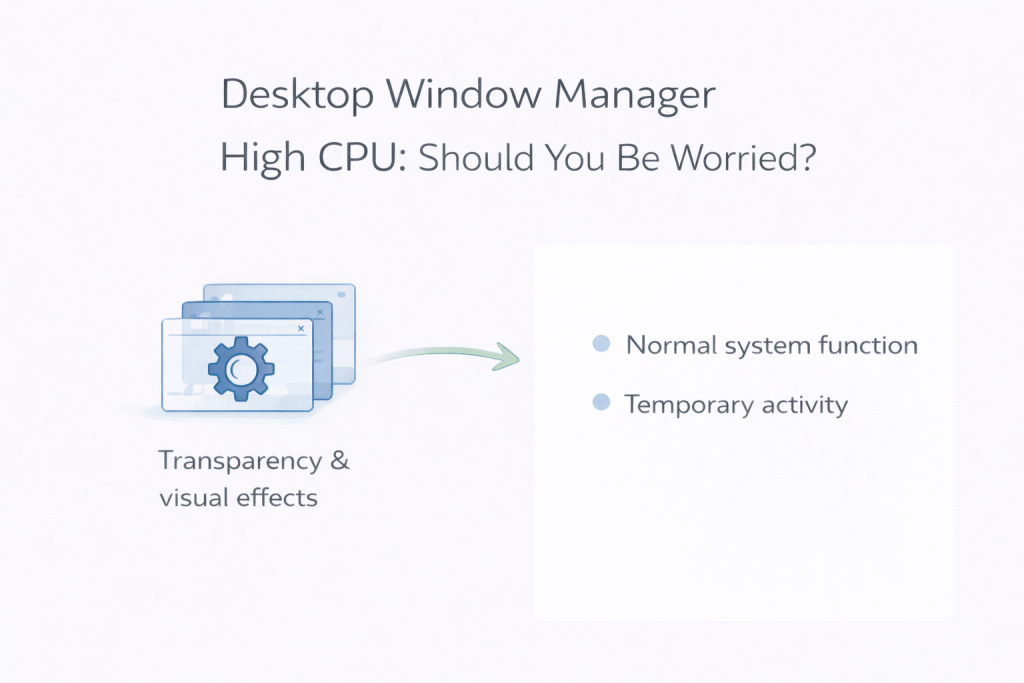
  • Why Is Desktop Window Manager (DWM) Using High CPU?


    Seeing Desktop Window Manager near the top of Task Manager can be unsettling, especially when you’re not actively doing anything. It often feels like the system is wasting effort on something invisible.

    In most cases, though, this behaviour is expected.

    Desktop Window Manager, often shown as dwm.exe, is responsible for drawing everything you see on the screen. Any time a window moves, resizes, fades, or refreshes, DWM is involved.


    What Desktop Window Manager Actually Does

    Modern versions of Windows don’t draw windows directly anymore. Instead, DWM sits in the background and manages how everything is displayed.

    That includes things like:

    • Window animations and transitions
    • Transparency and visual effects
    • Scaling across multiple monitors
    • Keeping the desktop responsive while apps update

    Because of this, DWM is always running, even when the PC looks idle.


    Why DWM CPU Usage Can Increase

    DWM CPU usage usually rises briefly when the display changes in some way. Common triggers include:

    • Opening or closing multiple windows
    • Using more than one monitor
    • Waking the PC from sleep
    • Background apps updating their interface
    • Visual refreshes while the system is otherwise idle

    When this happens, Windows is simply redrawing parts of the screen. Once the update finishes, CPU usage normally drops again.


    Why It Often Looks Worse Than It Is

    When nothing obvious is happening, any background activity feels suspicious. Seeing DWM using CPU with no visible app to blame can make it feel like something is wrong.

    In reality, this is often just Windows tidying up visual tasks during quiet moments — similar to other background activity that runs while the system is idle.


    Why Task Manager Can Be Misleading Here

    Task Manager updates in snapshots. You might catch DWM during a brief spike, even though it only lasts a second or two.

    That snapshot can make the usage look more serious than it really is, especially if you check Task Manager right after waking the PC or switching windows.


    When DWM CPU Usage Is Usually Normal

    DWM activity is usually nothing to worry about if:

    • CPU usage rises briefly, then settles
    • The PC feels responsive during normal use
    • Fans quieten down after a short time

    In these cases, Windows is behaving as intended.


    When It’s Worth Looking Closer

    It’s less normal if:

    • DWM stays near the top of CPU usage for long periods
    • Fans run constantly while the PC is idle
    • The system feels sluggish just moving windows

    That can sometimes point to a graphics driver issue or a background app repeatedly forcing screen updates.


    What Not to Do

    It’s tempting to disable visual effects or start forcing “performance tweaks”. These often make the desktop feel worse without fixing the underlying cause.

    DWM itself is not something you should try to disable.


    Final Thoughts

    Desktop Window Manager using CPU is usually just part of how Windows draws and refreshes the desktop. Short bursts of activity are normal and often happen when the system appears idle.

    If usage settles on its own, the safest response is usually no response at all.

    ChatGPT can make mistakes. Check important info. See Cookie Preferences.