Category: Windows Issues

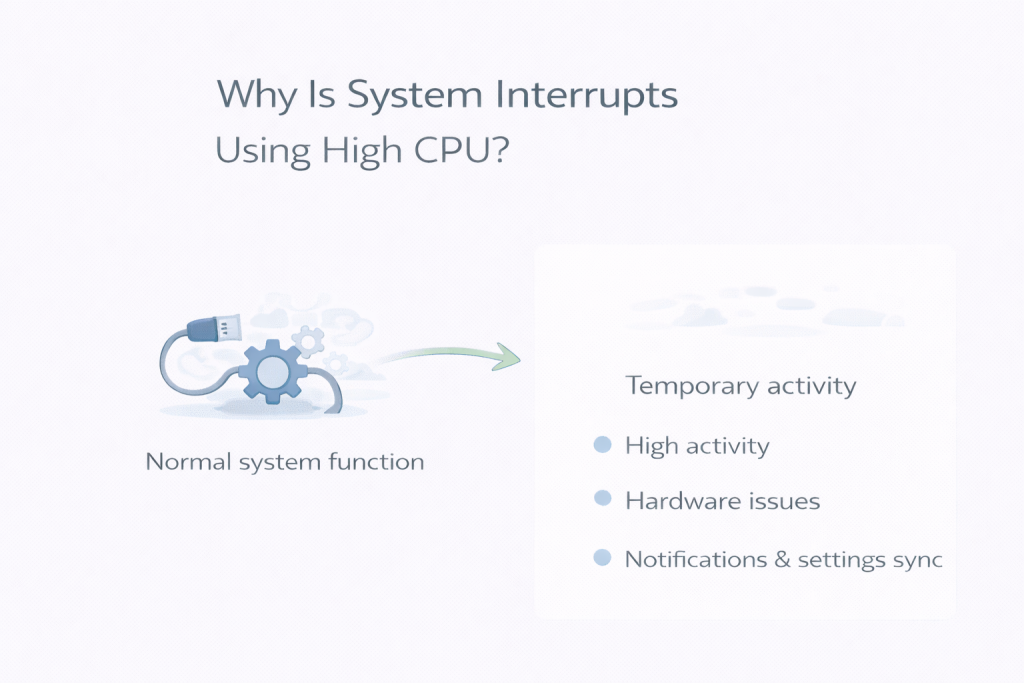
  • Why Is System Interrupts Using High CPU?


    Seeing System Interrupts near the top of Task Manager can be unsettling — especially because it isn’t an actual program you can close or inspect. High CPU usage here often feels like something is seriously wrong.

    In most cases, though, it isn’t.

    What “System Interrupts” Actually Means

    System Interrupts represents hardware signals that need immediate attention from the CPU. These signals come from devices such as:

    • USB controllers
    • Network adapters
    • Storage devices
    • Graphics hardware

    When hardware needs attention, it briefly interrupts the CPU’s current work to handle it. Task Manager groups all of these signals under “System Interrupts”.

    What’s Normal Behaviour

    Short spikes in CPU usage from System Interrupts are expected, including:

    • When devices wake from sleep
    • When drivers communicate with hardware
    • During brief background checks while the system is idle

    If usage rises briefly and then drops back down, this is normal system behaviour.

    When It Can Be a Problem

    It’s more concerning if:

    • CPU usage stays high for long periods
    • Fans run constantly while the PC is idle
    • The system feels sluggish even during simple tasks

    Persistent high usage often points to a driver issue or misbehaving hardware rather than Windows itself.

    Why It Feels More Serious Than It Is

    Because System Interrupts isn’t tied to a visible app, there’s nothing obvious to blame. That lack of context makes even moderate CPU usage feel mysterious and alarming.

    In reality, it’s usually the system quietly handling hardware communication.

    Why Task Manager Can Be Misleading

    Task Manager shows that interrupts are happening, but it doesn’t show which device caused them. The CPU usage you see is a symptom, not the source.

    That’s why System Interrupts can appear problematic even when everything is functioning normally.

    What Not to Do

    Ending processes won’t help — System Interrupts can’t be stopped. Disabling random services or system components often makes things worse.

    If high usage persists, the real fix is usually:

    • Updating drivers
    • Disconnecting recently added hardware
    • Checking for Windows updates

    Final Thoughts

    System Interrupts using CPU is usually a sign of normal hardware communication, not a fault. Brief spikes are expected and harmless.

    If usage settles on its own, no action is needed. If it doesn’t, focusing on drivers and hardware — not Windows itself — is the right place to start.
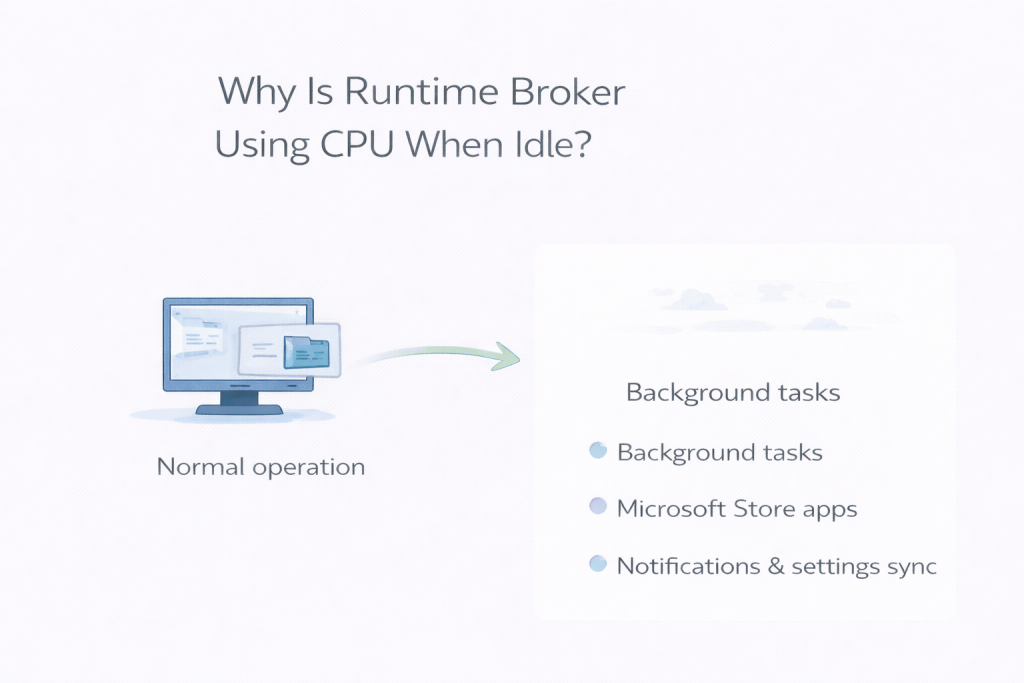
  • Why Is Runtime Broker Using CPU When Idle?

    Runtime Broker often appears unexpectedly, even though you didn’t open any apps. This can feel intrusive, but it’s usually harmless.

    Runtime Broker manages permissions for Windows apps and checks whether apps are behaving correctly. These checks often happen while the system is idle.

    Normal vs Not

    Short CPU spikes are expected. Constant usage is not.

    Why It Feels Worse

    Because Runtime Broker isn’t something you actively use, any activity feels unnecessary.

    Task Manager Limitations

    Permission checks are brief and may not show sustained usage.

    What Not to Do

    Disabling Runtime Broker can cause app issues.

    Final Thoughts

    Runtime Broker usually settles quickly and doesn’t need intervention.

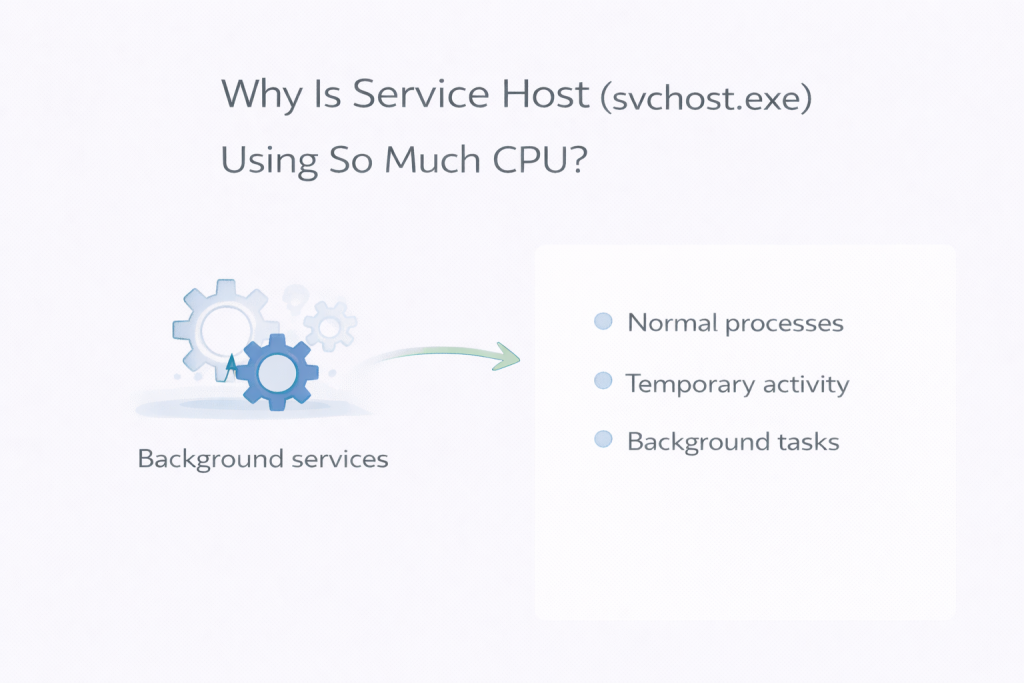
  • Why Is Service Host (svchost.exe) Using So Much CPU?

    Service Host processes often cause confusion because there are so many of them. Seeing one use CPU when the PC appears idle can feel suspicious, but it’s usually just Windows managing its background services.

    What Service Host Actually Does

    Service Host is a container for essential Windows services. Grouping services together improves stability and performance, but it also makes activity harder to interpret.

    What’s Normal

    CPU usage often increases:

    • After startup
    • During updates
    • When background maintenance runs at idle

    Brief spikes are expected.

    Why It Feels Worse Than It Is

    Because Service Host doesn’t describe which service is active, any CPU usage feels vague and concerning.

    Why Task Manager Can Be Confusing

    One Service Host entry may represent several services. CPU usage may look high even if each individual service is doing very little.

    When It Settles

    Most activity completes on its own once background tasks finish.

    What Not to Do

    Don’t end Service Host processes randomly. This can crash system functions.

    Final Thoughts

    Service Host CPU usage during idle time is usually normal background maintenance.

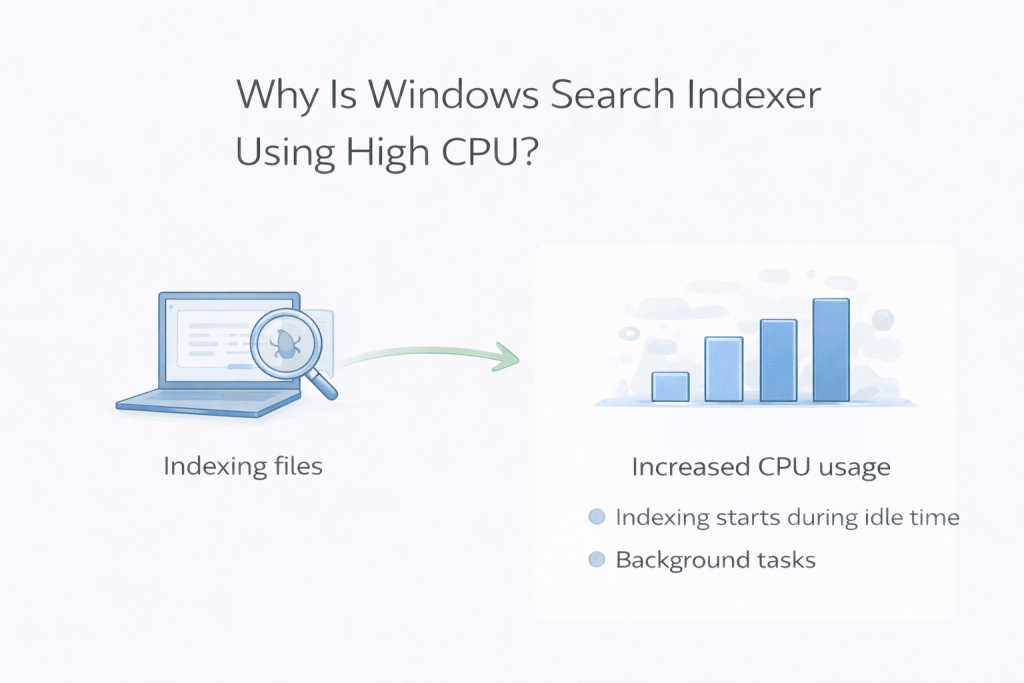
  • Why Is Windows Search Indexer Using High CPU?

    Windows Search Indexer often shows up in Task Manager at exactly the moment you expect your PC to be doing nothing. Seeing it use CPU while the system looks idle can make it feel like something is constantly running in the background.

    In a sense, that’s true — but it’s usually intentional and harmless.

    Windows Search Indexer exists to make searching fast and reliable. To do that, it scans files and keeps an index of what’s on your system. Windows deliberately runs much of this work during idle time so it doesn’t slow you down while you’re actively using the PC.

    What’s Normal and What Isn’t

    It’s completely normal to see higher CPU usage from Windows Search Indexer:

    • After adding, moving, or editing lots of files
    • After Windows updates
    • On a new or recently reset system

    In these cases, indexing activity should rise for a while, then gradually settle down once the scan completes.

    It’s more concerning if indexing appears to never finish and CPU usage stays high for many hours, especially when nothing on the system has changed.

    Why It Often Feels Worse Than It Is

    Indexing doesn’t run continuously. It works in short bursts, pauses, then resumes. When the PC looks idle, those bursts stand out more than they would during normal use.

    Because there’s no visible app causing the activity, it can feel unnecessary — even though it’s improving future search performance behind the scenes.

    Why Task Manager Can Be Misleading

    Task Manager shows what’s happening right now, not the overall impact. Windows Search Indexer may briefly jump to the top of the list, then drop back down moments later.

    A quick spike doesn’t mean your system is under strain. What matters more is whether usage steadily declines over time.

    How Long Indexing Usually Takes

    Most indexing tasks finish within minutes on smaller systems. On PCs with lots of files — or after major updates — it can take longer, sometimes a few hours.

    Once indexing completes, CPU usage typically returns to normal without any intervention.

    What Not to Do

    Disabling Windows Search Indexer entirely often causes more frustration than it solves. Searches become slower and less reliable, and Windows may still attempt partial indexing in the background.

    In most cases, the best option is simply to let indexing finish.

    Final Thoughts

    Windows Search Indexer using CPU while the system is idle is usually a sign that Windows is doing routine background work. If usage drops on its own, everything is working as intended.

    If it doesn’t, that’s the point where further investigation makes sense — but for most people, patience is all that’s needed.


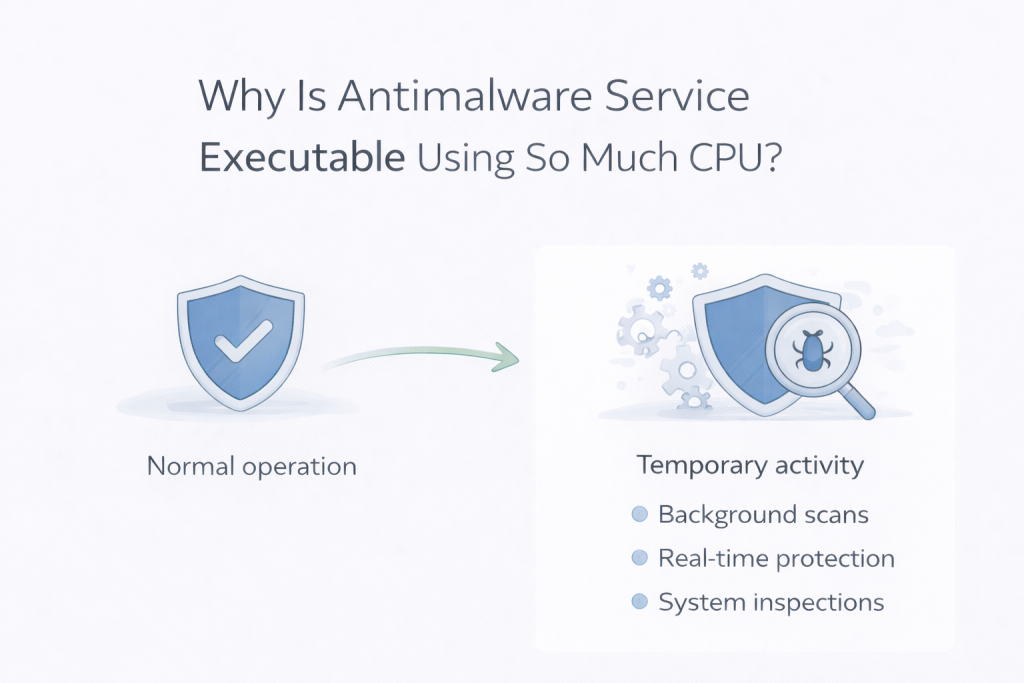
  • Why Is Antimalware Service Executable Using So Much CPU?

    Seeing Antimalware Service Executable near the top of Task Manager can be unsettling, especially when your PC doesn’t appear to be doing anything. It can feel like the system is working hard for no obvious reason, which naturally leads people to worry that something is wrong.

    In most cases, though, this behaviour is completely normal.

    Antimalware Service Executable is part of Windows Defender, Microsoft’s built-in security system. Its job is to scan files, monitor activity, and respond to potential threats. Because these checks can use noticeable system resources, Windows prefers to run them during quiet moments, rather than while you’re actively using the PC.


    What’s normal and what isn’t

    Short bursts of CPU usage that rise and fall are expected. You’ll commonly see this happen:

    • Shortly after starting the PC
    • After Windows updates
    • When new files are downloaded or accessed
    • When the system has been idle for a while

    What usually matters more than the spike itself is how long it lasts.

    If CPU usage drops again after a short time and the system remains responsive, there’s typically nothing to worry about.

    It becomes less normal if usage stays high for a long period, fans run constantly even while the PC is idle, or basic tasks feel sluggish long after startup. Duration and system feel matter more than the number you see in Task Manager.


    Why it often feels worse than it is

    When nothing is open, any background activity stands out. There’s no visible program to blame, so even moderate CPU usage can feel alarming.

    Windows uses idle time deliberately. When you stop interacting with the system, Defender takes that opportunity to scan files and check activity without interrupting you later. From your point of view, it looks like the PC suddenly got busy. From Windows’ point of view, it picked the least disruptive moment.

    This is why the issue often appears when the system is otherwise quiet.


    Why Task Manager can be misleading

    Task Manager shows snapshots and averages, not intent.

    Defender may briefly spike CPU usage, finish a scan, and then drop back down — all within a short window. If you open Task Manager at the wrong moment, it can look like a sustained problem when it’s actually a temporary task already finishing.

    Watching it for a few minutes often shows the usage rise, fall, and disappear without intervention.


    Common reasons Defender becomes active

    There are several everyday reasons Antimalware Service Executable may suddenly start using more CPU:

    • Scheduled background scans
    • Checking newly downloaded or updated files
    • Re-scanning system files after Windows updates
    • Catching up on security checks after idle time

    None of these automatically indicate a threat. They’re part of routine protection.


    When it usually settles down

    In most cases, Defender activity completes on its own.

    It often settles:

    • Within a few minutes
    • After a background scan finishes
    • Once you start using the PC again
    • After Windows completes maintenance tasks

    Even after larger updates, it usually resolves without action.


    When it’s worth looking closer

    It may be worth investigating further if:

    • CPU usage stays high for hours without settling
    • The system feels slow all the time, not just briefly
    • Fans run loudly even long after startup
    • The behaviour happens constantly, every day

    In those cases, the issue is usually related to system state or configuration rather than malware itself.


    What not to do

    It’s tempting to disable Defender or install third-party “security optimisers”. These often cause more problems than they solve and can reduce protection without improving performance.

    Avoid force-ending the process, and avoid piling on extra security software unless there’s a clear reason. Defender restarting itself or repeating the behaviour is common and not a sign of failure.


    Final thoughts

    Antimalware Service Executable using CPU while the system is idle is usually a sign that Windows is working as intended, not that something is wrong.

    If usage rises briefly and then settles on its own, the best response is often to leave it alone. Windows is simply using quiet time to keep the system protected — even if it doesn’t always look reassuring while it does it.

  • Why Is Windows Explorer Using So Much CPU?

    If you’ve opened Task Manager and seen Windows Explorer sitting high on the CPU list, it can be confusing. Explorer isn’t an app you actively “run”, so it’s not always obvious why it would be using noticeable system resources.

    In many cases, high CPU usage from Windows Explorer is temporary and harmless. Less commonly, it can point to something in the background that isn’t behaving as it should. Or even windows defender and other background process.

    What Windows Explorer Actually Does

    Windows Explorer isn’t just the file browser. It’s responsible for a lot of the Windows interface, including:

    • File Explorer windows
    • The desktop
    • The taskbar
    • File previews and thumbnails

    Because of this, Explorer is always running in the background, even if you don’t have any folders open.

    Common Reasons Windows Explorer Uses CPU

    File thumbnails and previews

    When you open folders with lots of images, videos, or documents, Explorer generates previews. This can temporarily push CPU usage up.

    Search and indexing activity

    Explorer often works alongside Windows Search, especially when you’re browsing large folders or recently changed files.

    Context menu extensions

    Third-party apps can add options to right-click menus. Some of these extensions are poorly behaved and can cause Explorer to spike CPU usage.

    Stuck or corrupted processes

    Occasionally, Explorer gets stuck trying to read a file or folder and doesn’t recover properly on its own.

    When High CPU Usage Is Normal

    Explorer CPU usage is usually nothing to worry about if:

    • It spikes briefly, then drops
    • It happens when opening large folders
    • Performance returns to normal after a short time

    This is similar to other cases of high CPU usage when the system is otherwise idle, where background work simply finishes on its own.

    Why Is CPU Usage High When Idle on Windows 11?

    When You Should Investigate Further

    It’s worth looking deeper if:

    • Explorer stays near the top of CPU usage constantly
    • File Explorer feels slow or unresponsive
    • Fans run loudly even when nothing is open

    In those cases, something may be looping or failing in the background.

    Simple Things to Try First

    Restart Windows Explorer

    1. Open Task Manager
    2. Find Windows Explorer
    3. Right-click → Restart

    This often clears stuck behaviour immediately.

    Restart the PC

    It sounds basic, but it resets Explorer completely and fixes many temporary issues.

    Check for Windows updates

    Explorer issues are often resolved through system updates, especially after feature updates.

    Final Thoughts

    Seeing Windows Explorer use CPU can look worrying at first, but it’s often just doing its job. Short spikes are normal, especially when browsing files or opening folders.

    If usage doesn’t drop, restarting Explorer or the system usually brings things back to normal without further troubleshooting.

  • Windows Defender High CPU Usage When Idle: Is It Normal?

    If you’ve opened Task Manager and noticed Windows Defender using more CPU than you expected — especially when your PC is idle or not doing anything — it can be a bit unsettling. Seeing a security process working hard in the background often makes people worry that something’s wrong.

    In most cases, though, this behaviour is completely normal. Windows Defender is designed to do a lot of its work when you’re not actively using the system. The key is knowing when it’s behaving as expected, and when it might need attention.

    Why Windows Defender Uses CPU When Your PC Is Idle

    Windows Defender takes advantage of idle time to run background scans. From Microsoft’s point of view, this is the least disruptive time to check files and keep the system protected.

    You’ll usually see this activity listed in Task Manager as Antimalware Service Executable. CPU usage may rise for a short period, then gradually fall again once the scan finishes.

    That rise and fall is normal.

    When This Behaviour Is Nothing to Worry About

    It’s very common to see Defender use CPU after things like:

    • Starting your PC
    • Installing Windows updates
    • Downloading new files
    • Connecting an external drive

    If CPU usage:

    • Spikes briefly
    • Slowly drops back down
    • Doesn’t noticeably slow the system

    Then Windows Defender is simply doing routine background work.

    When High CPU Usage Can Be a Problem

    It’s worth taking a closer look if:

    • CPU usage stays high for a long time
    • Your fans run constantly while the PC is idle
    • The system feels sluggish even during simple tasks

    In these cases, Defender may be repeatedly scanning the same files, or reacting to another background process that isn’t behaving properly.

    How to Check What Defender Is Actually Doing

    A quick look in Task Manager can tell you a lot.

    1. Press Ctrl + Shift + Esc
    2. Open Task Manager
    3. Find Antimalware Service Executable
    4. Watch CPU usage for a few minutes

    If usage steadily drops, it’s usually best to leave it alone.

    Simple Ways to Reduce Defender’s CPU Usage

    If usage seems higher than it should be, a few basic steps often help:

    • Let the scan finish
      If Defender is already working, leaving the PC on for a while often resolves it.
    • Restart the PC
      This clears stuck background tasks and resets scanning behaviour.
    • Check for Windows updates
      Out-of-date Defender definitions can sometimes cause repeated scans.
    • Run a full malware scan
      Occasionally, genuine malware activity can trigger constant scanning.

    Should You Disable Windows Defender?

    For most people, no.

    Windows Defender offers solid protection, and disabling it usually causes more problems than it solves. If CPU usage is only occasional, it’s best left enabled.

    Final Thoughts

    Seeing Windows Defender use CPU while your PC is idle can look worrying at first, but it’s usually just background maintenance happening at the right time.

    If usage drops after a while, everything is working as intended. If it doesn’t, a quick check in Task Manager and a restart are often all that’s needed.

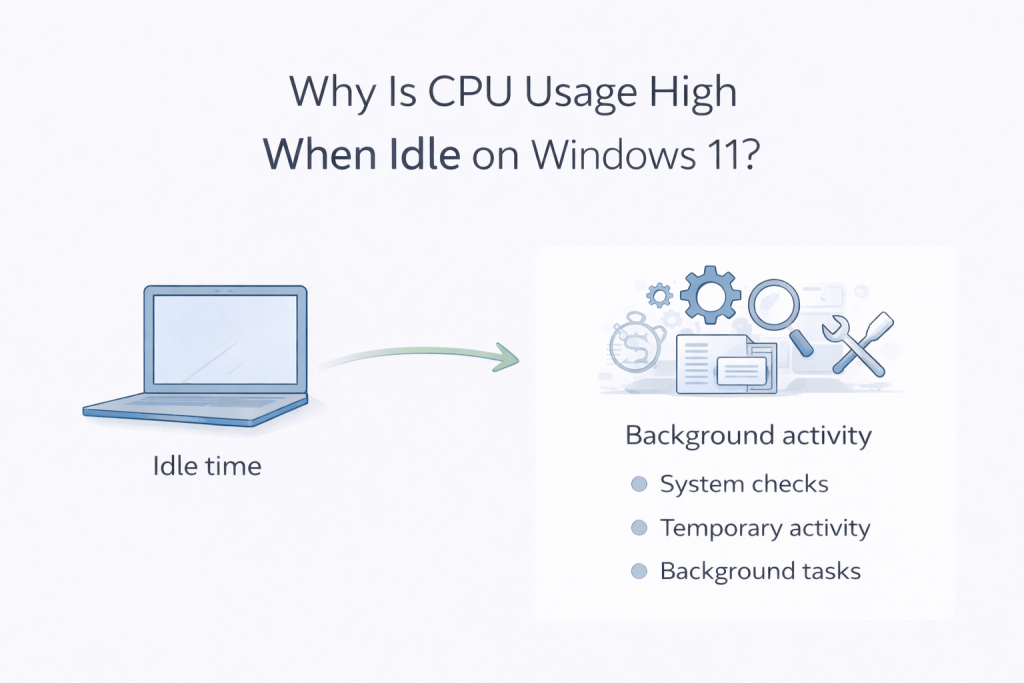
  • Why Is CPU Usage High When Idle on Windows 11?

    Opening Task Manager on a Windows 11 PC and seeing the CPU working hard — even when nothing appears to be running — can be unsettling. Fans spin up, percentages jump, and it feels like the system is doing something it shouldn’t.

    High CPU usage at idle often looks like a problem. In many cases, though, it’s simply Windows taking advantage of a quiet moment to do background work. Understanding what “idle” really means — and where the line sits between normal behaviour and a genuine issue — makes it much easier to know whether you need to take action.


    What “Idle” Actually Means in Windows

    When Windows says your system is idle, it doesn’t mean the computer is doing nothing. It means you’re not actively using it.

    Modern versions of Windows are designed to postpone certain tasks until you stop interacting with the system. Once you step away, Windows often uses that time to catch up on background work that would otherwise slow things down while you’re working.

    This background activity can include:

    • System and security maintenance
    • Windows updates finishing setup tasks
    • File indexing and search updates
    • General system optimisation and housekeeping

    Because these tasks run quietly, they’re easy to miss — until you open Task Manager and notice the CPU usage.


    Why CPU Usage Often Rises When the PC Is Idle

    Most cases of high CPU usage at idle follow the same pattern: Windows waits, then works.

    Here are some of the most common reasons this happens.

    Windows Update and Maintenance Tasks

    After updates, Windows often completes additional background setup and cleanup. CPU usage may rise for a short period and then drop once those tasks finish.

    Antimalware Service Executable

    This is part of Windows Defender. Security scans are often scheduled during idle time so they don’t interrupt normal use.

    Windows Search and Indexing

    When new files are added or existing ones change, Windows may update its search index. This is especially common on newer systems or after major updates.

    Background Apps and Services

    Some applications continue running even when you’re not actively using them. If one misbehaves or gets stuck, it can keep the CPU busier than expected.

    Individually, none of these are unusual. Problems usually arise when a task doesn’t finish, keeps restarting, or runs constantly instead of temporarily.


    When High CPU Usage at Idle Is Normal

    High CPU usage at idle is usually nothing to worry about if:

    • Usage spikes briefly and then falls
    • Fans calm down after a few minutes
    • The PC feels responsive during normal use

    In these cases, Windows is simply completing background work and will settle down on its own.


    When It’s Worth Looking Closer

    Idle CPU usage deserves attention if:

    • CPU usage stays high for long periods
    • Fans run constantly even when the PC is untouched
    • Basic tasks feel slow or sluggish

    This can indicate a stuck background process, a problematic app, or something repeatedly failing and retrying.


    What Task Manager Can Tell You

    Task Manager is most useful when you watch behaviour over time, not just a single moment.

    If CPU usage gradually drops on its own, that’s usually a good sign. If the same process stays near the top for an extended period, it’s worth investigating further.

    The duration of high usage matters more than the spike itself.


    What Usually Helps (and What Often Doesn’t)

    In most cases, simple actions resolve idle CPU issues:

    • Restarting the PC
    • Allowing background tasks time to finish
    • Keeping Windows up to date
    • Checking that startup apps are kept to a minimum

    It’s tempting to disable built-in services or install third-party “optimisation” tools, but these often cause more problems than they solve and can reduce system stability or security.


    Final Thoughts

    High CPU usage at idle on Windows 11 often looks alarming, but it’s usually a sign that the system is doing exactly what it’s designed to do — handling maintenance during quiet moments.

    If usage drops on its own and performance feels normal, the best action is often no action at all. When it doesn’t settle, a closer look at which process is staying active can quickly point you in the right direction.