
Seeing System Interrupts near the top of Task Manager can be unsettling — especially because it isn’t an actual program you can close or inspect. High CPU usage here often feels like something is seriously wrong.
In most cases, though, it isn’t.
What “System Interrupts” Actually Means
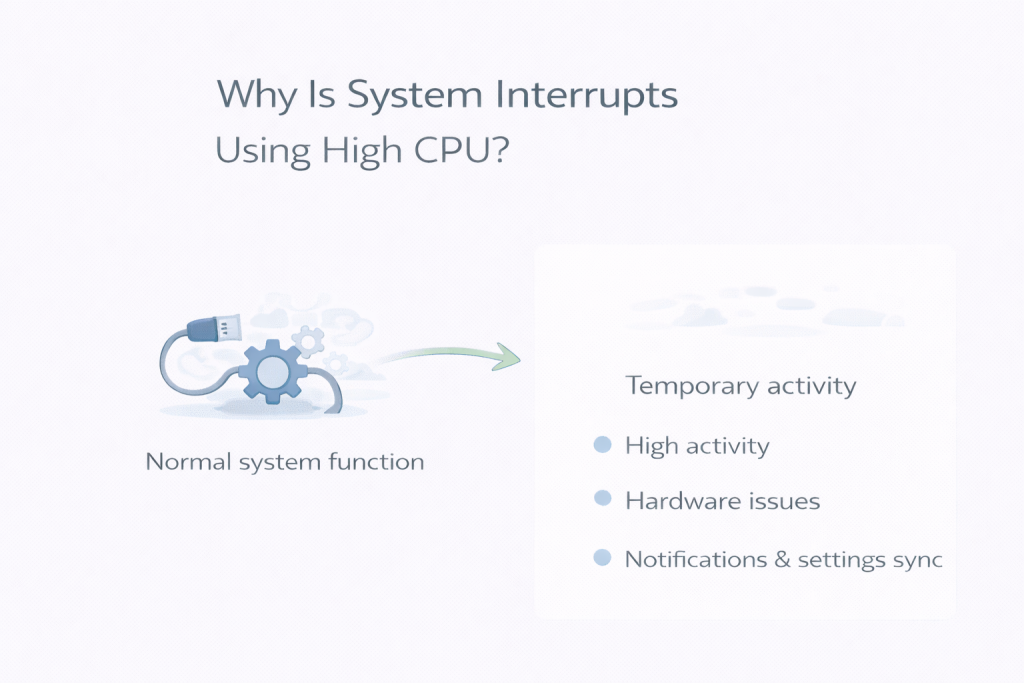
System Interrupts represents hardware signals that need immediate attention from the CPU. These signals come from devices such as:
- USB controllers
- Network adapters
- Storage devices
- Graphics hardware
When hardware needs attention, it briefly interrupts the CPU’s current work to handle it. Task Manager groups all of these signals under “System Interrupts”.
What’s Normal Behaviour
Short spikes in CPU usage from System Interrupts are expected, including:
- When devices wake from sleep
- When drivers communicate with hardware
- During brief background checks while the system is idle
If usage rises briefly and then drops back down, this is normal system behaviour.
When It Can Be a Problem
It’s more concerning if:
- CPU usage stays high for long periods
- Fans run constantly while the PC is idle
- The system feels sluggish even during simple tasks
Persistent high usage often points to a driver issue or misbehaving hardware rather than Windows itself.
Why It Feels More Serious Than It Is
Because System Interrupts isn’t tied to a visible app, there’s nothing obvious to blame. That lack of context makes even moderate CPU usage feel mysterious and alarming.
In reality, it’s usually the system quietly handling hardware communication.
Why Task Manager Can Be Misleading
Task Manager shows that interrupts are happening, but it doesn’t show which device caused them. The CPU usage you see is a symptom, not the source.
That’s why System Interrupts can appear problematic even when everything is functioning normally.
What Not to Do
Ending processes won’t help — System Interrupts can’t be stopped. Disabling random services or system components often makes things worse.
If high usage persists, the real fix is usually:
- Updating drivers
- Disconnecting recently added hardware
- Checking for Windows updates
Final Thoughts
System Interrupts using CPU is usually a sign of normal hardware communication, not a fault. Brief spikes are expected and harmless.
If usage settles on its own, no action is needed. If it doesn’t, focusing on drivers and hardware — not Windows itself — is the right place to start.
Leave a Reply