A PC that feels slow when no apps are open can be especially frustrating. It looks like the system should be doing nothing, yet everything feels delayed or unresponsive.
In many cases, the system isn’t actually idle — it’s just busy in the background.
What’s Normal vs What Isn’t
It’s normal for a PC to feel slightly sluggish at times, even when nothing is open. Windows constantly manages background services to keep the system healthy.
It’s less normal if:
Slowness is constant
Simple actions lag badly
Performance never improves
Occasional slowdown is expected. Persistent slowdown deserves a closer look.
Why It Often Looks Worse Than It Is
When apps are open, delays feel justified. When nothing is open, every delay feels suspicious. This makes normal background activity feel much more severe than it actually is.
Windows often schedules maintenance tasks during quiet periods so they don’t interrupt active work.
Why Task Manager Can Be Misleading
Task Manager shows averages. Short bursts of background CPU usage can interrupt responsiveness without showing as sustained high usage.
This means the system can feel slow even when CPU and RAM numbers look reasonable.
Common Underlying Causes
Typical background activity includes:
Security scans
File indexing
System maintenance tasks
Driver checks
These tasks often run when the system is idle or lightly used.
How Long This Usually Lasts
Most background slowdowns:
Last a few minutes
Occur after startup or updates
Resolve once maintenance tasks finish
If performance improves on its own, it’s usually nothing to fix.
When It’s Worth Investigating Further
You may want to investigate if:
Slowness never improves
The system stutters regularly
Fans run constantly during idle periods
These can point to a stuck background process.
What Not to Do
Avoid:
Disabling essential services
Installing “PC cleaner” software
Making random system tweaks
These often reduce stability rather than improve performance.
Final Thoughts
A PC that feels slow with nothing open is usually busy behind the scenes. If the system settles on its own, that’s a sign everything is working as intended.
It’s unsettling when a Windows update finishes and your PC suddenly feels slower than it did before. Apps might take longer to open, the system feels less responsive, or the fans seem to run more often. It’s natural to worry that the update has caused a problem.
In many cases, what you’re seeing is normal behaviour, especially in the hours or days immediately after an update.
What’s Normal vs What Isn’t
After a Windows update, it’s normal for the system to feel slower for a while. Windows often runs additional background tasks to finish setting things up, even after the update screen disappears.
It becomes less normal if:
The PC remains slow for several days with no improvement
Performance gets worse rather than better
The system struggles with very basic tasks
Short-term slowness is expected. Long-term slowness usually has a specific cause.
Why It Often Looks Worse Than It Is
Updates tend to trigger background activity at times when you’re not actively using the PC. This often happens when the system is idle, which makes it feel like Windows is doing work for no reason.
In reality, Windows is:
Finalising update files
Rebuilding system indexes
Running security and compatibility checks
Because this work happens quietly, it can feel mysterious and frustrating.
Why Task Manager Can Be Misleading
Task Manager shows you what’s happening at a moment in time, not what’s finishing in the background. CPU usage may spike briefly, drop, then spike again as different update-related tasks run.
This stop-start behaviour can make it feel like something is constantly wrong, even when tasks are completing normally.
Common Underlying Causes
Post-update slowness is often caused by:
Background indexing restarting
Windows Defender running full scans
Driver updates installing quietly
Cleanup of old system files
All of these can temporarily increase CPU usage or disk activity.
How Long This Usually Takes to Settle
For most systems:
Minor updates settle within a few hours
Larger feature updates can take a day or two
Performance gradually improves without intervention
If things are slowly getting better, that’s a good sign.
When It’s Worth Investigating Further
It’s worth looking deeper if:
Slowness continues after several days
CPU usage remains high even when idle
Fans run constantly with no improvement
Specific apps crash or fail to open
At that point, something may be stuck rather than just finishing background work.
What Not to Do
It’s tempting to:
Roll back updates immediately
Install “update fix” tools
Disable core Windows services
These often create more problems than they solve and can interfere with system stability.
Final Thoughts
A slow PC after a Windows update is usually Windows settling into place. If performance improves gradually, it’s best to let the system finish what it’s doing. Most update-related slowdowns resolve on their own.
Seeing System Interrupts near the top of Task Manager can be unsettling — especially because it isn’t an actual program you can close or inspect. High CPU usage here often feels like something is seriously wrong.
In most cases, though, it isn’t.
What “System Interrupts” Actually Means
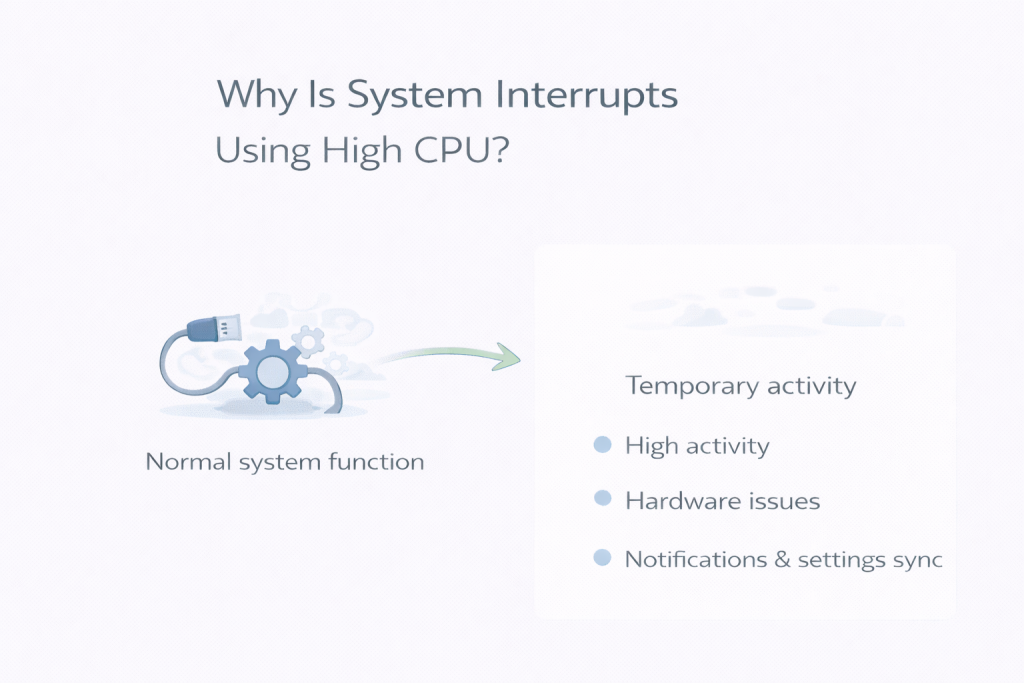
System Interrupts represents hardware signals that need immediate attention from the CPU. These signals come from devices such as:
USB controllers
Network adapters
Storage devices
Graphics hardware
When hardware needs attention, it briefly interrupts the CPU’s current work to handle it. Task Manager groups all of these signals under “System Interrupts”.
What’s Normal Behaviour
Short spikes in CPU usage from System Interrupts are expected, including:
When devices wake from sleep
When drivers communicate with hardware
During brief background checks while the system is idle
If usage rises briefly and then drops back down, this is normal system behaviour.
When It Can Be a Problem
It’s more concerning if:
CPU usage stays high for long periods
Fans run constantly while the PC is idle
The system feels sluggish even during simple tasks
Persistent high usage often points to a driver issue or misbehaving hardware rather than Windows itself.
Why It Feels More Serious Than It Is
Because System Interrupts isn’t tied to a visible app, there’s nothing obvious to blame. That lack of context makes even moderate CPU usage feel mysterious and alarming.
In reality, it’s usually the system quietly handling hardware communication.
Why Task Manager Can Be Misleading
Task Manager shows that interrupts are happening, but it doesn’t show which device caused them. The CPU usage you see is a symptom, not the source.
That’s why System Interrupts can appear problematic even when everything is functioning normally.
What Not to Do
Ending processes won’t help — System Interrupts can’t be stopped. Disabling random services or system components often makes things worse.
If high usage persists, the real fix is usually:
Updating drivers
Disconnecting recently added hardware
Checking for Windows updates
Final Thoughts
System Interrupts using CPU is usually a sign of normal hardware communication, not a fault. Brief spikes are expected and harmless.
If usage settles on its own, no action is needed. If it doesn’t, focusing on drivers and hardware — not Windows itself — is the right place to start.
Seeing Antimalware Service Executable near the top of Task Manager can be unsettling, especially when your PC doesn’t appear to be doing anything. It can feel like the system is working hard for no obvious reason, which naturally leads people to worry that something is wrong.
In most cases, though, this behaviour is completely normal.
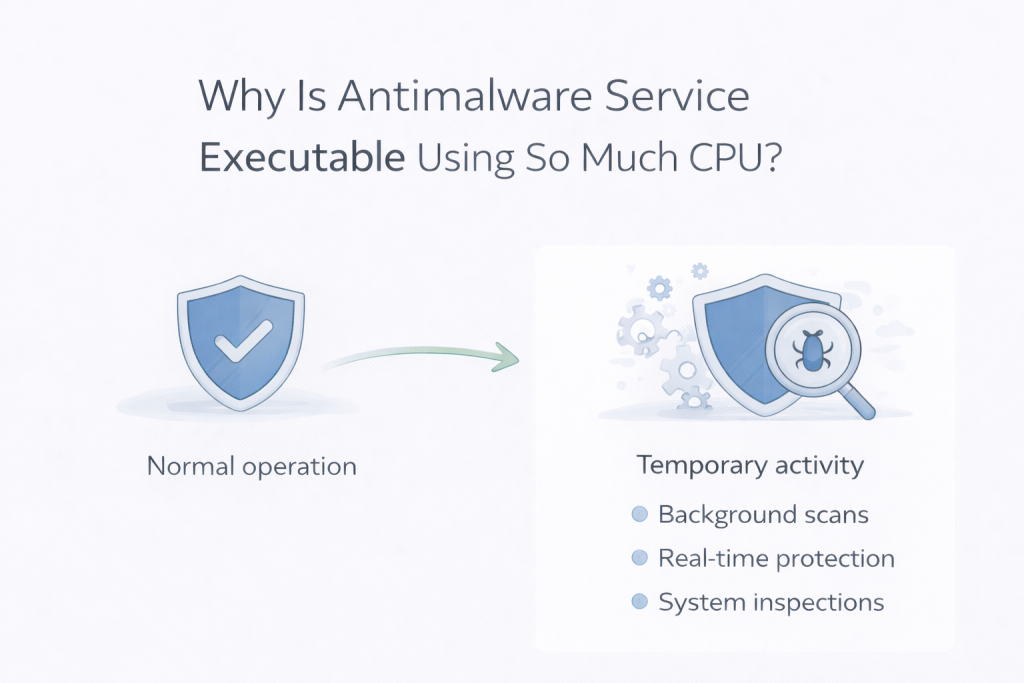
Antimalware Service Executable is part of Windows Defender, Microsoft’s built-in security system. Its job is to scan files, monitor activity, and respond to potential threats. Because these checks can use noticeable system resources, Windows prefers to run them during quiet moments, rather than while you’re actively using the PC.
What’s normal and what isn’t
Short bursts of CPU usage that rise and fall are expected. You’ll commonly see this happen:
Shortly after starting the PC
After Windows updates
When new files are downloaded or accessed
When the system has been idle for a while
What usually matters more than the spike itself is how long it lasts.
If CPU usage drops again after a short time and the system remains responsive, there’s typically nothing to worry about.
It becomes less normal if usage stays high for a long period, fans run constantly even while the PC is idle, or basic tasks feel sluggish long after startup. Duration and system feel matter more than the number you see in Task Manager.
Why it often feels worse than it is
When nothing is open, any background activity stands out. There’s no visible program to blame, so even moderate CPU usage can feel alarming.
Windows uses idle time deliberately. When you stop interacting with the system, Defender takes that opportunity to scan files and check activity without interrupting you later. From your point of view, it looks like the PC suddenly got busy. From Windows’ point of view, it picked the least disruptive moment.
This is why the issue often appears when the system is otherwise quiet.
Why Task Manager can be misleading
Task Manager shows snapshots and averages, not intent.
Defender may briefly spike CPU usage, finish a scan, and then drop back down — all within a short window. If you open Task Manager at the wrong moment, it can look like a sustained problem when it’s actually a temporary task already finishing.
Watching it for a few minutes often shows the usage rise, fall, and disappear without intervention.
Common reasons Defender becomes active
There are several everyday reasons Antimalware Service Executable may suddenly start using more CPU:
Scheduled background scans
Checking newly downloaded or updated files
Re-scanning system files after Windows updates
Catching up on security checks after idle time
None of these automatically indicate a threat. They’re part of routine protection.
When it usually settles down
In most cases, Defender activity completes on its own.
It often settles:
Within a few minutes
After a background scan finishes
Once you start using the PC again
After Windows completes maintenance tasks
Even after larger updates, it usually resolves without action.
When it’s worth looking closer
It may be worth investigating further if:
CPU usage stays high for hours without settling
The system feels slow all the time, not just briefly
Fans run loudly even long after startup
The behaviour happens constantly, every day
In those cases, the issue is usually related to system state or configuration rather than malware itself.
What not to do
It’s tempting to disable Defender or install third-party “security optimisers”. These often cause more problems than they solve and can reduce protection without improving performance.
Avoid force-ending the process, and avoid piling on extra security software unless there’s a clear reason. Defender restarting itself or repeating the behaviour is common and not a sign of failure.
Final thoughts
Antimalware Service Executable using CPU while the system is idle is usually a sign that Windows is working as intended, not that something is wrong.
If usage rises briefly and then settles on its own, the best response is often to leave it alone. Windows is simply using quiet time to keep the system protected — even if it doesn’t always look reassuring while it does it.
Opening Task Manager and seeing most of your RAM already in use can be unsettling, especially if you don’t have many apps open or at idle. It often feels like something must be wrong — or that Windows is using more memory than it should.
In reality, high RAM usage on Windows 11 is often normal. Modern versions of Windows are designed to use available memory aggressively to keep the system feeling responsive. The trick is knowing when that usage is expected, and when it points to a real problem.
How Windows Uses RAM
Windows treats unused RAM as wasted RAM. If memory is available, the system will use it to:
Cache frequently used files
Speed up app launches
Improve overall responsiveness
This means it’s common to see a large percentage of RAM in use even when the system appears idle.
👉 If you’re seeing high usage when nothing is open, this explains why:
Some apps continue using memory even when you’re not actively using them.
Browser tabs
Modern browsers can consume large amounts of RAM, especially with many tabs open.
Memory leaks
Occasionally, a program fails to release memory properly, causing usage to grow over time.
Insufficient RAM
On some systems, particularly with 8GB or less, Windows 11 can simply run out of breathing room.
How to Check What’s Using Your RAM
Press Ctrl + Shift + Esc
Open Task Manager
Click the Memory column
Look for apps using unusually large amounts of RAM
This usually makes the cause obvious.
Simple Ways to Reduce RAM Usage
Close unused apps and browser tabs
Restart the PC to clear accumulated memory usage
Disable unnecessary startup programs
Check for updates to misbehaving apps
If RAM usage drops after a restart, it’s often nothing more than normal buildup.
Do You Need More RAM?
If high memory usage regularly slows your system:
8GB can be limiting on Windows 11
16GB is a comfortable baseline for most users
Heavier workloads may need more
Adding RAM is one of the simplest ways to improve overall performance.
Final Thoughts
Seeing high RAM usage on Windows 11 isn’t automatically a problem. In many cases, it’s a sign the system is using memory efficiently.
If performance is good, there’s usually nothing to fix. If things feel slow or unstable, checking what’s using memory — and how much RAM you have — is the best place to start.
If you’ve opened Task Manager and seen Windows Explorer sitting high on the CPU list, it can be confusing. Explorer isn’t an app you actively “run”, so it’s not always obvious why it would be using noticeable system resources.
In many cases, high CPU usage from Windows Explorer is temporary and harmless. Less commonly, it can point to something in the background that isn’t behaving as it should. Or even windows defender and other background process.
What Windows Explorer Actually Does
Windows Explorer isn’t just the file browser. It’s responsible for a lot of the Windows interface, including:
File Explorer windows
The desktop
The taskbar
File previews and thumbnails
Because of this, Explorer is always running in the background, even if you don’t have any folders open.
Common Reasons Windows Explorer Uses CPU
File thumbnails and previews
When you open folders with lots of images, videos, or documents, Explorer generates previews. This can temporarily push CPU usage up.
Search and indexing activity
Explorer often works alongside Windows Search, especially when you’re browsing large folders or recently changed files.
Context menu extensions
Third-party apps can add options to right-click menus. Some of these extensions are poorly behaved and can cause Explorer to spike CPU usage.
Stuck or corrupted processes
Occasionally, Explorer gets stuck trying to read a file or folder and doesn’t recover properly on its own.
When High CPU Usage Is Normal
Explorer CPU usage is usually nothing to worry about if:
It spikes briefly, then drops
It happens when opening large folders
Performance returns to normal after a short time
This is similar to other cases of high CPU usage when the system is otherwise idle, where background work simply finishes on its own.
Explorer stays near the top of CPU usage constantly
File Explorer feels slow or unresponsive
Fans run loudly even when nothing is open
In those cases, something may be looping or failing in the background.
Simple Things to Try First
Restart Windows Explorer
Open Task Manager
Find Windows Explorer
Right-click → Restart
This often clears stuck behaviour immediately.
Restart the PC
It sounds basic, but it resets Explorer completely and fixes many temporary issues.
Check for Windows updates
Explorer issues are often resolved through system updates, especially after feature updates.
Final Thoughts
Seeing Windows Explorer use CPU can look worrying at first, but it’s often just doing its job. Short spikes are normal, especially when browsing files or opening folders.
If usage doesn’t drop, restarting Explorer or the system usually brings things back to normal without further troubleshooting.
If your Windows 11 PC is supposedly idle but CPU usage sits at 15%, 25%, or higher for more than a moment, something is still doing work.
Sometimes that is normal background maintenance. Sometimes it is a browser, sync app, antivirus scan, vendor utility, or a driver issue hiding behind a vague process name.
Start with Task Manager. Brief spikes are normal. CPU usage that stays elevated for several minutes is the part worth chasing.
What idle CPU usage usually looks like
On a healthy Windows 11 system, idle CPU usage is often in the low single digits. It may jump now and then while Windows checks for updates, indexes files, runs security scans, or syncs data.
That is normal.
It becomes suspicious when:
usage stays high for several minutes
fans ramp up while the PC is doing nothing obvious
the same process keeps returning to the top of the list
it happens every time the system is left alone
Context matters. A fresh Windows install, a PC that just finished updating, or an older laptop with limited cooling can look busier than usual for a while.
Check Task Manager first
Press Ctrl + Shift + Esc to open Task Manager, then sort the Processes tab by CPU.
You are looking for a pattern more than a single snapshot.
One app is clearly using CPU
This is the straightforward case. If a browser, game launcher, chat app, sync client, RGB tool, or antivirus program is using CPU while the machine should be idle, start there.
Common culprits include:
a browser with too many active tabs
a bad browser extension
OneDrive or another sync app processing lots of files
Steam, Discord, or vendor utilities left running in the background
If closing that app drops CPU usage back to normal, you have your answer.
Several background tasks are adding up
Sometimes there is no single obvious offender. Instead, a handful of processes each use a little CPU and together push total usage higher than it should be.
You will see this more often on:
older systems with weaker CPUs
laptops loaded with preinstalled software
PCs just after startup
machines that recently installed updates
A system that launches half a dozen updaters, hardware utilities, chat apps, and cloud sync services is not really idle. It is just being quiet about it.
Windows processes are near the top
If the main activity is coming from processes like these, you are probably looking at maintenance, updates, indexing, or drivers rather than a normal app:
Antimalware Service Executable
Windows Modules Installer Worker
Service Host
SearchIndexer
System
System interrupts
Some of these settle on their own. Some do not.
Windows maintenance can raise idle CPU for a while
A few built-in processes regularly cause temporary CPU use.
Defender scans
If Antimalware Service Executable is active, Microsoft Defender is usually scanning files in the background.
This often happens after:
installing software
a Windows update
large file changes
reconnecting drives or restoring lots of data
On a slower PC, it can take a while. If it settles and does not happen constantly, it is usually just background housekeeping.
Updates still finishing in the background
After Windows updates, Windows Modules Installer Worker or related services may stay active for a while.
This is common after:
monthly Windows updates
feature updates
driver updates delivered through Windows Update
restarts that completed an update in stages
If the system has only recently updated, leave it alone for a bit and check again later.
Indexing and file sync
Search indexing and cloud sync can both make an idle PC look busier than it is, especially if you recently:
moved lots of files
signed into OneDrive or another sync service
reconnected an external drive
set up the PC from scratch
If this activity never settles, look more closely. A sync client stuck retrying the same files or a search index that keeps rebuilding is not normal.
Browsers are frequent offenders
A browser can easily be the reason your “idle” PC is not idle at all.
Look for:
tabs with active video, music, or live content
sites that auto-refresh
web apps left open all day
extensions that inspect traffic or modify pages constantly
If your browser has its own task manager, use it. Otherwise, close tabs and disable extensions in batches until CPU usage drops.
A browser with dozens of tabs, several extensions, and a streaming tab buried somewhere in the background is not exactly resting. It is just pretending.
Some of the more annoying cases show up as Service Host, System, or System interrupts. Those names tell you less than you would like.
Service Host
Service Host is a container for Windows services. On its own, it does not identify the cause.
If one of these entries keeps using CPU:
expand it in Task Manager if you can
see whether update, networking, or audio-related services are involved
restart the PC and check whether the same pattern returns
look for pending Windows updates
If it comes back repeatedly, Windows may be stuck on a service task, or third-party software may be leaning on a Windows service badly.
System
A process named System often points to driver or hardware-related activity rather than a normal user app.
Look at recent changes:
new hardware
a recent driver update
motherboard or laptop control software
VPN software
security software
software for mice, keyboards, audio devices, docks, or capture hardware
Quite a lot of background nonsense comes from perfectly ordinary peripherals and the software that insists on “enhancing” them.
System interrupts
A little activity from System interrupts is normal. Sustained high usage is not.
This can point to:
a faulty or badly behaving driver
a USB device causing trouble
an audio interface or dock
network hardware
BIOS or firmware issues
hardware faults in less common cases
Unplug non-essential peripherals and test again. USB audio devices, docks, capture gear, and odd adapters are good suspects.
Check startup apps
If nothing stands out in Task Manager, look at what launches with Windows.
Open Task Manager > Startup apps and disable non-essential items, then restart and test again.
Pay particular attention to:
game launchers
RGB software
fan-control or motherboard utilities
chat apps
sync tools you do not need immediately
third-party updaters
Do this in stages. Disabling everything at once is efficient, but it also makes it harder to tell what fixed the problem.
This is especially common on prebuilts and older laptops, where the startup list tends to collect software like a kitchen drawer collects cables.
Clean boot testing can help
If the obvious checks do not find it, clean boot testing can help separate Windows itself from third-party background software.
In broad terms, a clean boot starts Windows with Microsoft services enabled while non-Microsoft startup items and services are disabled for testing. If idle CPU usage drops in that state, extra software is the likely cause.
Use this when:
the issue survives restarts
Task Manager does not point clearly to one app
you suspect vendor utilities, security tools, or other background services
It is useful as a later step, not the first thing to try.
Drivers can be the real cause
Driver problems do not always show up neatly. Instead of one obvious app, you may just see elevated usage under System, Service Host, or System interrupts.
Think about what changed before the problem started:
GPU driver update
chipset, network, or audio driver update
new USB device
dock or hub
motherboard control software
BIOS update
On laptops and OEM desktops, it is often safest to check the PC maker’s support page first for the right driver versions. On a self-built desktop, the motherboard or component maker is usually the better place to look. If the issue began immediately after an update, rolling back that specific change may also help.
Power settings and heat are usually secondary
Power plans rarely cause high CPU usage by themselves. They can change how the system behaves, though.
Aggressive performance settings may keep clocks high, which can make the PC run warmer or louder even under light load. That can make an idle problem feel worse, but it does not usually explain sustained high CPU usage on its own.
Heat is similar. Overheating does not normally create CPU activity from nowhere, but poor cooling can make routine background work take longer. Then the system spends more time looking busy while getting less done, which is very much on brand for a struggling laptop.
If the PC is hot, noisy, and sluggish even at idle, check temperatures and cooling condition. Just do not start there unless the symptoms point that way.
When to dig deeper
Most high idle CPU issues are caused by software. A few deserve more serious attention.
Look closer if:
CPU usage stays high after multiple restarts
the same unknown process keeps returning
System interrupts remains unusually high
the PC stutters, freezes, or crashes as well
the issue started after a driver, BIOS, or hardware change
you have reason to suspect malware
If malware is a possibility, run a proper security scan. If the signs point to drivers or hardware, check Device Manager for warnings and review recent hardware or driver changes.
What usually fixes it
Most of the time, high CPU usage at idle on Windows 11 comes down to one of these:
Windows updates or maintenance still running
Defender scanning
a browser tab or extension
cloud sync software working through files
too many startup apps
vendor utilities running in the background
a driver problem showing up under System or System interrupts
If CPU usage drops after a few minutes, leave it alone. If the same process keeps showing up, target that process. If usage stays high and the cause is still unclear, move on to startup cleanup, clean boot testing, and driver checks.
Idle should not mean completely motionless. Windows is always doing something. It just should not be doing quite this much.