
Bitlocker loop
If your PC suddenly keeps booting into Safe Mode, or repeatedly asks for a BitLocker recovery key, it’s understandable to feel worried. It can look like Windows is broken, locked, or stuck in some kind of loop you didn’t cause. Many people fear they’ve lost access to their files or that something serious has gone wrong.
In most cases, though, this situation is Windows reacting to a change, not failing outright. BitLocker and Safe Mode are both designed to protect your system, and sometimes they interact in ways that feel far more dramatic than they actually are.
What’s Normal — and What Isn’t
It’s normal for Windows to ask for a BitLocker recovery key after certain changes. These include system updates, firmware changes, or booting in a way Windows considers unusual. From Windows’ point of view, it’s simply checking that the person starting the PC is authorised.
It’s also normal for Safe Mode to limit what Windows can load. Safe Mode strips things back to the basics so problems can be isolated. That restricted environment is exactly why BitLocker sometimes reacts.
What’s not normal is being permanently locked out with no recovery options, or Windows repeatedly rebooting without explanation. Those cases are much rarer than they feel at first, and they’re usually caused by something specific rather than random failure.
Why This Looks Worse Than It Is
BitLocker problems tend to happen at the worst possible moment — during startup. When something goes wrong at boot, you don’t get the comfort of a familiar desktop or clear error messages. Instead, you’re faced with a stark screen asking for a long recovery key.
That lack of context makes the situation feel far more serious. In reality, Windows is often just being cautious. It has noticed that the system isn’t starting in its usual way and is pausing until it’s confident everything is safe.
Safe Mode adds to that feeling. Because it looks different and behaves differently, it’s easy to assume the system is damaged, even when it isn’t.
Why System Screens and Messages Can Be Misleading
Windows doesn’t explain why BitLocker is triggered in plain language. It simply asks for a recovery key. There’s no message saying “this happened because of an update” or “this is temporary”.
This is similar to how tools like Task Manager can make background activity or CPU usage look alarming during idle time. You see the symptom, but not the reason behind it.
BitLocker screens are the same. They show the security check, not the chain of events that led to it.
Common Underlying Causes (In Plain English)
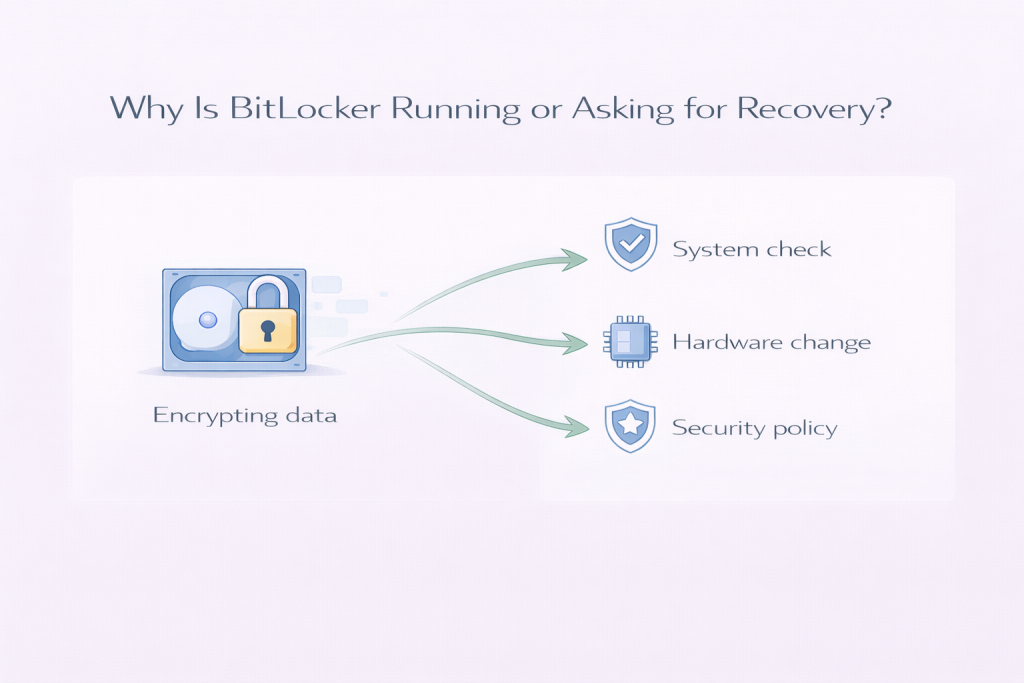
Most BitLocker Safe Mode loops trace back to one of a few situations:
Windows updates or restarts
Large updates sometimes change low-level system components. When Windows restarts afterwards, BitLocker may see that as a meaningful change and ask for confirmation.
Firmware or BIOS changes
Even automatic firmware updates can trigger BitLocker. These updates affect how the computer starts, so Windows checks that nothing suspicious has happened.
TPM and security checks
BitLocker relies on a small security chip to confirm the system hasn’t been tampered with. If that check doesn’t line up perfectly — even briefly — Windows errs on the side of caution.
Safe Mode itself
Safe Mode bypasses many normal startup checks. BitLocker can interpret that as an unexpected boot path and pause until the recovery key is entered.
Repeated failed startups
If Windows doesn’t start cleanly a few times, it may change its boot behaviour. That alone can be enough to trigger BitLocker, even though nothing is actually broken.
None of these mean your files are damaged. They mean Windows is being conservative.
When It Usually Settles Down on Its Own
In many cases, once the recovery key is entered and Windows is allowed to start normally, the issue does not return. BitLocker recognises that the system is intact and resumes normal operation.
If the trigger was an update or one-off change, things often settle after:
- One or two successful boots
- Completing background setup tasks
- Returning to a normal startup instead of Safe Mode
This can take minutes, or sometimes a day or two if Windows is finishing background activity related to updates.
When It’s Worth Investigating Further
It’s reasonable to dig deeper if:
- The recovery key is requested every single boot
- You cannot reach normal Windows at all
- The system re-enters Safe Mode without you asking it to
- The same screen appears even after successful startups
These patterns suggest something is repeatedly changing or failing during startup. That doesn’t mean disaster, but it does mean Windows isn’t getting the “all clear” it expects.
What Not to Do
This is where many people make things worse, usually out of frustration or panic.
Don’t disable BitLocker blindly
Turning off security features without understanding the situation can create new problems, especially if Windows is mid-update.
Don’t repeatedly force restarts
Hard power-offs can make Windows think the system is unstable, reinforcing the loop.
Don’t reset or reinstall immediately
Data loss often happens because people assume the system is unrecoverable when it isn’t.
Don’t follow “bypass” advice from random forums
Anything suggesting you defeat encryption or skip security checks is risky and often outdated.
In most cases, patience and clarity work better than drastic action.
A Calm Takeaway
A BitLocker Safe Mode loop looks intimidating, but it’s usually a sign of Windows protecting itself, not falling apart. The system is pausing because something changed, not because your data is gone.
If the PC starts normally after a recovery key and stays stable, the safest response is often to let things finish in the background and keep an eye on it. If it doesn’t settle, that’s when a more careful investigation makes sense — not panic.
Windows can be blunt and unhelpful in how it communicates problems, but most of the time, it’s acting cautiously rather than catastrophically.
Leave a Reply