
Windows Search Indexer often shows up in Task Manager at exactly the moment you expect your PC to be doing nothing. Seeing it use CPU while the system looks idle can make it feel like something is constantly running in the background.
In a sense, that’s true — but it’s usually intentional and harmless.
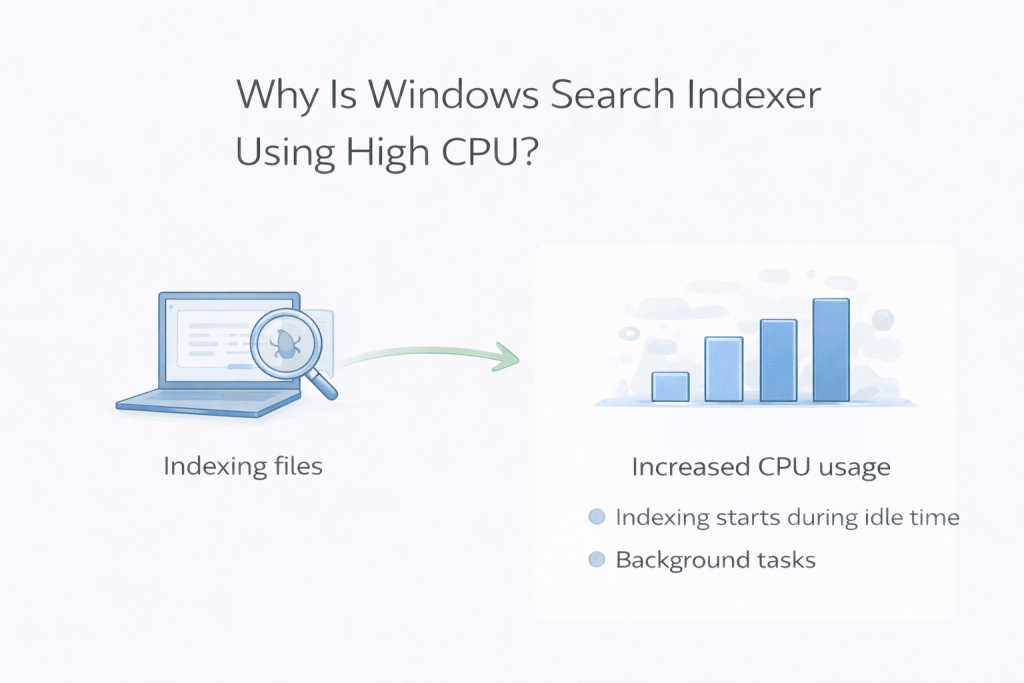
Windows Search Indexer exists to make searching fast and reliable. To do that, it scans files and keeps an index of what’s on your system. Windows deliberately runs much of this work during idle time so it doesn’t slow you down while you’re actively using the PC.
What’s Normal and What Isn’t
It’s completely normal to see higher CPU usage from Windows Search Indexer:
- After adding, moving, or editing lots of files
- After Windows updates
- On a new or recently reset system
In these cases, indexing activity should rise for a while, then gradually settle down once the scan completes.
It’s more concerning if indexing appears to never finish and CPU usage stays high for many hours, especially when nothing on the system has changed.
Why It Often Feels Worse Than It Is
Indexing doesn’t run continuously. It works in short bursts, pauses, then resumes. When the PC looks idle, those bursts stand out more than they would during normal use.
Because there’s no visible app causing the activity, it can feel unnecessary — even though it’s improving future search performance behind the scenes.
Why Task Manager Can Be Misleading
Task Manager shows what’s happening right now, not the overall impact. Windows Search Indexer may briefly jump to the top of the list, then drop back down moments later.
A quick spike doesn’t mean your system is under strain. What matters more is whether usage steadily declines over time.
How Long Indexing Usually Takes
Most indexing tasks finish within minutes on smaller systems. On PCs with lots of files — or after major updates — it can take longer, sometimes a few hours.
Once indexing completes, CPU usage typically returns to normal without any intervention.
What Not to Do
Disabling Windows Search Indexer entirely often causes more frustration than it solves. Searches become slower and less reliable, and Windows may still attempt partial indexing in the background.
In most cases, the best option is simply to let indexing finish.
Final Thoughts
Windows Search Indexer using CPU while the system is idle is usually a sign that Windows is doing routine background work. If usage drops on its own, everything is working as intended.
If it doesn’t, that’s the point where further investigation makes sense — but for most people, patience is all that’s needed.
Leave a Reply